Inkwell:
write beautifully.
Without fighting your document.
A free word processor for Windows with a Windows 11 look and no ribbon.
It opens and saves Word documents (.docx) directly, keeps what it doesn't edit, and fixes the things that make word processors frustrating: pictures that jump, lists that number themselves wrongly, pastes that drag in someone else's fonts, mystery blank pages and autocorrect you can't undo.
The engine (.docx, layout, editing, formats, PDF, citations) and the app's shortcuts and settings, on .NET 10 and .NET Framework 4.8
Values Word counted the same as Inkwell (pages, words, tables, pictures, notes and more) in 9 documents
Median keystroke, edit and relayout included, in a 301-page document on .NET 10 (measured with 1.0.0)
Everyone who writes in a word processor has fought it: a picture that jumps to the next page, a list that starts at 4, a paste that brings someone else's fonts, and a blank page at the end that won't go away.
Inkwell is the word processor I wanted instead. It opens and saves Word documents directly, so it works with everyone who uses Word, and it looks like a modern Windows 11 app. Most of all, it fixes those fights one by one, and it tells you what it's doing: when autocorrect or a paste changes something, a small chip says so, and Ctrl+Z takes it back.
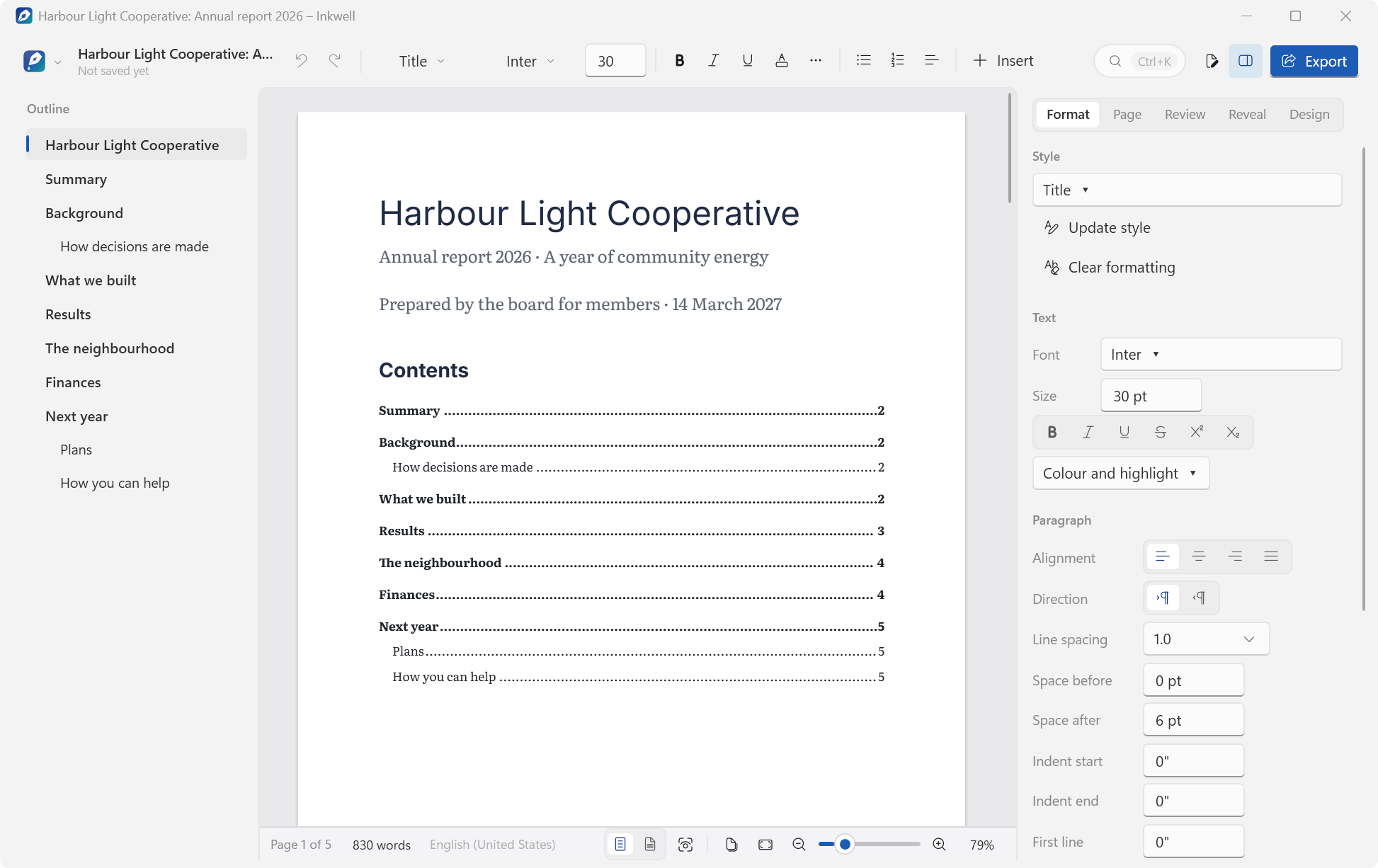
There's no ribbon. A slim command bar holds what you use all the time: undo and redo, the paragraph style, font and size, bold, italic, underline and colour, lists and alignment, picture, table, link and comment, Insert for the rest, a search box for commands, Review, and Export. The Inkwell button at its left opens the menu (Alt+F): new, open, save, export, print, version history, document properties and settings. On a narrower window the bar shortens in whole steps instead of cutting labels off. The outline of your headings sits on the left, the pages in the middle, and on the right a panel whose first tab follows what you're doing (Format, or Picture when a picture is selected, or Table inside a table), followed by Page, Review, Reveal and Design. The status bar shows the page, a live word count, the language, and the views.
Beautiful
by default.
A new document starts from the start screen, with eight templates: blank document, report, letter, résumé, essay, proposal, meeting notes and newsletter. Each one is a real document with sensible styles, not a page of instructions to delete.
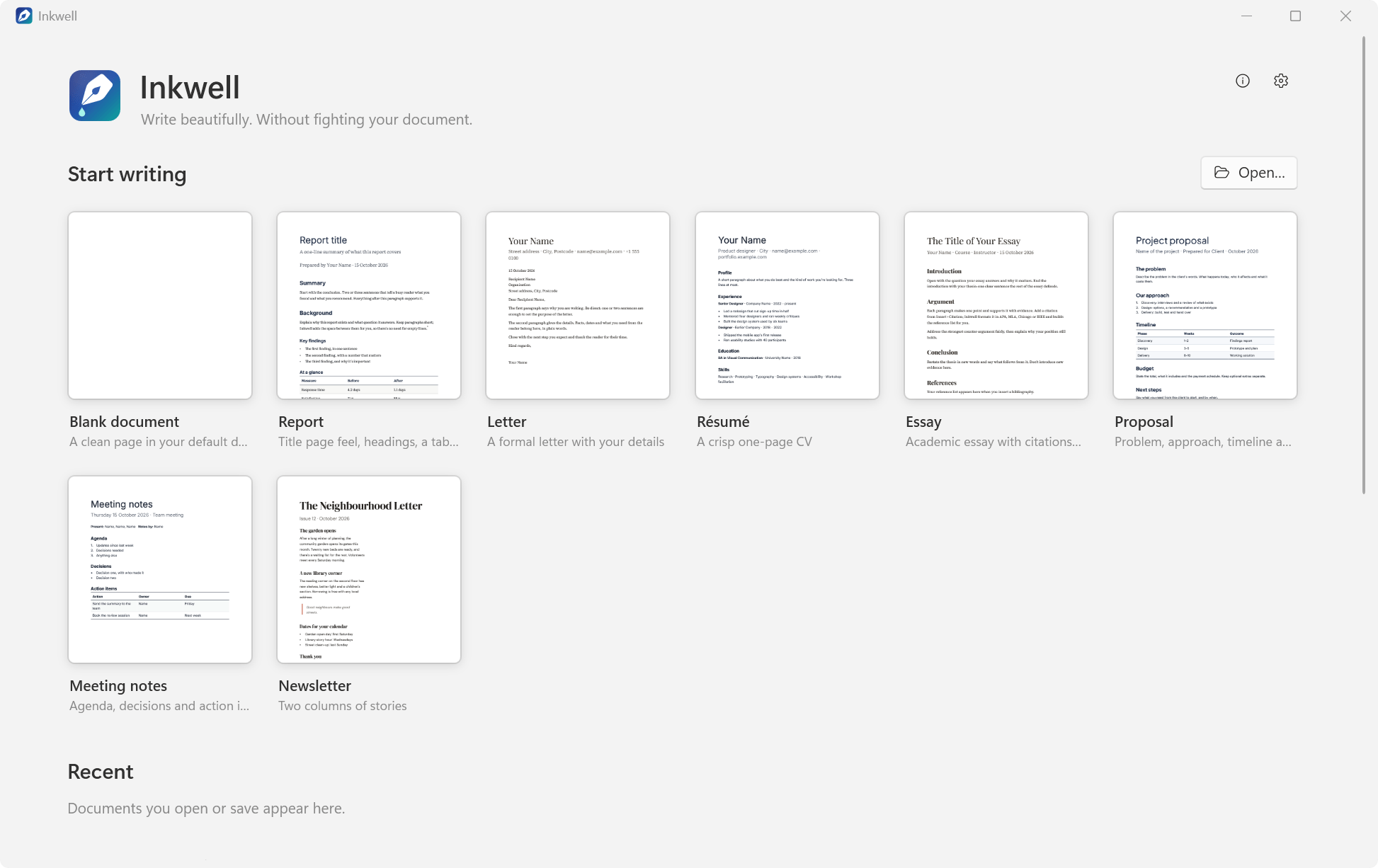
A clean page in your default design
Title page feel, headings, a table and notes
A formal letter with your details
A crisp one-page CV
Academic essay with citations and references
Problem, approach, timeline and budget
Agenda, decisions and action items
Two columns of stories
A document's look comes from its design: fonts, colours and heading styles at once. There are six: Inkwell (Literata for reading, Inter for headings), Modern (clean sans-serif throughout), Classic (Source Serif with Playfair Display headings), Editorial (DM Serif Display headings with DM Sans), Technical (Plus Jakarta Sans, Inter and JetBrains Mono) and Universal (Calibri and Cambria: looks the same everywhere). Switch the design in the Design tab and every heading and paragraph that follows the styles changes with it. The styles themselves are a small, clear set: Title, Subtitle, Heading 1, Heading 2, Heading 3, Body, Quote, Caption and Code. Make a paragraph look the way you like and Update style makes the style match it.
The type comes with it. Inkwell bundles 11 font families under the SIL Open Font License: Literata, Source Serif 4, Inter, Playfair Display, DM Serif Display, DM Sans, Plus Jakarta Sans, Space Grotesk, JetBrains Mono, Noto Naskh Arabic and Noto Nastaliq Urdu. It loads them privately from its own folder and never installs them into Windows. Inkwell's designs turn on kerning and ligatures, and the layout keeps widows and orphans away, keeps headings with the paragraph that follows, and autocorrect types proper quotes and dashes.
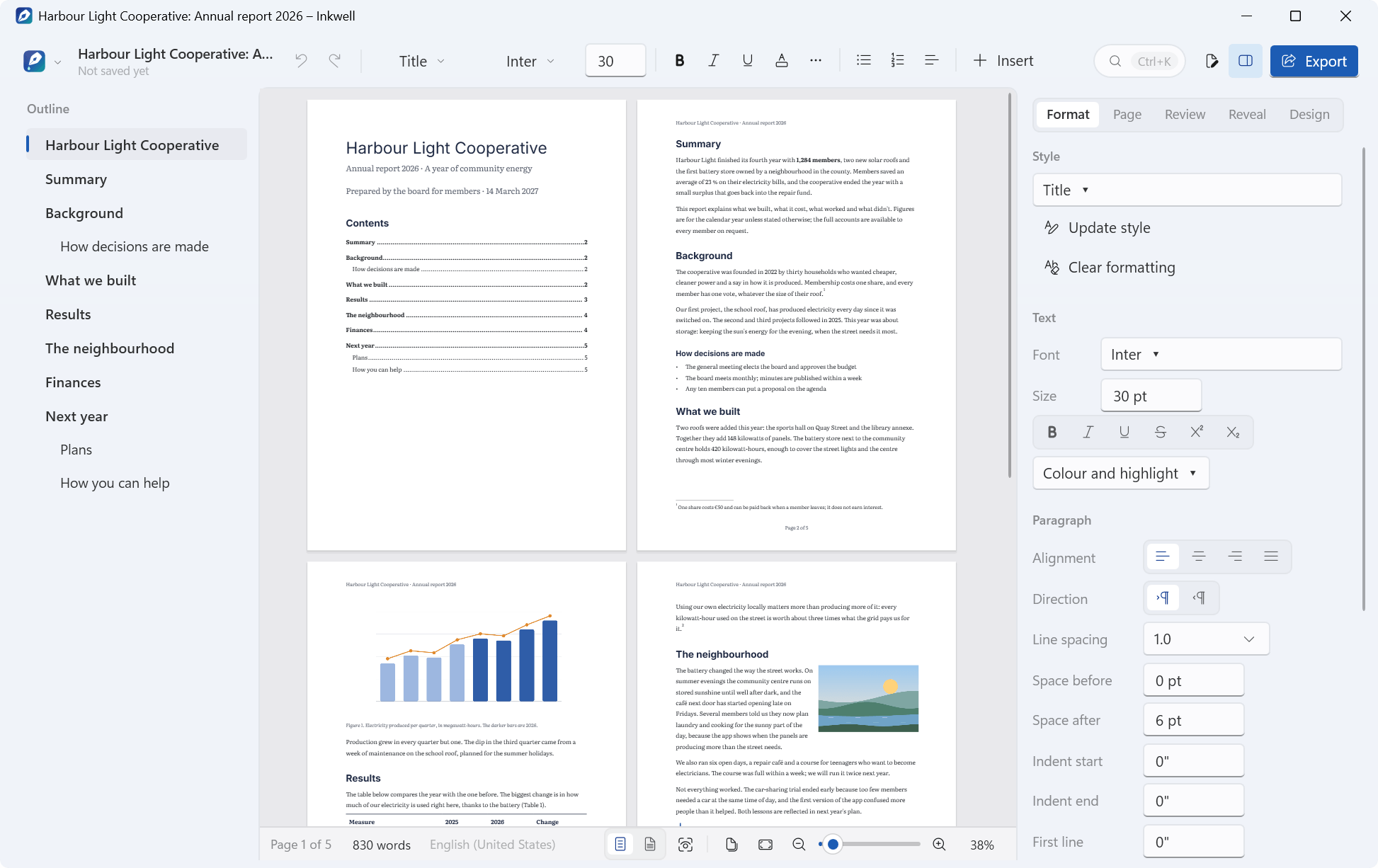
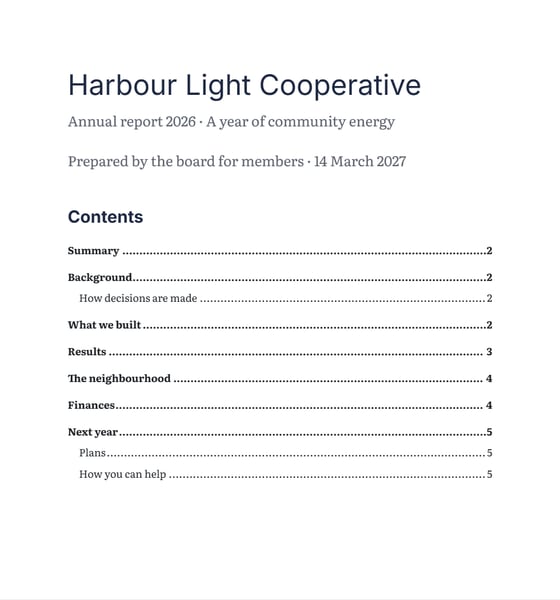 Annual reportContents, figures with captions, a table, footnotes and a floating picture
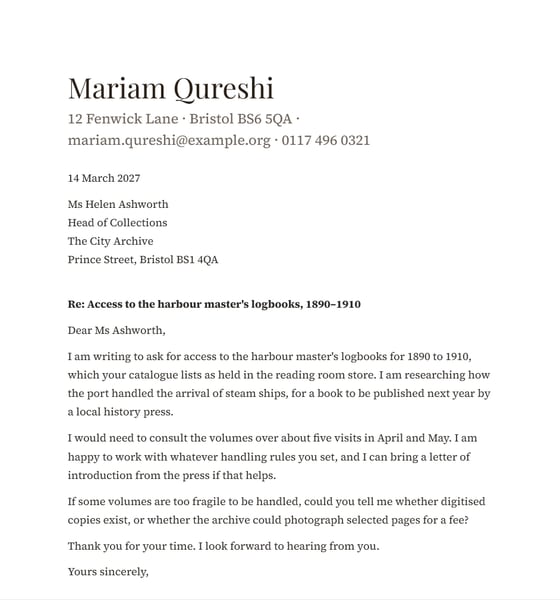 LetterA formal letter in the Classic design
 RésuméA CV in the Modern design, with a floating portrait
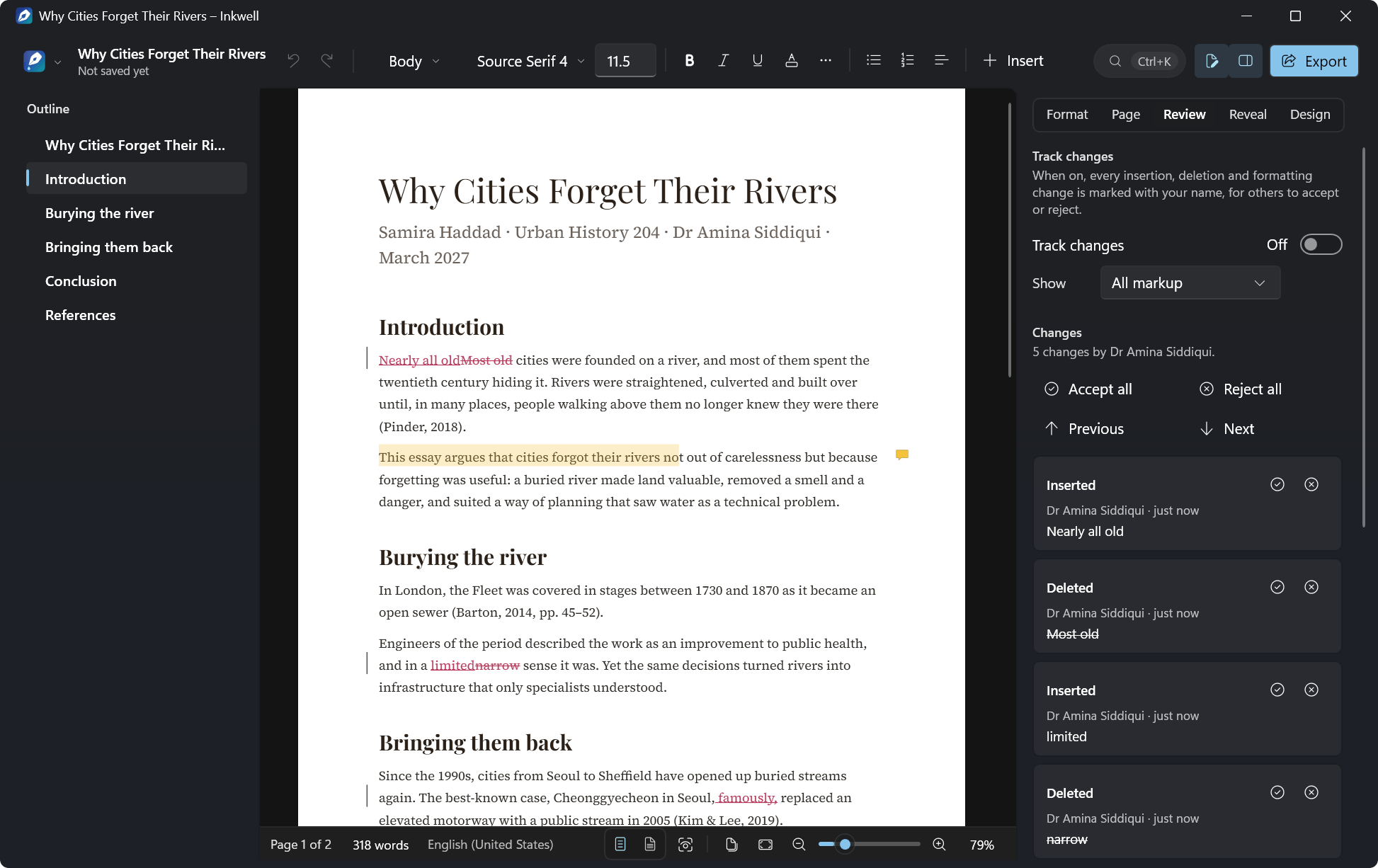
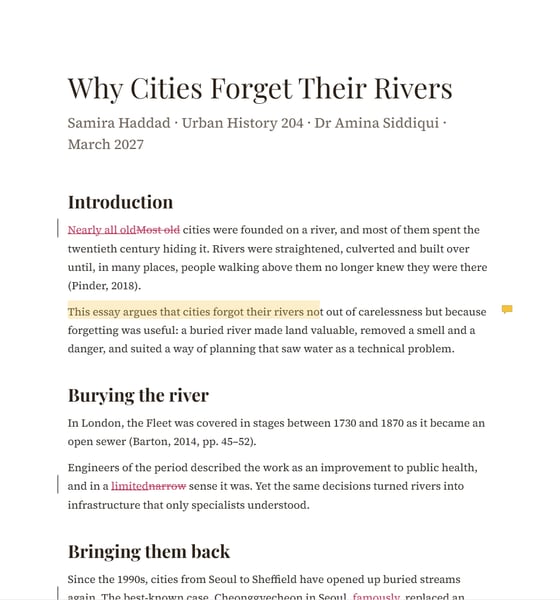 Essay with citationsAPA citations, comments with a reply and tracked changes
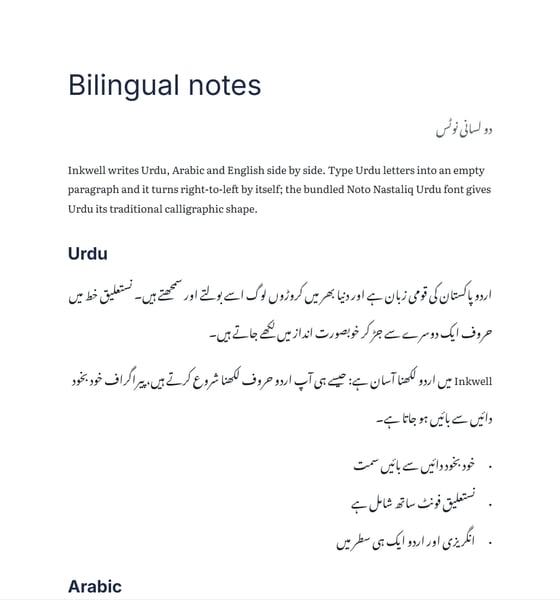 Urdu and EnglishUrdu, Arabic and English in one document
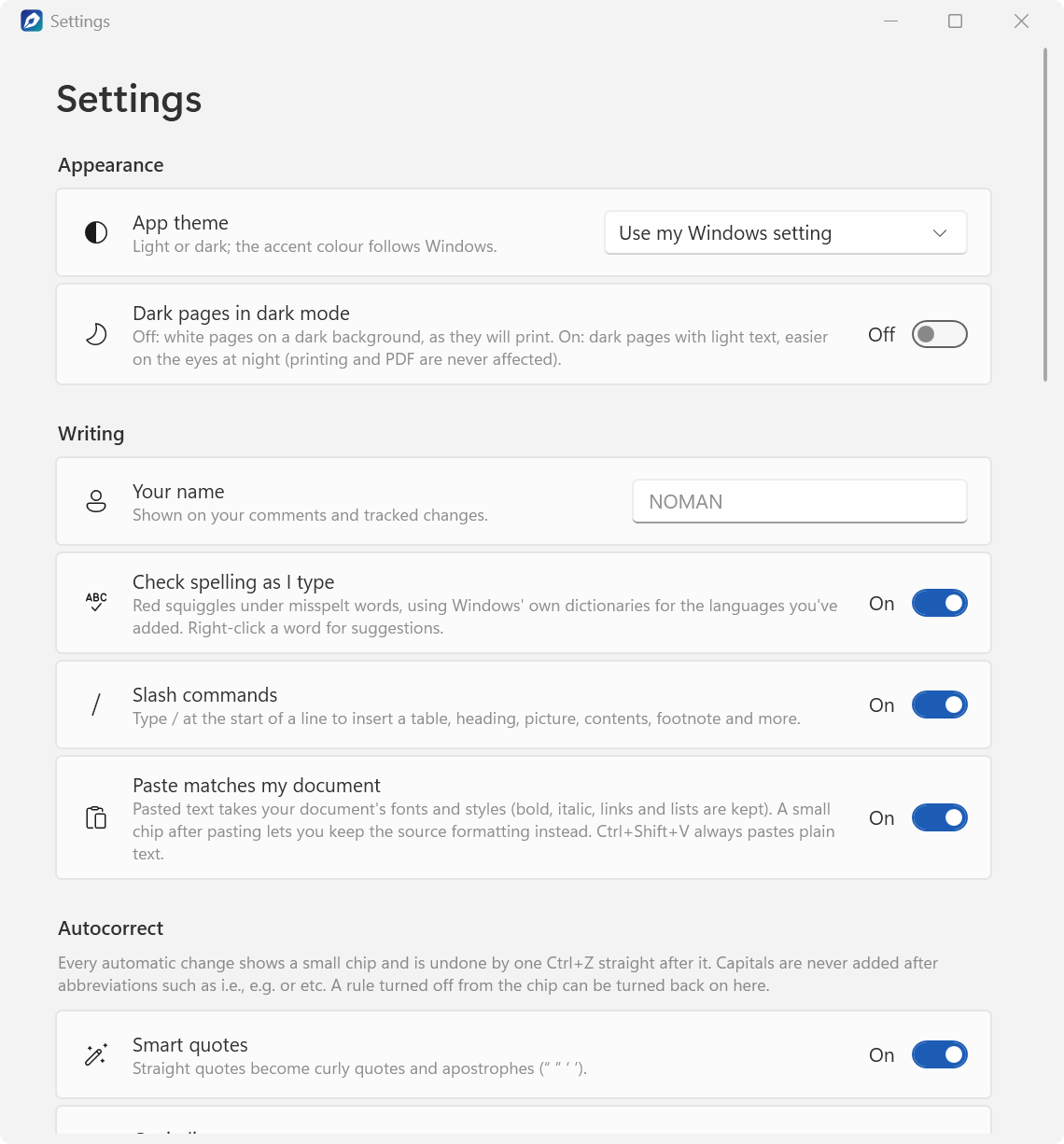
Inkwell follows Windows' light or dark mode and your accent colour. In dark mode the pages stay white, as they'll print, unless you switch on Dark pages in dark mode in Settings (printing and PDFs are never affected).
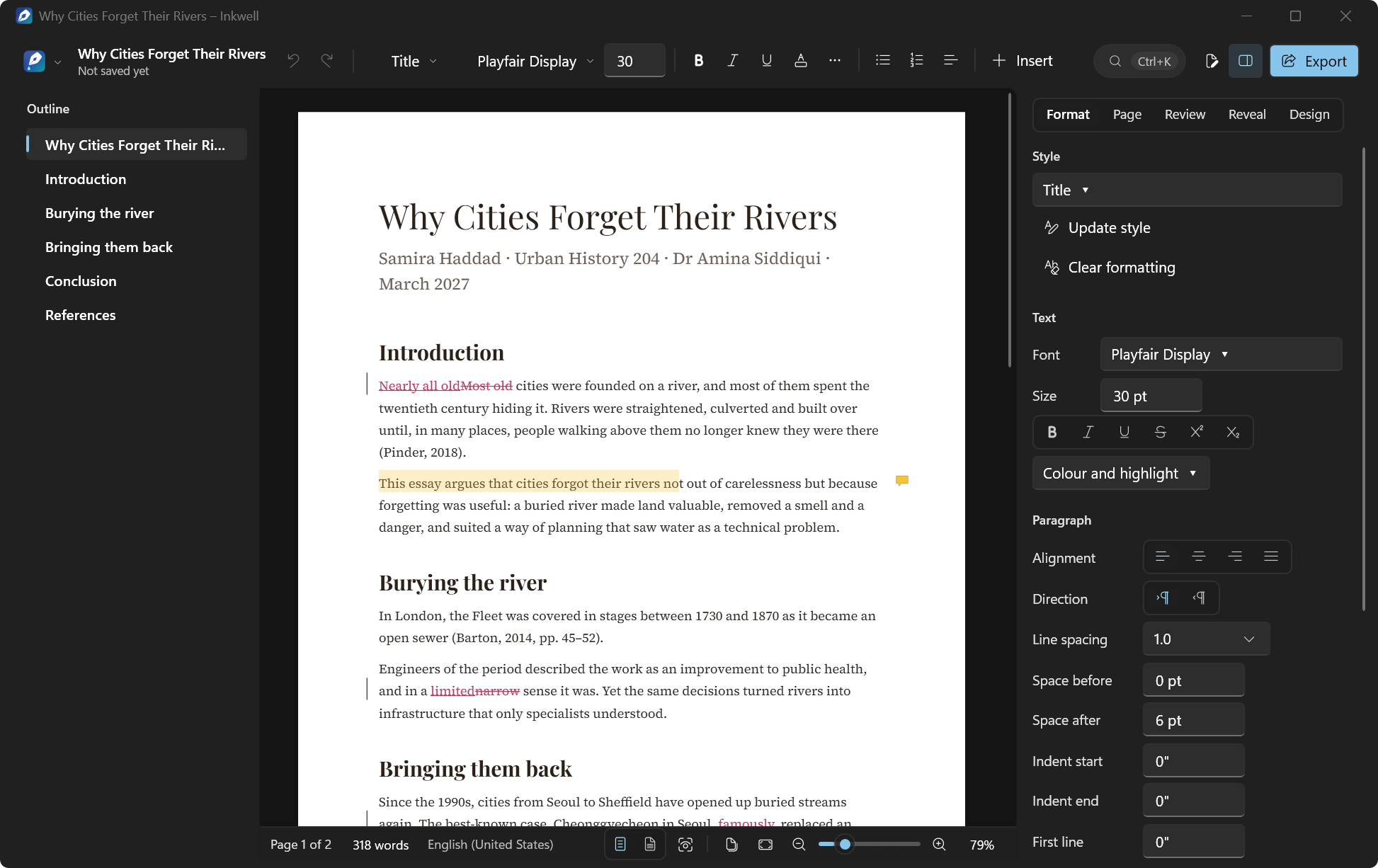
Keep typing.
Inkwell keeps up.
Commands are one search away. Press Ctrl+K and type: the command palette finds commands, styles, designs, templates and the document's own headings, and Enter runs what you picked.
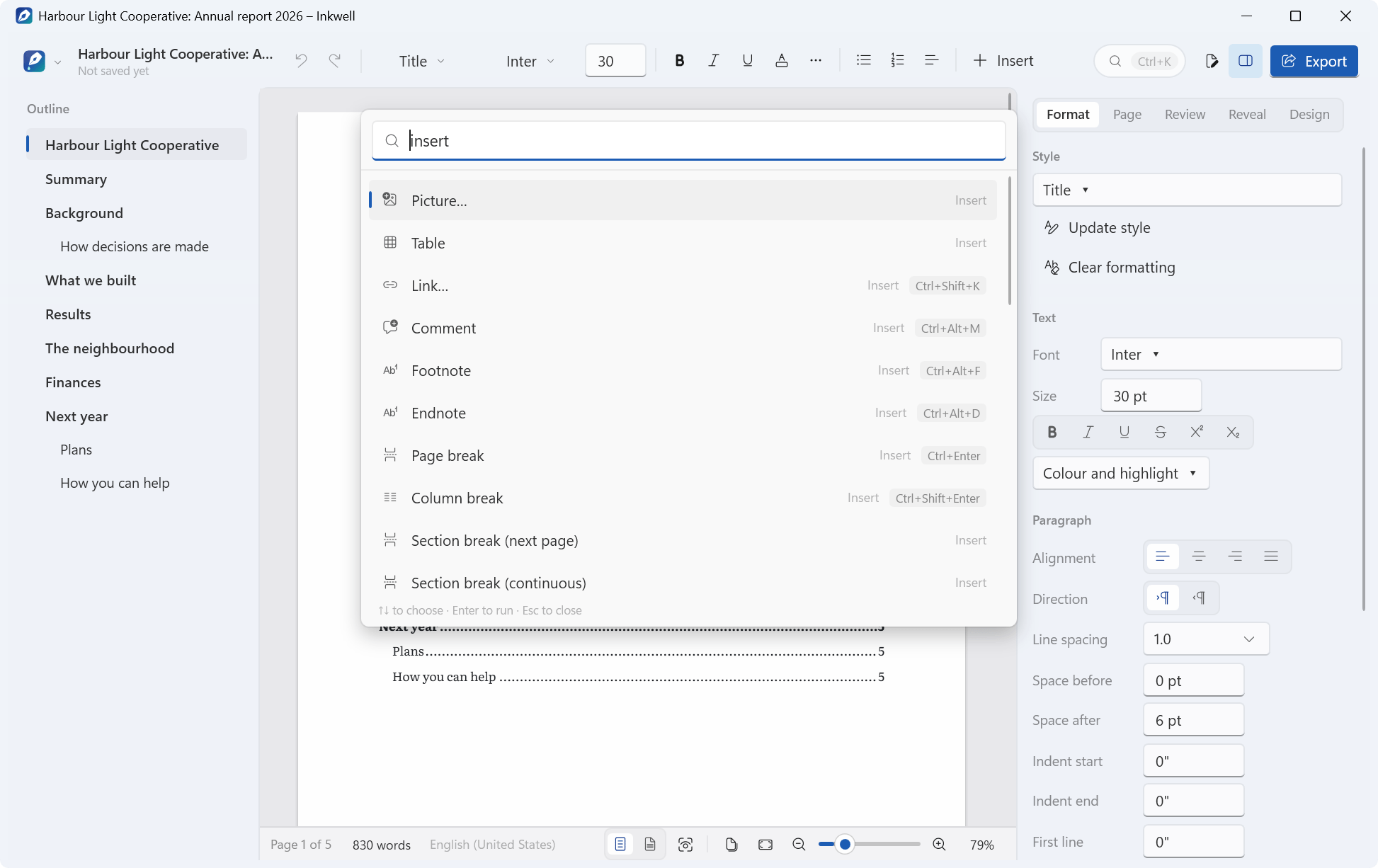
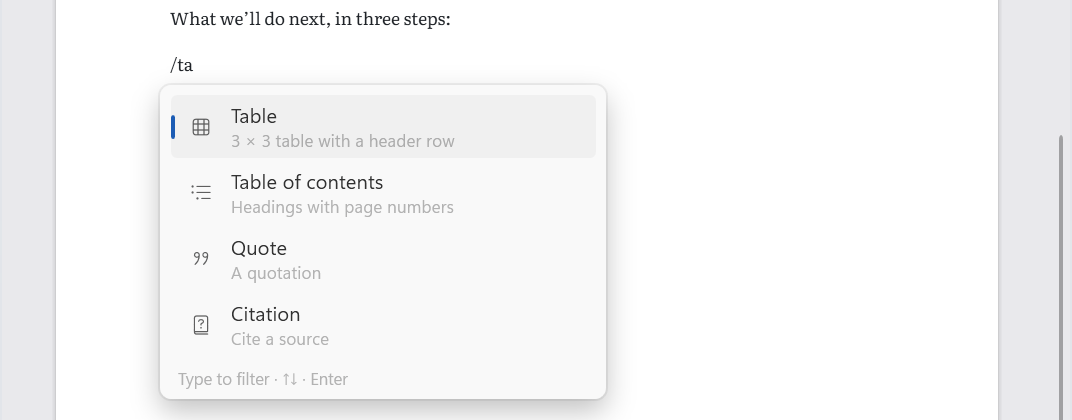
Or type / at the start of a paragraph, or after a space, for the slash menu: Heading 1, Heading 2, Heading 3, table, picture, bulleted list, numbered list, table of contents, footnote, endnote, page break, quote, code, divider, date, link, comment, caption, citation, bibliography, section break and symbol. Keep typing to filter, and Enter or Tab inserts it.
Markdown shortcuts work as you type, at the start of a paragraph or around a word. Each one is its own undo step, so if you meant the characters, one Ctrl+Z puts them back.
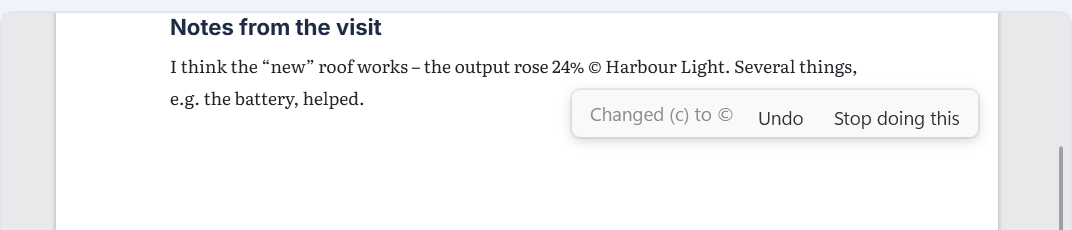
Autocorrect you can see. Its rules are smart quotes, capitalize sentences, capital I, symbols, ellipsis, dashes, arrows, fractions, superscript ordinals, fix TWo INitial CApitals, Markdown paragraphs and Markdown formatting, all on except superscript ordinals. When one changes what you typed, a small chip says what it did and offers Undo and Stop doing this; Ctrl+Z right after it does the same as Undo. It never adds a capital after “i.e.”, “e.g.”, “etc.” and nearly sixty other abbreviations, and every rule, the Markdown ones included, has its own switch in Settings › Autocorrect, so a rule you stopped from the chip can be turned back on. A correction made as you press Enter shows its chip too, and one Ctrl+Z straight after it puts back what you typed.
The rest of the everyday tools are there too. The format painter (Ctrl+Shift+C) copies the formatting at the caret onto the next text you select. Find and replace (Ctrl+F, Ctrl+H) has match case, whole words and regular expressions, and by default also searches footnotes and endnotes, comments, and headers and footers. Spelling is checked as you type with Windows' own spell checker, in each paragraph's language: right-click a marked word for suggestions, or press F7 to go to the next one. It needs Windows 8 or later, so thereIt needs Windows 8 or later, so the Windows 7 edition goes without.apos;s no spell checking on Windows 7.

Twelve fights.
Twelve fixes.
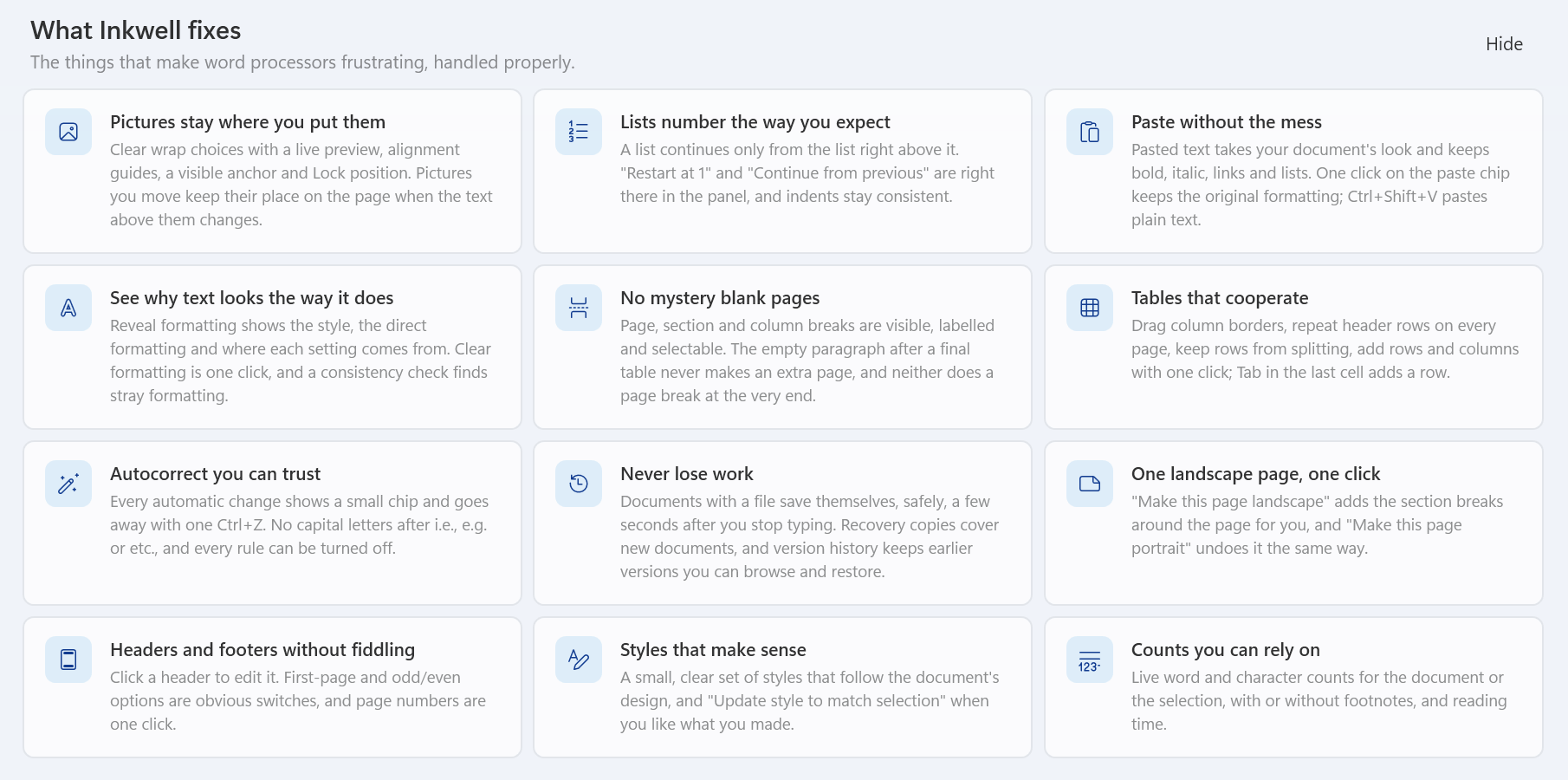
The start screen ends with a tour called What Inkwell fixes: twelve of the things that make word processors frustrating, and what Inkwell does about each. Here they are in the app's own words, followed by how each one works.
- 01Pictures stay where you put them
Clear wrap choices with a live preview, alignment guides, a visible anchor and Lock position. Pictures you move keep their place on the page when the text above them changes.
- 02Lists number the way you expect
A list continues only from the list right above it. "Restart at 1" and "Continue from previous" are right there in the panel, and indents stay consistent.
- 03Paste without the mess
Pasted text takes your document's look and keeps bold, italic, links and lists. One click on the paste chip keeps the original formatting; Ctrl+Shift+V pastes plain text.
- 04See why text looks the way it does
Reveal formatting shows the style, the direct formatting and where each setting comes from. Clear formatting is one click, and a consistency check finds stray formatting.
- 05No mystery blank pages
Page, section and column breaks are visible, labelled and selectable. The empty paragraph after a final table never makes an extra page, and neither does a page break at the very end.
- 06Tables that cooperate
Drag column borders, repeat header rows on every page, keep rows from splitting, add rows and columns with one click; Tab in the last cell adds a row.
- 07Autocorrect you can trust
Every automatic change shows a small chip and goes away with one Ctrl+Z. No capital letters after i.e., e.g. or etc., and every rule can be turned off.
- 08Never lose work
Documents with a file save themselves, safely, a few seconds after you stop typing. Recovery copies cover new documents, and version history keeps earlier versions you can browse and restore.
- 09One landscape page, one click
"Make this page landscape" adds the section breaks around the page for you, and "Make this page portrait" undoes it the same way.
- 10Headers and footers without fiddling
Click a header to edit it. First-page and odd/even options are obvious switches, and page numbers are one click.
- 11Styles that make sense
A small, clear set of styles that follow the document's design, and "Update style to match selection" when you like what you made.
- 12Counts you can rely on
Live word and character counts for the document or the selection, with or without footnotes, and reading time.
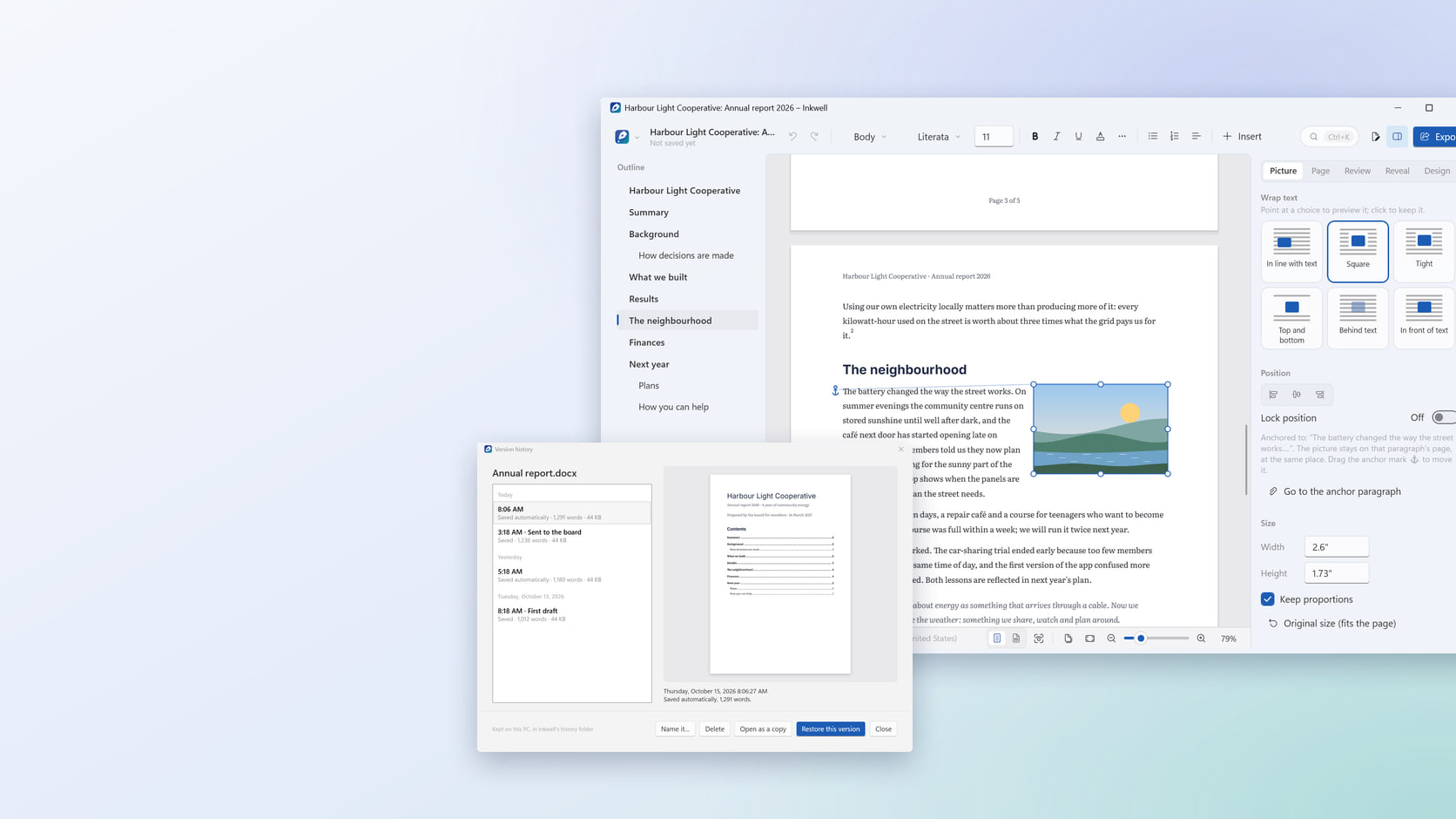
Pictures stay where you put them. Select a floating picture and the Picture tab offers six wrap choices: In line with text, Square, Tight, Top and bottom, Behind text and In front of text. Point at one and the page shows the result; click to keep it. A floating picture shows an anchor mark ⚓ with a dotted line to its paragraph, and you can drag the mark to another paragraph. The picture's position is kept relative to the margins on its anchor paragraph's page, so typing above it doesn't push it around, and Lock position stops it being dragged by accident.
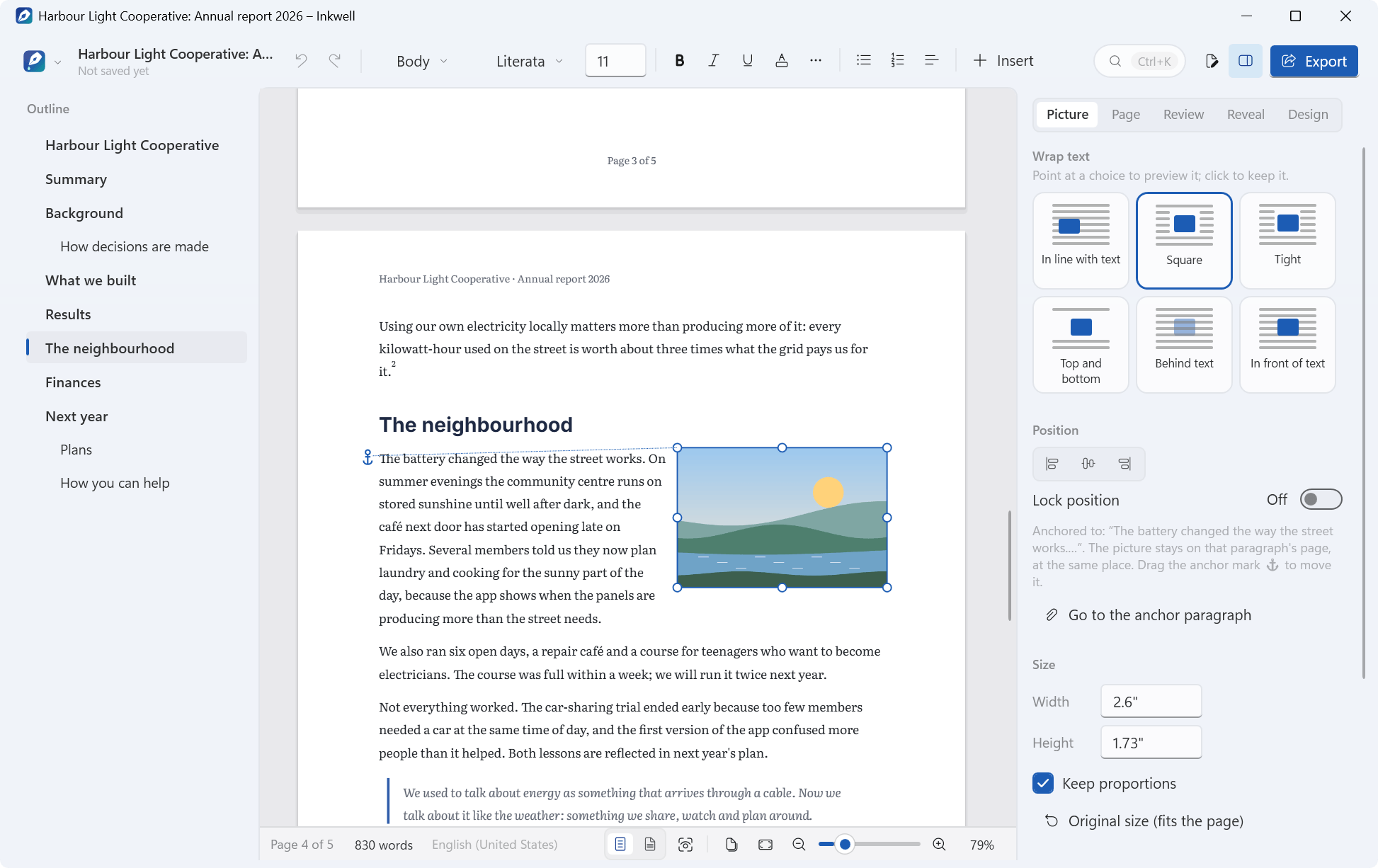
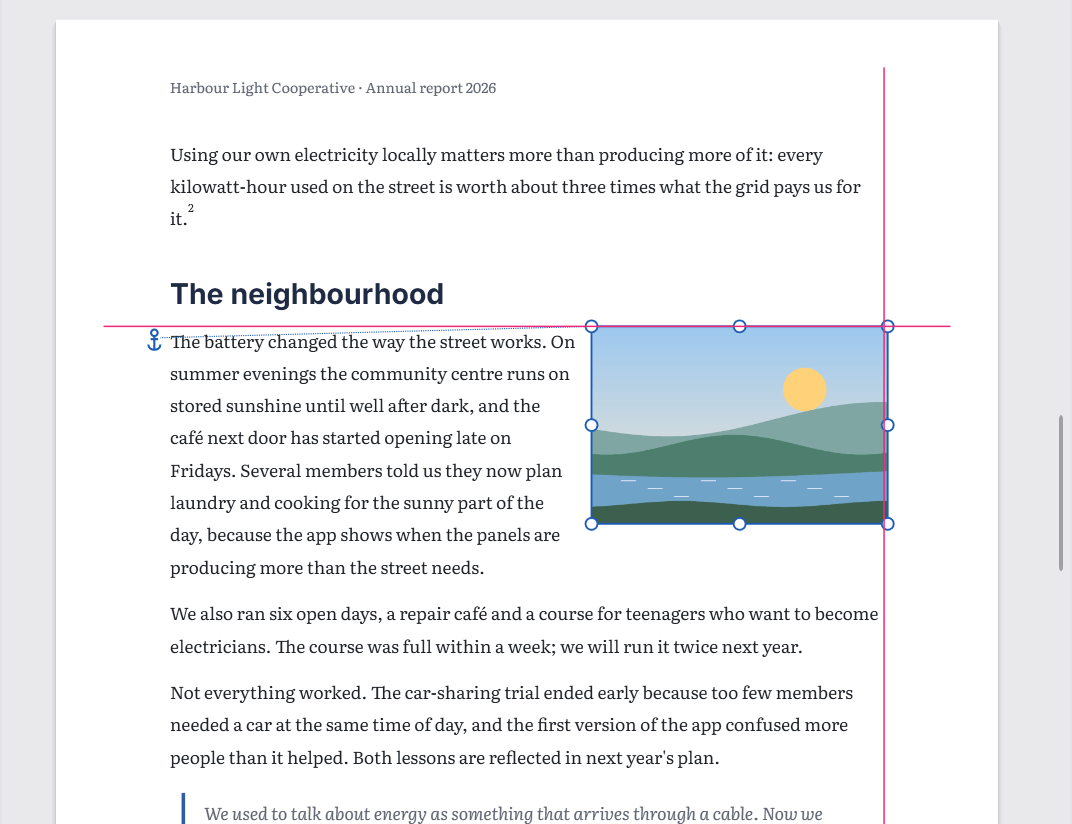
While you drag a picture, guides snap its edges and centre to the margins, the centre of the page and of the column, and the top and bottom of the text area; hold Alt to drag freely. Tight wrapping is laid out like square in this version.
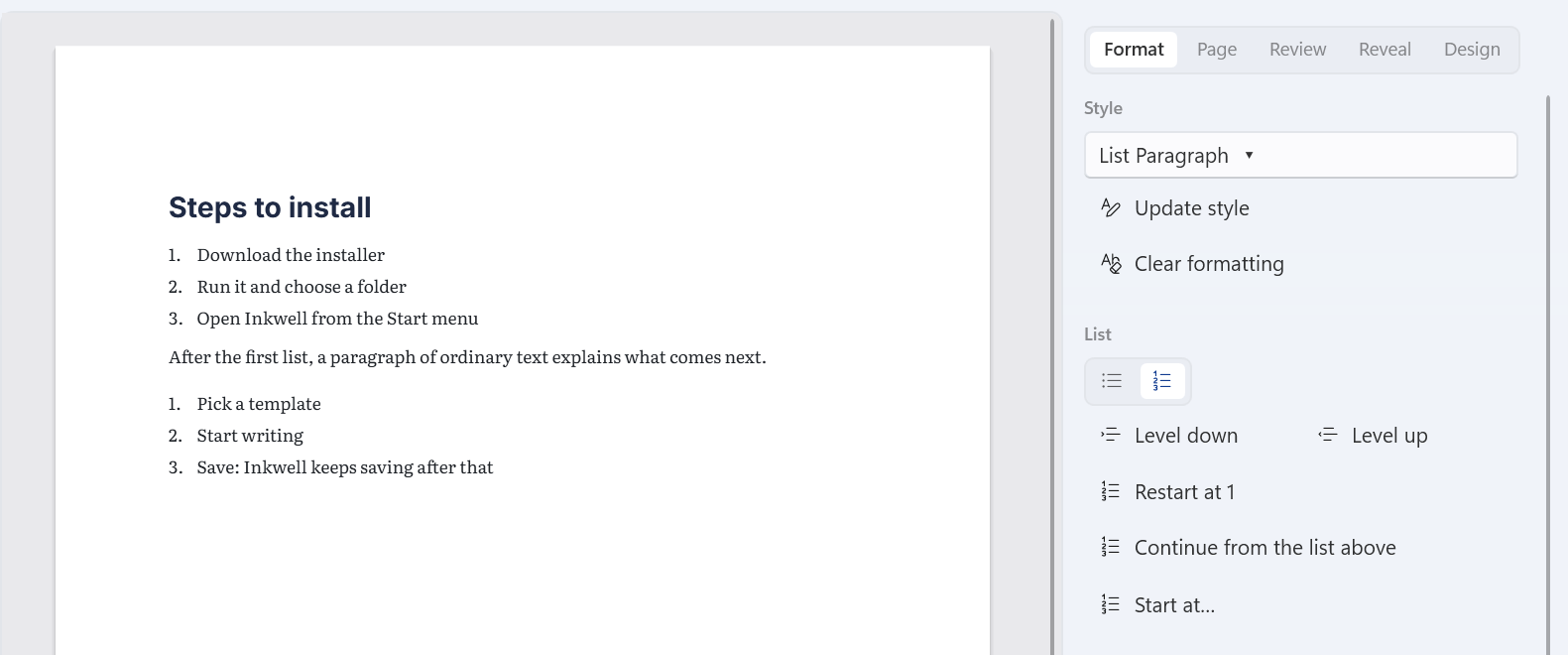
Lists number the way you expect. Turn on numbering and the new list continues only if the paragraph right above it is the same kind of list; otherwise it starts at 1. When you want something else, the panel has Restart at 1, Continue from the list above (it joins the nearest earlier list of the same kind) and Start at…, and the right-click menu and the palette have all three.
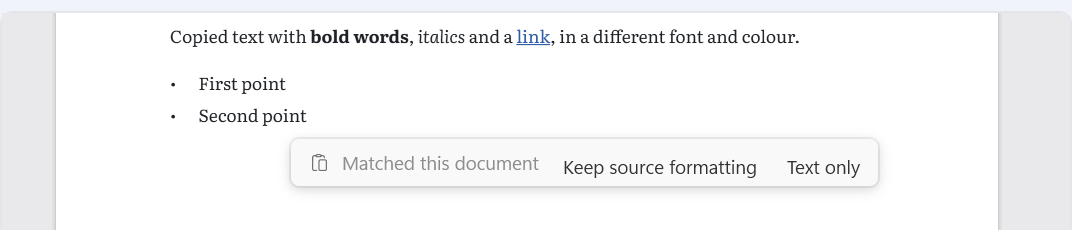
Paste without the mess. Pasted text takes your document's fonts and styles, but keeps bold, italic, underline, links, headings, quotes, lists and tables. When it comes from another document or app, a chip offers Keep source formatting or Text only. Ctrl+Shift+V always pastes plain text, and Ctrl+Alt+V keeps the source formatting.
See why text looks the way it does. Shift+F1 opens the Reveal tab: every paragraph and text setting at the caret, and where it comes from (formatting set directly on the text, a style and which one in its chain, a character style, the list, or the document's defaults). Under it, Tidy up clears character formatting, clears everything back to the style, or updates the style to match.
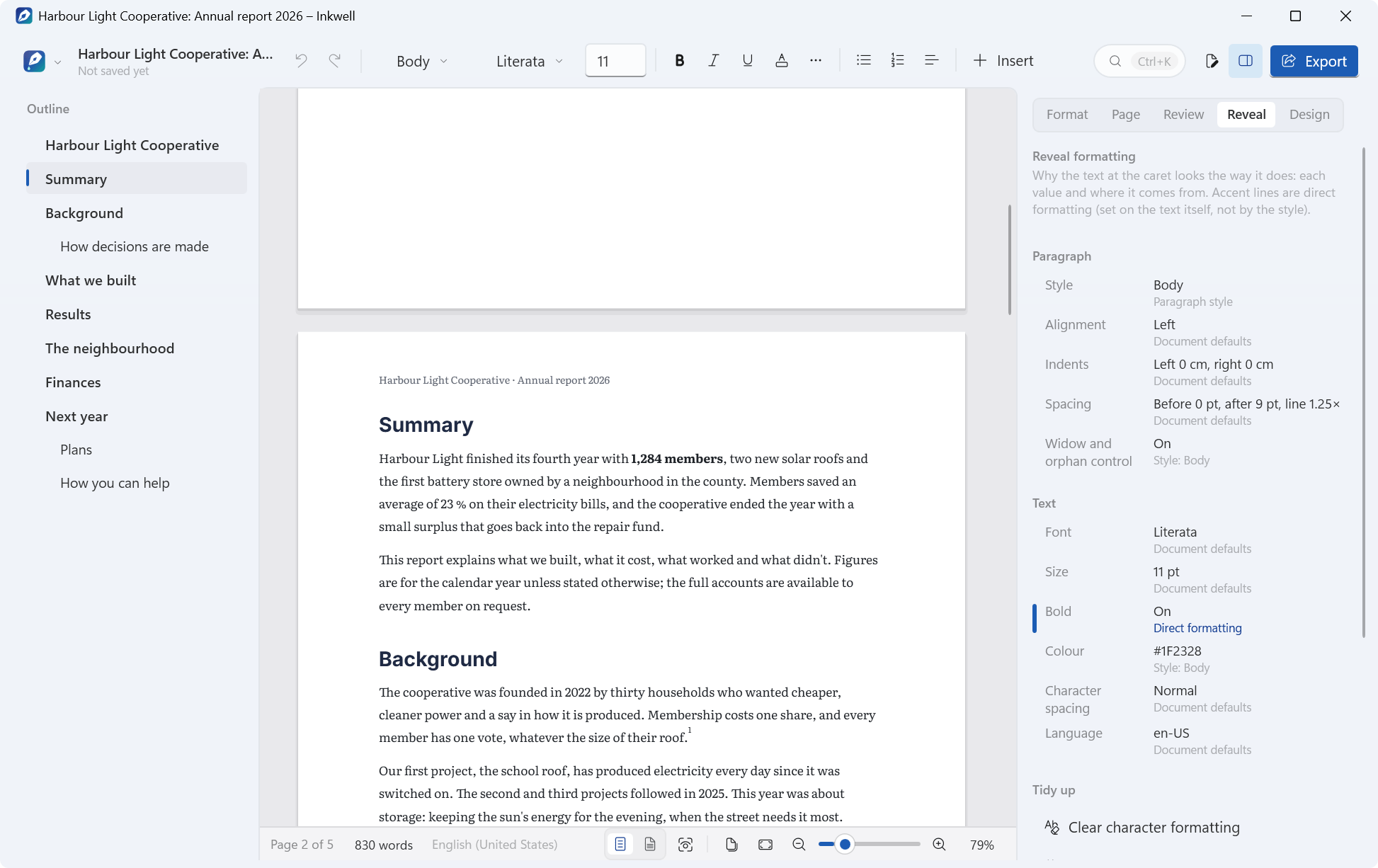
The style consistency check then looks through the whole document for text with its own font, size or colour, lines that look like a heading but are body text, lines that start with a typed number or bullet, extra empty lines used for spacing and body paragraphs with their own spacing or indents, with a Show button and a one-click fix for each: “Use the styles’ fonts”, “Make them Heading 2”, “Turn into lists”, “Remove the extra empty lines” and “Use the style’s spacing”.
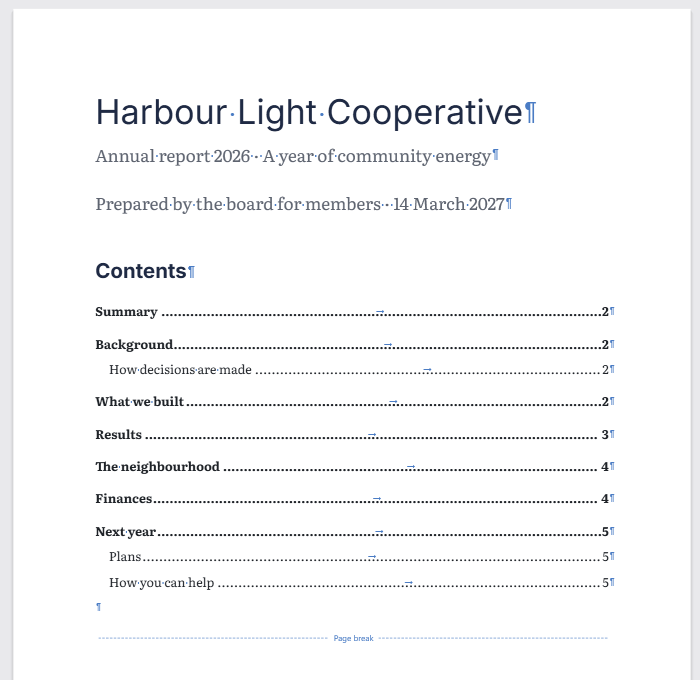
No mystery blank pages. Switch on formatting marks (Ctrl+Shift+8) and every page, column and section break is drawn as a labelled line you can click and delete. The empty paragraph Word requires after a final table never gets a page of its own, and a page break at the very end of a document doesn't add a blank page.
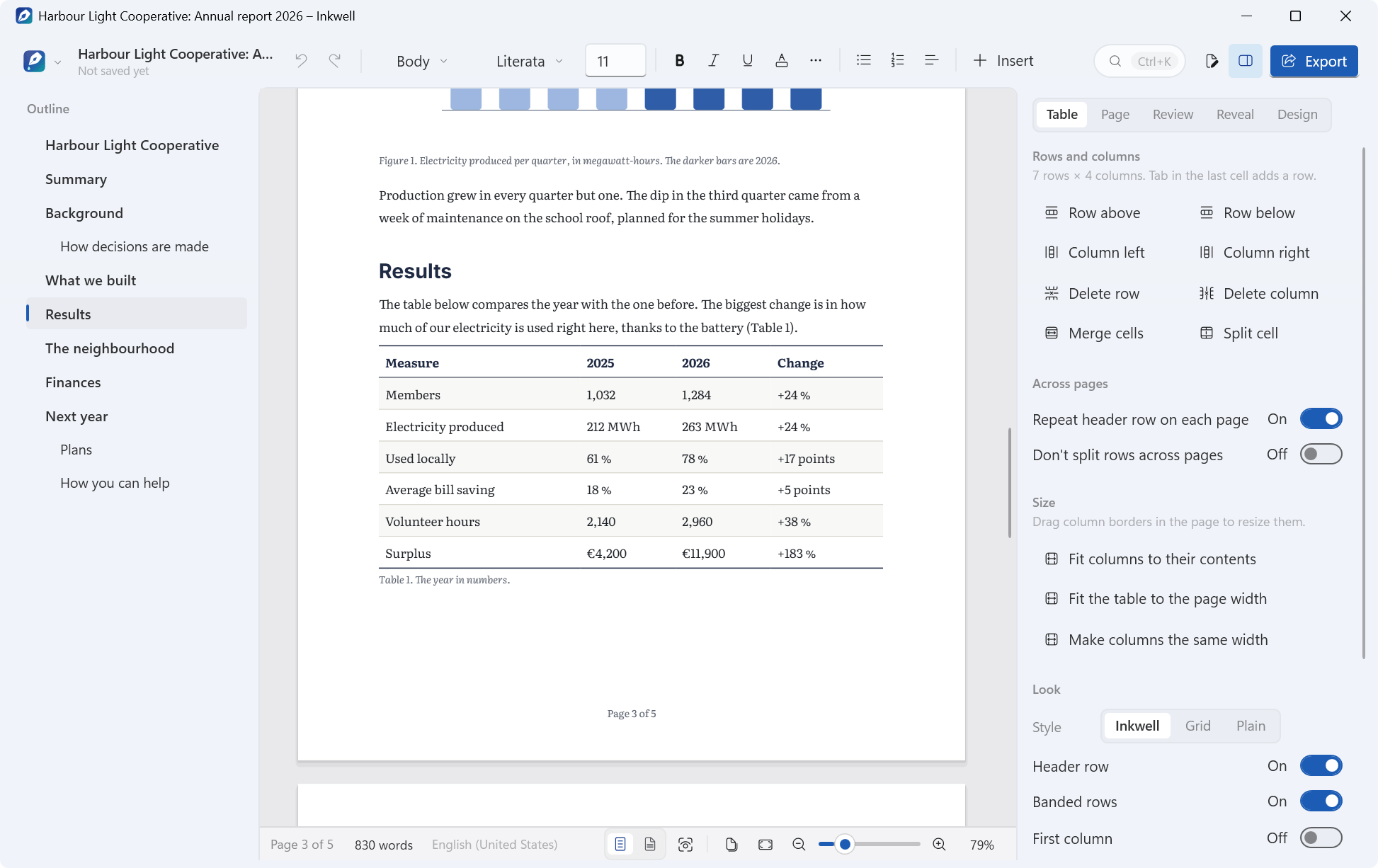
Tables that cooperate. Drag a column border on the page to resize it. The Table tab adds and deletes rows and columns, merges and splits cells, and has Repeat header row on each page, Don't split rows across pages, Fit columns to their contents, Fit the table to the page width and Make columns the same width, plus three looks (Inkwell, Grid, Plain), header row, banded rows, first column and shading. Tab in the last cell adds a row. Borders from Word are shown but can't be edited yet.
One landscape page, one click. Make only this page landscape, in the Page tab, adds the section breaks before and after the page for you (only where they're needed) and turns its margins with it; Make only this page portrait undoes it the same way. Headers and footers are edited by clicking the top or bottom of a page. Different first page and Different odd and even pages are switches in the Page tab, and Add page numbers puts them in one of five places, with the total (“3 of 10”) if you like.
Autocorrect, saving and word counts have their own sections: writing, safe by design and focus.
Never lose
a paragraph.
Save automatically is on by default. A document that already has a file is saved a few seconds after you stop typing, in the background. It's written to a temporary file next to the original, read back and checked, and only then moved over the original, so a crash or a full disk can't leave you with half a document. A new document is never saved anywhere until you choose where.
Separately, Inkwell keeps a recovery copy of every document with unsaved changes: every 2 minutes by default (or every 1, 5 or 10 minutes, or never). If Inkwell closes unexpectedly, the start screen offers each copy back with Recover or Discard.
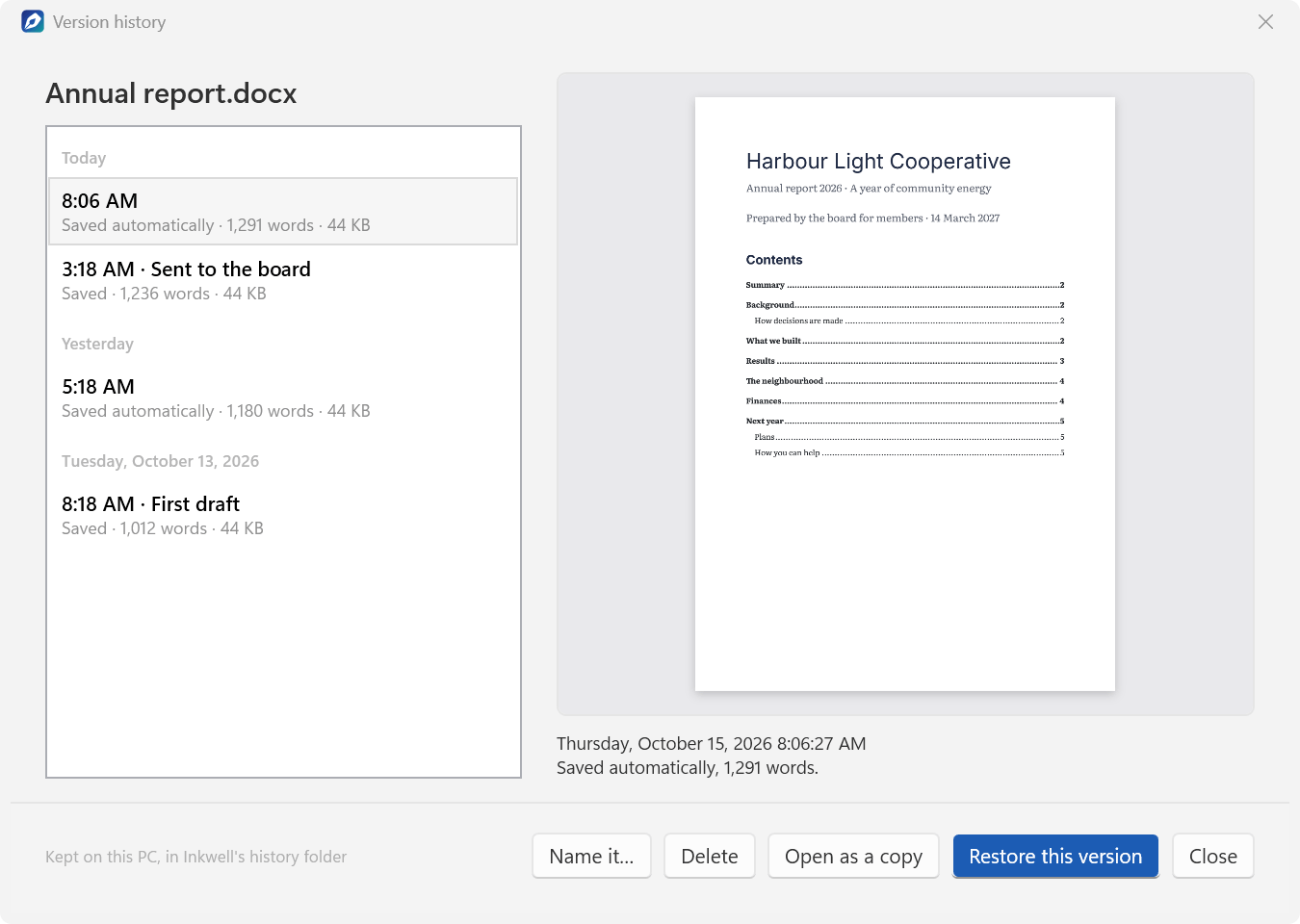
Version history keeps earlier versions of each document: every time you save, and from the automatic saves at most once every 10 minutes, skipping identical copies. Open it from the menu to see each version's first page; name a version, delete it, open it as a copy, or restore it (Inkwell keeps a copy of what you had before restoring). It lives on your PC in %LOCALAPPDATA%\Inkwell\History, and Settings gives it 200 MB to 2 GB of space (500 MB by default; the oldest unnamed versions go first).
Reports, essays, theses.
All the parts.
Long documents get the tools they need, and every one of them is saved in Word's own format, so it still works when the file is opened in Word.
- Table of contents from the Insert menu, the palette or
/, covering Heading 1 to 3. F9 updates it with the other fields, and clicking an entry jumps to the heading. - Footnotes and endnotes (Ctrl+Alt+F, Ctrl+Alt+D). Footnotes sit at the bottom of their column and continue on the next page when they're long.
- Captions for figures, tables and equations, numbered automatically, and cross-references to headings and captions that show their text, their page number, or “above” or “below”.
- Bookmarks (Ctrl+Shift+F5), which links can point to.
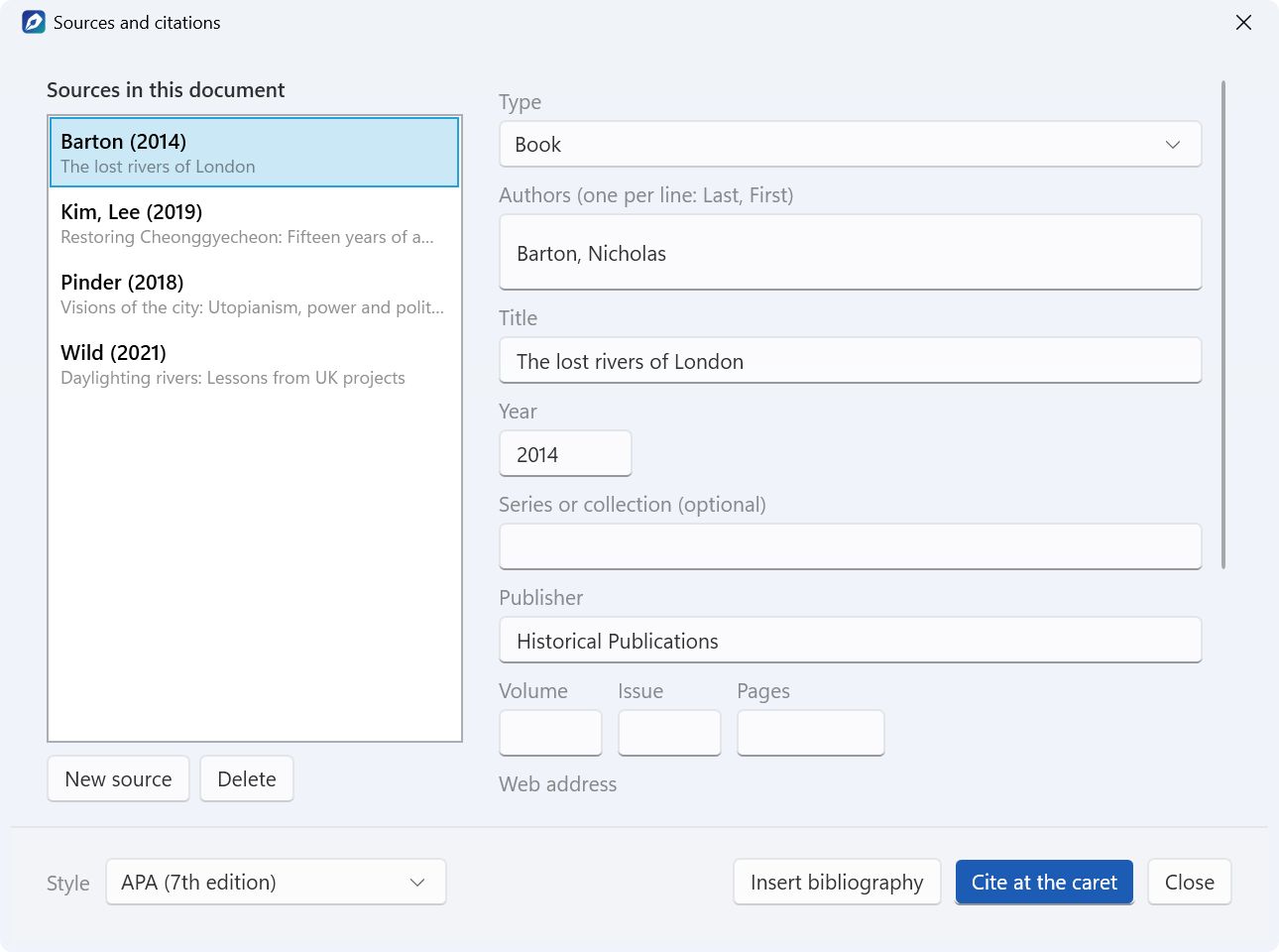
- Citations in APA (7th edition), MLA (9th edition), Chicago (17th edition, author-date) and IEEE, with a bibliography (“References”, or “Works Cited” for MLA). Sources are entered in the Sources and citations dialog, as a book, journal article, web page, report, book chapter, conference paper, magazine or newspaper article, or something else, and they're saved in the .docx file's own sources part, so Word sees them too.
- Comments (Ctrl+Alt+M) with replies; resolve and reopen them, and show or hide the resolved ones.
- Track changes (Ctrl+Shift+E): when it's on, every insertion, deletion and formatting change is marked with your name. Show All markup, Simple markup, No markup or the Original, and accept or reject one change, all of them, or, when several people edited, all of one person's.
Document properties (title, subject, author, keywords and description) are one dialog away. When you're done, export a PDF (more in Word files & formats) or print through Windows' own print dialog.
Just you
and the sentence.
Focus mode (F11) hides the command bar, the status bar, the outline and the panel. Every paragraph except the one you're writing fades, and the line you're on stays in the middle of the screen. Esc or F11 brings everything back.
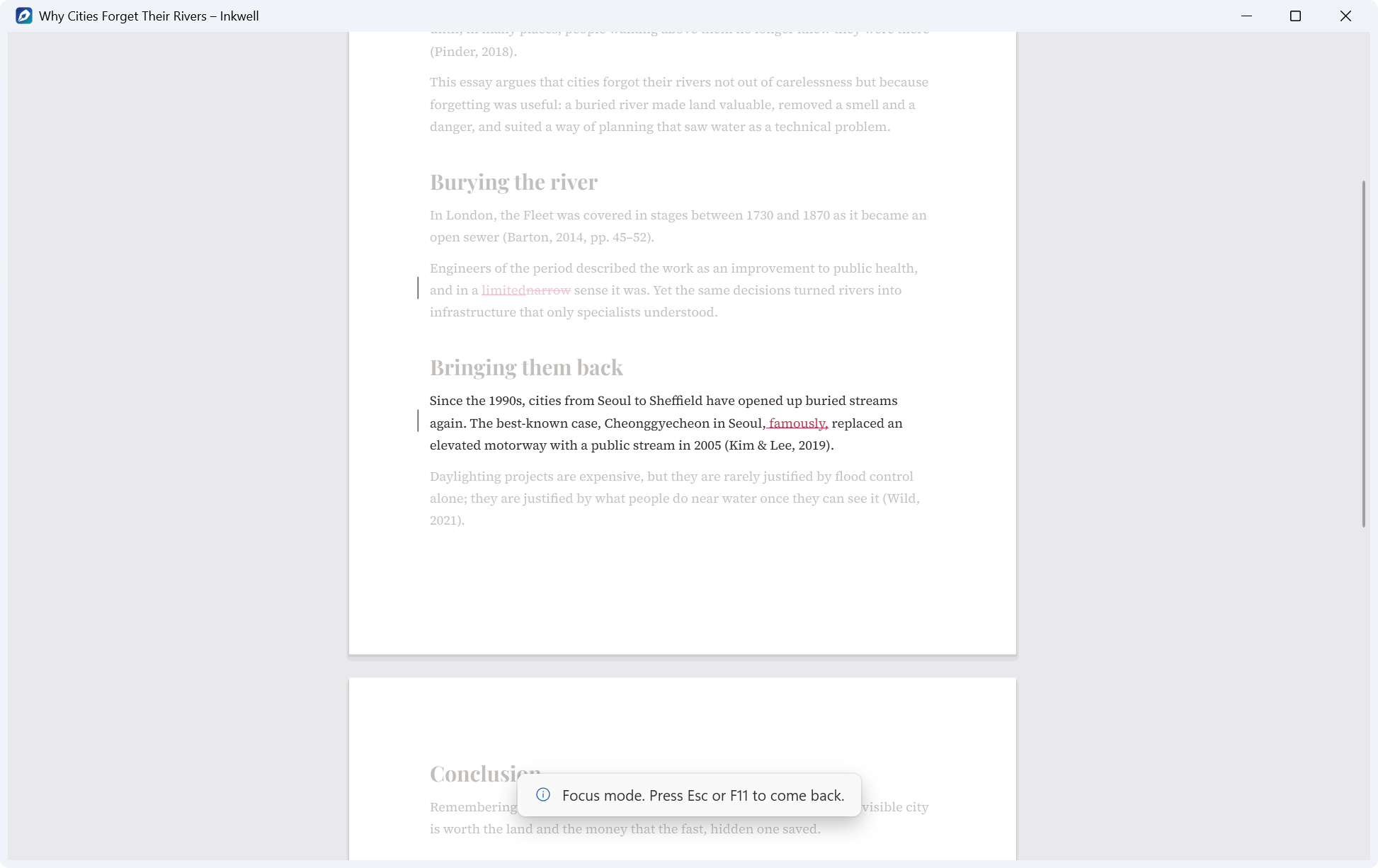
The same centred line is available on its own as Typewriter scrolling, from the palette. Pageless view, in the status bar, shows the text as one continuous column for drafting, and Several pages side by side zooms out to see the shape of a long document.
Counts you can rely on. The status bar counts words live, for the document (footnotes included) or the selection. Click it, or press Ctrl+Shift+G, for the full count: words with and without footnotes and endnotes, characters with and without spaces, paragraphs, pages, and reading and speaking time (at 238 and 130 words a minute). Set a word goal and a progress ring in the status bar fills as you write; the goal is saved in the document.
Right to left.
By itself.
Urdu matters to me. I've worked on Urdu language models, and I wanted a word processor that treats Urdu as a first-class script, Nastaliq included, not as something to fix by hand.
Start typing Urdu or Arabic letters in an empty paragraph and the paragraph turns right to left by itself, as its own undo step. Inkwell tags the language from your keyboard layout, or from the letters you type (letters only Urdu uses mean Urdu), and gives Urdu the bundled Noto Nastaliq Urdu and Arabic Noto Naskh Arabic, so the text looks right even on a PC that has neither. In an English paragraph, Urdu words you type are marked as right-to-left text without turning the paragraph around.
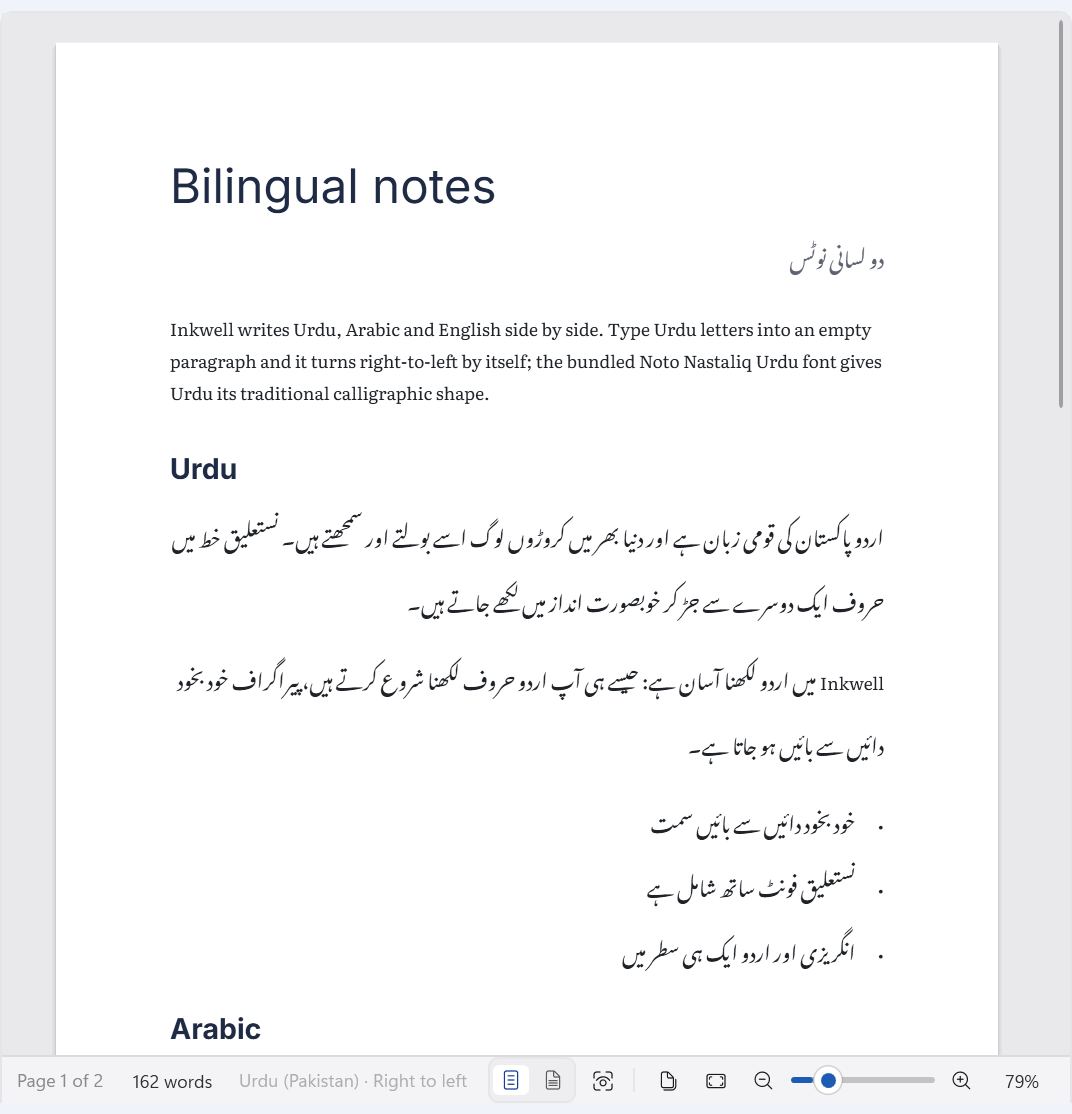
Lines that mix Urdu and English keep the right order: Inkwell lays out every line with Windows' own text engine, which handles bidirectional text, and draws a right-to-left line where it measures. You can also set a paragraph's direction yourself with the Direction buttons in the Format tab, or with Ctrl+Alt+. (right to left) and Ctrl+Alt+, (left to right). Exported PDFs keep Urdu and Arabic searchable and copyable: their invisible text layer uses Noto Naskh Arabic for Arabic-script text, and a test exports an Urdu paragraph to check it.
An honest note: spell checking follows each paragraph's language, using the dictionaries installed in Windows, but I've only tried it in English.
Word files, kept intact.
Honestly.
Inkwell opens and saves .docx files directly (and .docm, .dotx and .dotm). It doesn't convert your document into something else and back: when it saves, it starts from the original file, so every part it doesn't rewrite, from macros and charts to SmartArt and custom XML, stays exactly as it was. When a document has such parts, Inkwell says so when it opens: “Some parts of this document are kept exactly as they are, but can't be edited in Inkwell”, with a list of them.
| In a .docx file | In Inkwell |
|---|---|
| Text, character and paragraph formatting, styles, theme fonts and colours | EditedShown and edited |
| Bulleted, numbered and multi-level lists, restart / continue numbering | EditedShown and edited |
| Tables: merged cells, borders, shading, header rows, rows that don’t split | EditedShown and edited (borders are shown; table styles and shading are edited) |
| Pictures in line and floating (square, tight, top and bottom, behind, in front) | EditedShown and edited; tight wrapping is laid out like square |
| Headers and footers, different first page, different odd and even pages | EditedShown and edited |
| Sections: paper size, orientation, margins, columns; page, column and section breaks | EditedShown and edited |
| Hyperlinks, bookmarks | EditedShown and edited |
| Footnotes and endnotes | EditedShown and edited |
| Table of contents (TOC field) | EditedShown, inserted and updated |
| Captions (SEQ), cross-references (REF / PAGEREF), page numbers (PAGE / NUMPAGES) | EditedShown, inserted and updated |
| Citations and bibliography (CITATION / BIBLIOGRAPHY fields, sources part) | EditedShown, inserted and updated |
| Comments with replies, resolved comments | EditedShown and edited |
| Tracked insertions, deletions and formatting changes | EditedShown, made, accepted and rejected |
| Document properties (title, author, subject, keywords) | EditedShown and edited |
| Text boxes | Kept and shownShown and kept; not edited |
| Content controls | Kept and shownTheir content is shown and kept |
| Other fields | Kept and shownTheir last result is shown; the field is kept |
| Charts, SmartArt, embedded objects, EMF / WMF pictures | PlaceholderKept exactly; shown as labelled placeholders |
| Equations | Kept and shownKept exactly; shown as their plain text, not edited |
| Macros (.docm), custom XML, glossary, digital signatures | Kept exactlyMacros and custom XML are kept exactly; signatures are removed on save (they’d no longer match), as Word does |
| Word 97–2003 .doc files | Not supportedNot supported: open them in Word and save as .docx |
Checked against Microsoft Word. I saved 9 documents from Inkwell 1.0.0 (the five demo documents, and test documents full of sections, lists, tables and fields) and opened them in Microsoft Word (Microsoft 365, version 16) through its automation interface. All 9 opened without errors or repairs, and Word's counts matched Inkwell's in 116 of 117 values: pages, words, tables, pictures in line and floating, footnotes, endnotes, comments, sections, links, tables of contents, citation sources and tracked changes. The one difference: the résumé is two pages in Inkwell and one in Word, because a line next to the floating portrait wraps one word earlier in Inkwell.
The comparison also caught a real bug. Word refused the annual report, because Inkwell had saved a field result outside its hyperlink: the field started inside one link and ended in another. The file was valid by the schema, and Microsoft's Open XML validator didn't object, but Word did. Inkwell now writes each field inside a single hyperlink or tracked change, and a test checks every saved demo document for split fields.
Other formats open as new documents, ready to save as .docx: Markdown, plain text, RTF, OpenDocument text (.odt and .fodt) and web pages. Pictures on the web are never downloaded on the way in. Word 97–2003 .doc files aren't supported; open them in Word and save them as .docx first.
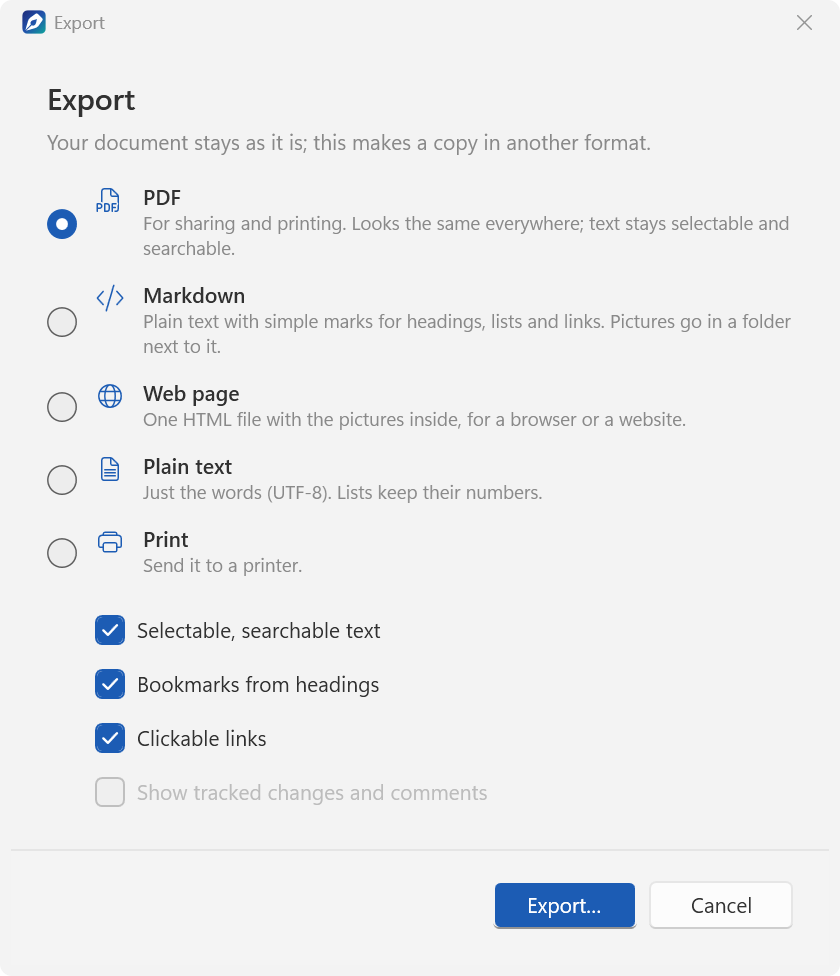
Export (Ctrl+Shift+X) makes a copy in another format and leaves your document as it is. A PDF looks exactly like the pages, with selectable, searchable text, bookmarks from the headings and clickable links, and tracked changes and comments if you ask for them. Markdown puts the pictures in a folder next to it, a web page is one HTML file with the pictures inside, and plain text is UTF-8 with list numbers kept. Print uses Windows' print dialog (there's no print preview yet). The command line makes a PDF without opening a window: Inkwell.exe --export-pdf report.docx report.pdf.
Its own pages.
Two kinds of .NET.
Inkwell is written in C# with WPF, and almost everything that matters is its own. The document model stays close to Word's own XML: paragraph, text, section and table settings are kept as the original XML elements with typed accessors on top, so attributes and extensions Inkwell doesn't understand survive a round trip untouched.
Its own layout engine. Inkwell uses WPF's TextFormatter for what Windows does best (line breaking, shaping and bidirectional text) and lays out each line itself, so floating pictures can narrow lines and right-to-left lines work. On top of that is its own paginator: columns (balanced in continuous sections), keep with next, widow and orphan control, keep lines together, tables across pages with repeated header rows and rows that don't split, footnotes at the bottom of each column, floating pictures with text wrapping, and the pageless view. When you type, it lays out again from the page before the first change and stops as soon as a page starts where it did before, so a keystroke on page 200 doesn't lay out the whole document.
| Step | .NET 10 | .NET Framework 4.8 |
|---|---|---|
| Open (load the .docx) | 82 ms | 167 ms |
| Lay out every page | 2.6 s | 3.8 s |
| Median keystroke (edit and relayout) | 2.9 ms | 2.3 ms |
Those are the numbers from Inkwell's performance test on my PC (version 1.0.0; 1.0.1 didn't change the layout engine): it builds the document, opens it, lays out every page, then types a sentence in the middle and times each keystroke, edit and relayout included.
One codebase, two targets. .NET 10 for Windows 10 and 11, published self-contained for x64, ARM64 and 32-bit; and .NET Framework 4.8 for Windows 7 SP1 and 8.1. The Windows 11 touches (Mica on 22H2 and later, dark title bars, the accent colour, Segoe UI Variable and Microsoft's Fluent System Icons drawn as vectors) are guarded, so the same app runs on Windows 7. PDF export draws each page's text as outlines in its real fonts with PDFsharp, with the invisible text layer on top.
Tested where it counts. 344 tests (xUnit) run on both .NET 10 and .NET Framework 4.8. Most test the engine: .docx reading, writing and preservation, damaged and hostile files, fields, pictures and fonts, layout and pagination, editing and undo, paste, autocorrect and word counts, Markdown, HTML, RTF, ODT and text, PDF export, citations, recovery copies and version history, and the 301-page performance test. Since 1.0.1 they check the app too: every keyboard shortcut is bound once and matches the menus, tooltips and README, the updater finds the installer's own AppId, and Settings lists every autocorrect rule. Inkwell's capture mode, which made the screenshots on this page, also runs 20 end-to-end checks (open, type, save and read back a .docx, save automatically, undo, open Markdown and text, the autocorrect chip after Enter, and turning a rule off and on again); they passed on the 64-bit, 32-bit and Windows 7/8.1 (.NET Framework 4.8) release builds of 1.0.1. A per-user test of the 1.0.0 installer passed its 23 checks.
Inkwell uses Microsoft's Open XML SDK (MIT) for .docx files, PDFsharp (MIT) for PDF export, Markdig (BSD-2-Clause) for Markdown, Microsoft's Fluent UI System Icons (MIT), and 11 font families under the SIL Open Font License 1.1. Details are in the third-party notices. Inkwell is an independent project, not affiliated with or endorsed by Microsoft or any of them. Microsoft Word and Microsoft Office are trademarks of Microsoft Corporation.
The short version.
In 105 seconds.
If you'd rather watch than read, here is the launch video. English captions are on by default; turn them off from the video's controls.
Free.
For every Windows.
Inkwell is free. The box below suggests the right installer for the PC you're on; the full list follows. There's also a download page you can share.
Version 1.0.1 followed 1.0.0 on the same day with a round of fixes: Ctrl+Shift+E now turns track changes on and off (Export moved to Ctrl+Shift+X), every autocorrect rule has its switch in Settings, the command bar never cuts a label off, and updates work for an installation in any folder. The download page lists what's new.
| Windows | Best for | Size | Installer |
|---|---|---|---|
| Windows 10 & 11 · 64-bit | Intel or AMD processor. Most PCs. Self-contained. Nothing else to install. | 49.0 MB | Download |
| Windows 11 & 10 on ARM | Snapdragon laptops, Surface Pro X and other ARM PCs. Self-contained. Nothing else to install. | 43.6 MB | Download |
| Windows 10 · 32-bit | Older PCs running a 32-bit installation of Windows 10. Self-contained. Nothing else to install. | 45.1 MB | Download |
| Windows 7 SP1 & 8.1 | Older PCs, 32- or 64-bit. Uses Microsoft .NET Framework 4.8 (setup tells you if it is missing). | 7.0 MB | Download |
SHA-256 checksums
- Inkwell-Setup-1.0.1-x64.exe
19c10a70fe126e056504829e31eb1f1570410e872ee830514970cda96e62a46d - Inkwell-Setup-1.0.1-arm64.exe
930722d616be18d1a73d0f1bb68023503109a84164ff848dfb022297df9f601d - Inkwell-Setup-1.0.1-x86.exe
df33bac61ac3a5f25985f5c886ed5ccee9bc08e9adc8222a626b3de6b118999e - Inkwell-Setup-1.0.1-win7-8.exe
a866027a5b26f49841c7f88e2212dd00d28eba8528e7b162b17603c39cc31288
Which one do I need?
Open Settings › System › About on Windows 10 or 11, or Control Panel › System on Windows 7 and 8.1. It shows your Windows edition and system type. Most PCs need the first installer. Windows 8 needs the free update to 8.1 first. Windows XP and Vista aren't supported.
Installing
Setup first asks who it's for: all users, the default, which installs to Program Files and needs administrator permission; or only you, which needs no administrator rights. Then pick the extras: add Inkwell to Open with for Word documents (.docx) and for Markdown files (.md) (both ticked), and a desktop shortcut (not ticked). Inkwell never makes itself the default app for any of them: Word, or whatever you use, keeps opening your documents on a double-click. The Windows 7 and 8.1 edition needs Microsoft .NET Framework 4.8; if it's missing, setup says so and offers to open Microsoft's download page.
The installers aren't code-signed yet, so Windows SmartScreen may show “Windows protected your PC”. Choose More info, then Run anyway. Compare the SHA-256 checksum first if you'd like to be sure the file is the one I published: Get-FileHash in PowerShell shows it, or certutil -hashfile <file> SHA256 on Windows 7.
Inkwell keeps itself up to date. About 10 seconds after it starts, and then at most once a day, it reads a small file on this site (https://www.nomanshafiq.com/updates/inkwell.json); the request carries nothing about you or your documents. If there's a newer version, a bar offers Update now, Later or Skip this version, with what's new. Update now asks about unsaved documents, downloads the installer for your edition, checks its size and SHA-256 checksum, installs it silently and starts Inkwell again; if Inkwell is installed for all users, Windows asks for permission first. (A copy that wasn't installed with the installer opens the download page instead.) Turn the check off in Settings › Updates.
Inkwell works offline. Its only network use is the update check, plus an update you ask for; a link you Ctrl+click in a document opens in your browser. There's no telemetry. Settings, recent files and logs are kept in %APPDATA%\Inkwell; version history, recovery copies and start-screen thumbnails in %LOCALAPPDATA%\Inkwell. Installing a newer version, or another edition, replaces the one you have and keeps all of that. To remove Inkwell, uninstall it from Settings › Apps; those two folders stay in case you come back.
What I tested: the 344 tests on .NET 10 and .NET Framework 4.8, the capture mode's 20 end-to-end checks on the 64-bit, 32-bit and Windows 7/8.1 (.NET Framework 4.8) release builds of 1.0.1 on my Windows 11 PC, a per-user install and uninstall of 1.0.0 (23 checks), and the Word comparison above. Not tested yet: printing on a real printer, screen readers (Narrator, NVDA), East Asian input methods, spell checking in languages other than English, the ARM64 edition on ARM64 hardware, any build on real Windows 7 or 8.1 PCs, or on 32-bit Windows 10 (those editions ran on 64-bit Windows 11), how exported PDFs look in other PDF viewers and the 1.0.1 ARM64, 32-bit and Windows 7 / 8.1 installers (only the 1.0.1 x64 installer was installed and uninstalled).
Version 1.0.1.
The first page.
Inkwell 1.0.1 has gaps, and I'd rather you hear them from me:
- Line breaks can differ slightly from Word’s, most likely next to floating pictures: the sample résumé is two pages in Inkwell and one in Word.
- Tight wrapping is laid out like square wrapping.
- Text boxes are shown but not edited. Charts and SmartArt are kept exactly but drawn as labelled placeholders, and equations appear as their plain text.
- Inkwell embeds the bundled fonts a document uses when it saves (on by default), whole rather than subset, which added 0.6 to 1.6 MB to each of the five demo documents; Settings can turn it off.
Next on my list:
- Line breaks next to floating pictures that match Word’s.
- Tight wrapping that follows a picture’s outline.
- Editing text boxes, and drawing charts and equations properly.
- Code-signing, so SmartScreen stays quiet.
- Testing with screen readers and on a real printer.
A word processor should disappear while you write. Inkwell's job is to make the document look good and behave, so your attention stays on the words.
Every still image of Inkwell on this page is a real screenshot of version 1.0.1 (x64, Windows 11), captured from Inkwell's own windows by its capture mode, with its demo documents; some are cropped, and their captions say so. The cover places two of them on a gradient background, the version history shows demo versions, and the alignment guides were drawn by the capture mode, as their captions say. The launch video is different: its app shots recreate Inkwell's interface, with pages laid out and rendered by Inkwell's engine, as its caption says.