Stagecraft:
slides that look designed.
Without the effort.
A free presentation app for Windows with a Windows 11 look and no ribbon.
Pick a theme, type your talk, and every slide comes out balanced and readable, with Morph transitions, animations, links, video and sound, and a presenter view. It exports PDF, pictures and PowerPoint, and opens .pptx files.
3 colour variants each, 16 smart layouts and 8 bundled font families
12 entrance, 8 emphasis and 12 exit, plus motion paths you can draw
Files, PowerPoint, rendering, animation, links, media and Morph, on .NET 10 and .NET Framework 4.8
Every talk starts the same way: a blank white slide, a blinking cursor, and an hour of nudging boxes, picking fonts and wondering why it still looks homemade.
Stagecraft is the presentation app I wanted for that hour. Pick a theme, type your talk, and the design is taken care of: balanced layouts, real typography, soft colour, and text that fits its box. When it's time to present, the presenter view shows your notes, the next slide and a timer while the audience sees only the slides. Version 1.1.0 adds what a real talk needs on top of that: animations, links, and video and sound.
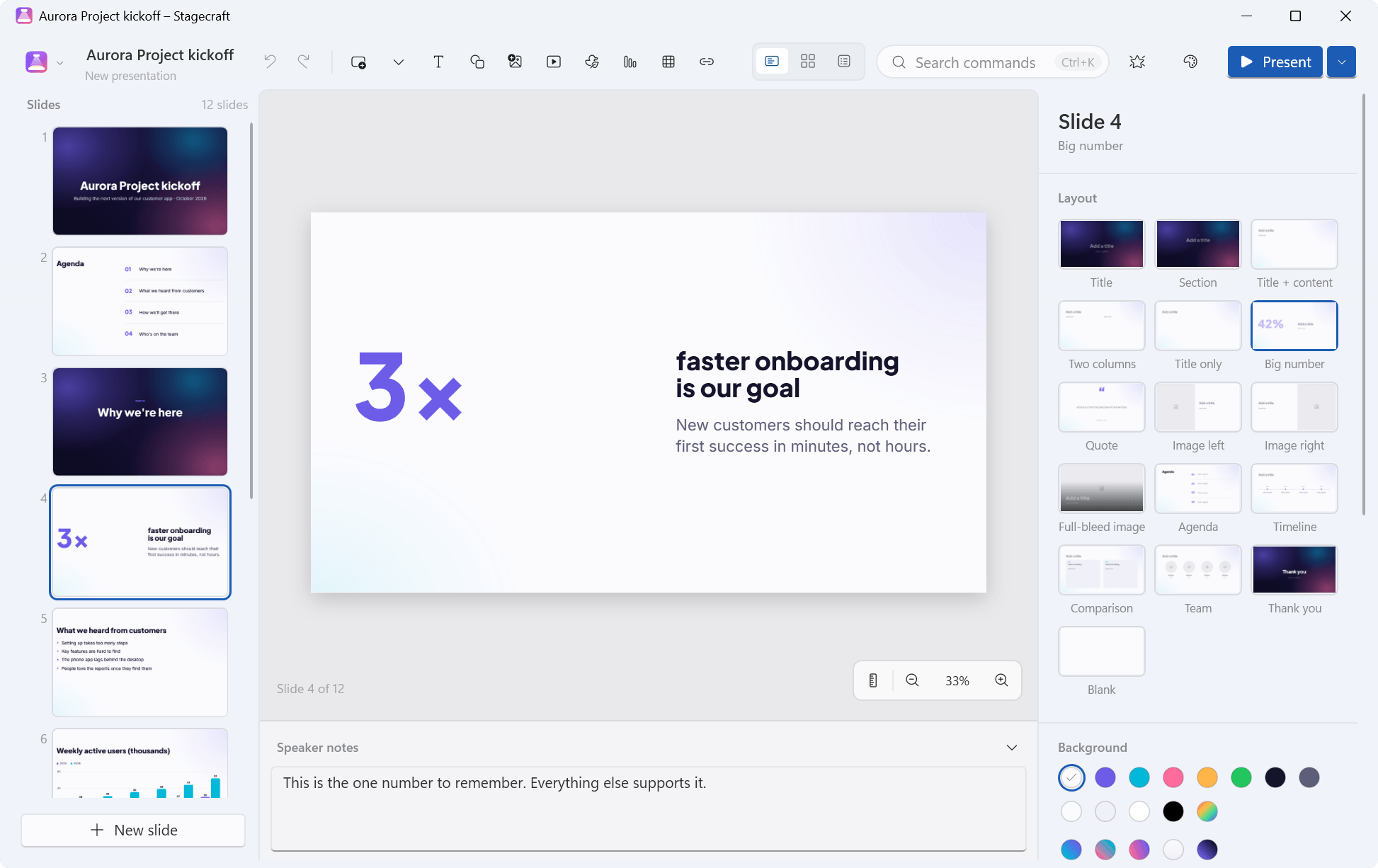
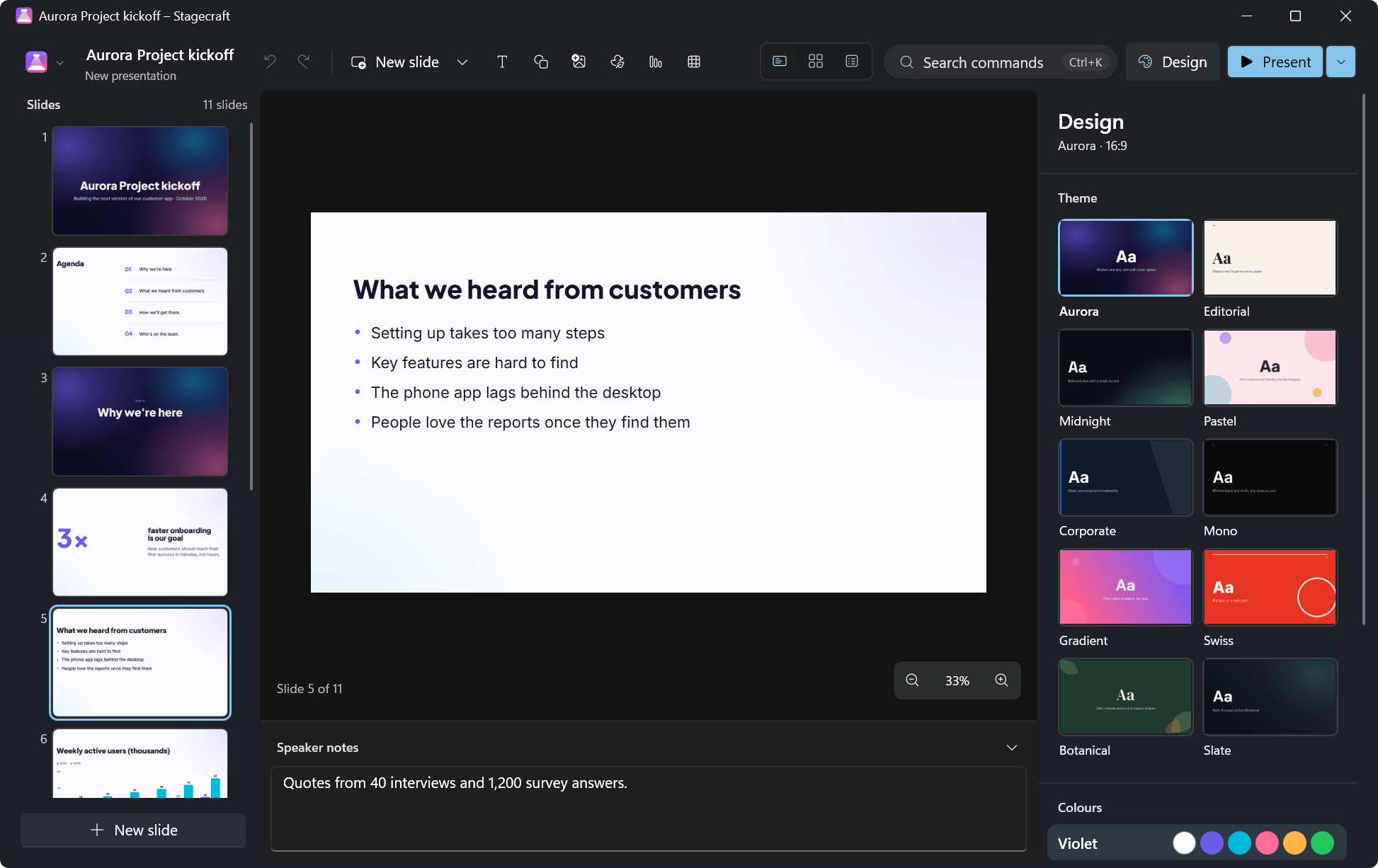
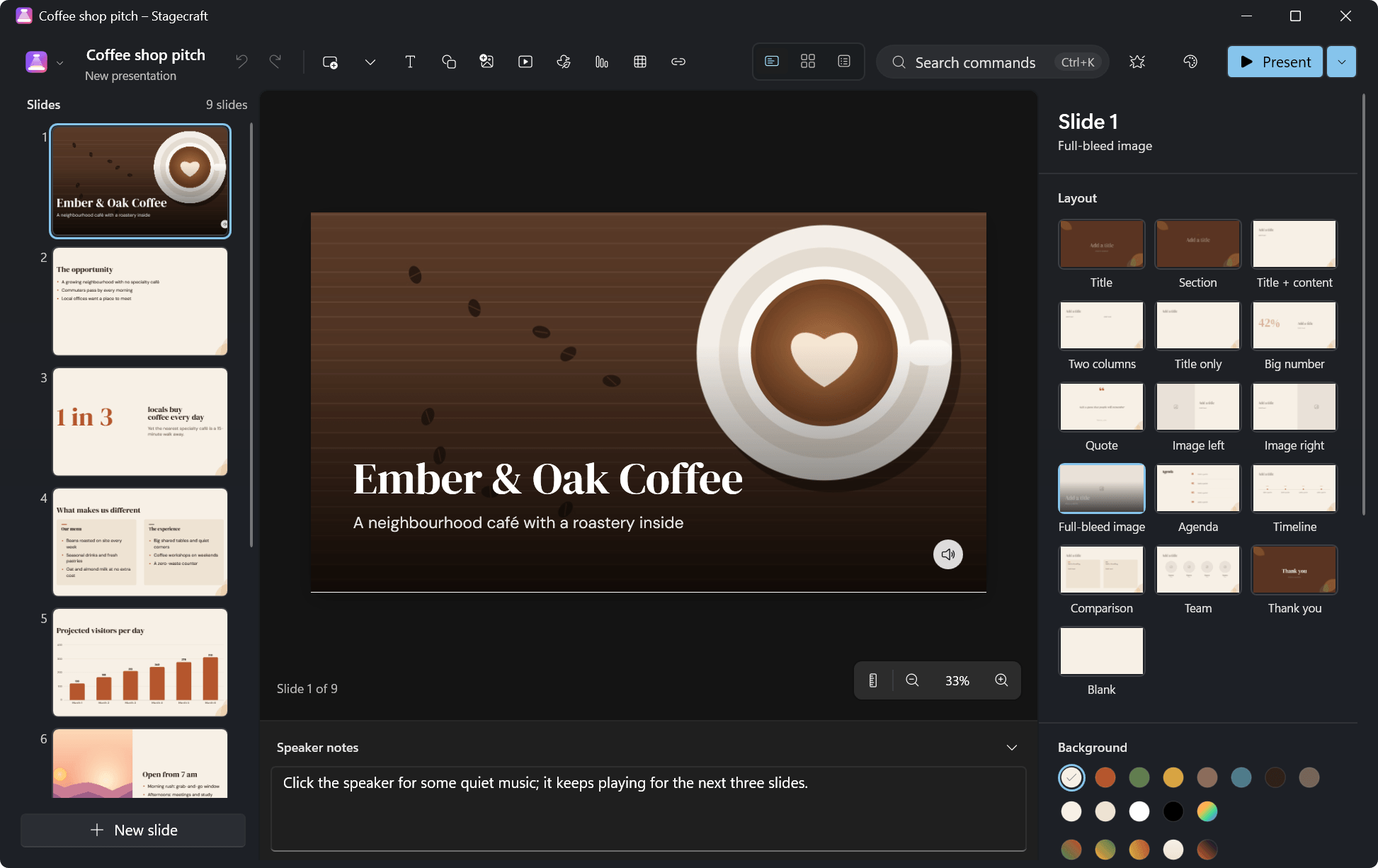
It's a Windows app with a Windows 11 look, and it has no ribbon. A slim command bar runs along the top; the slide rail sits on the left, the canvas in the middle, and on the right a properties panel that shows only what applies to what you've selected: a slide's layout and background, a text box's font, size and colours, or a video's playback options. Everything else is one search away in the command palette, Ctrl+K.
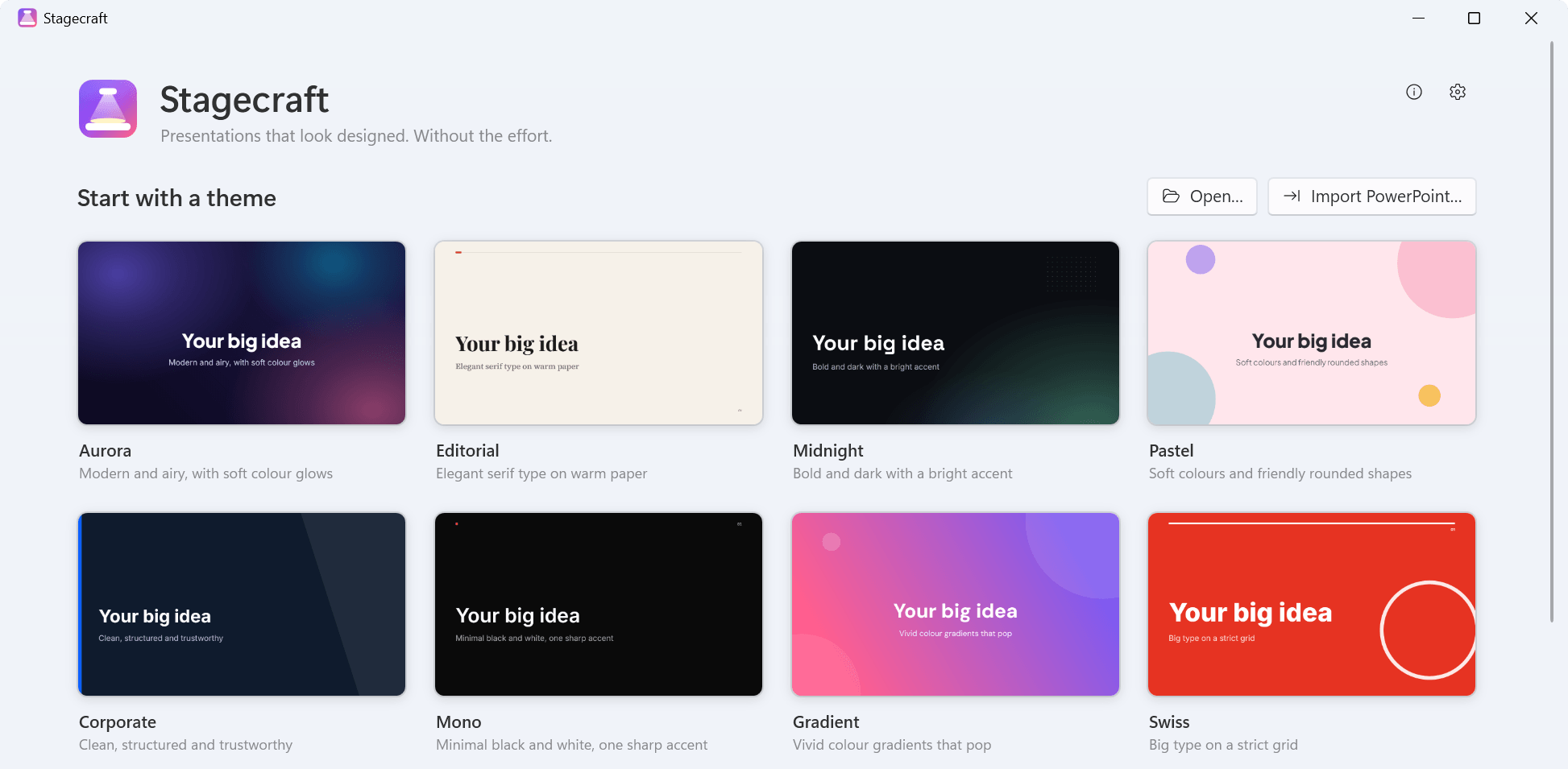
Below the themes, the start screen has three sample decks to explore (a project kickoff, a quarterly review and a coffee-shop pitch) and your recent presentations.
Beautiful
by default.
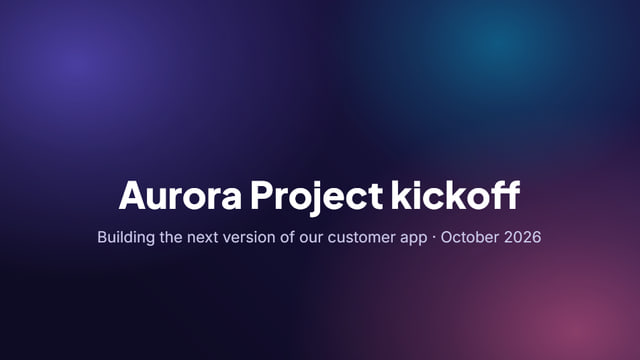
Stagecraft has 10 themes: Aurora, Editorial, Midnight, Pastel, Corporate, Mono, Gradient, Swiss, Botanical and Slate. Each comes in 3 colour variants and has its own typography, backgrounds and decorations. Switching theme re-lays every slide and keeps your words, and anything you moved by hand stays where you put it.
 AuroraModern and airy, with soft colour glows
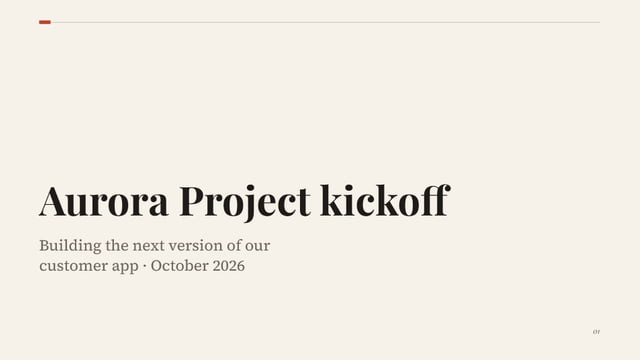 EditorialElegant serif type on warm paper
 MidnightBold and dark with a bright accent
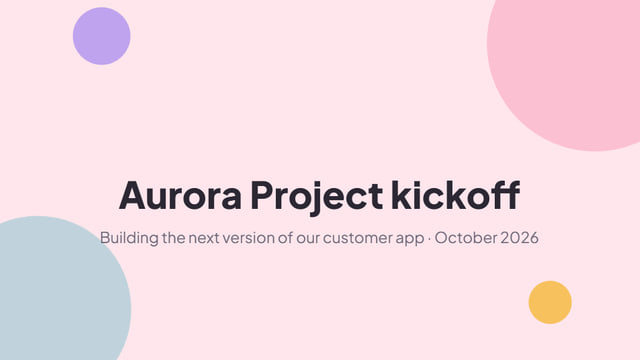 PastelSoft colours and friendly rounded shapes
 CorporateClean, structured and trustworthy
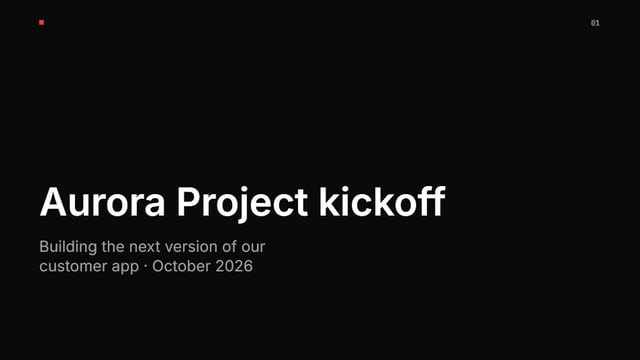 MonoMinimal black and white, one sharp accent
 GradientVivid colour gradients that pop
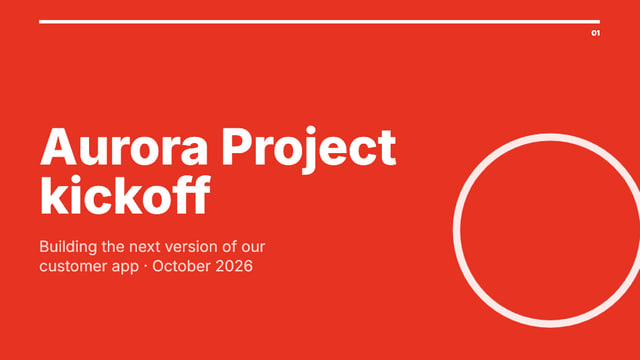 SwissBig type on a strict grid
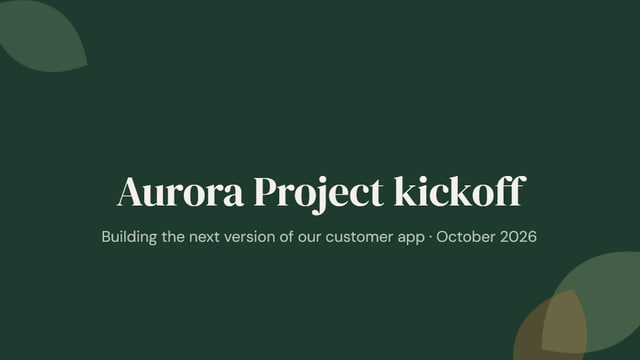 BotanicalCalm, natural colours and organic shapes
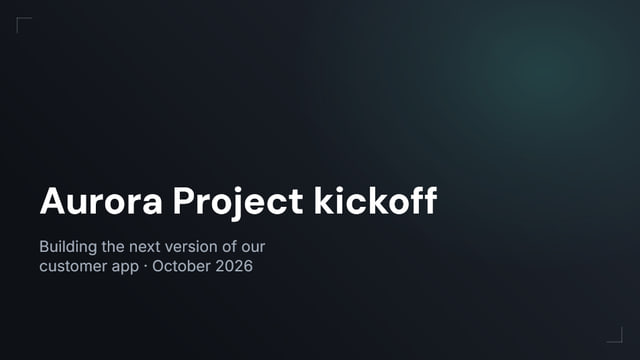 SlateDark, focused and professional
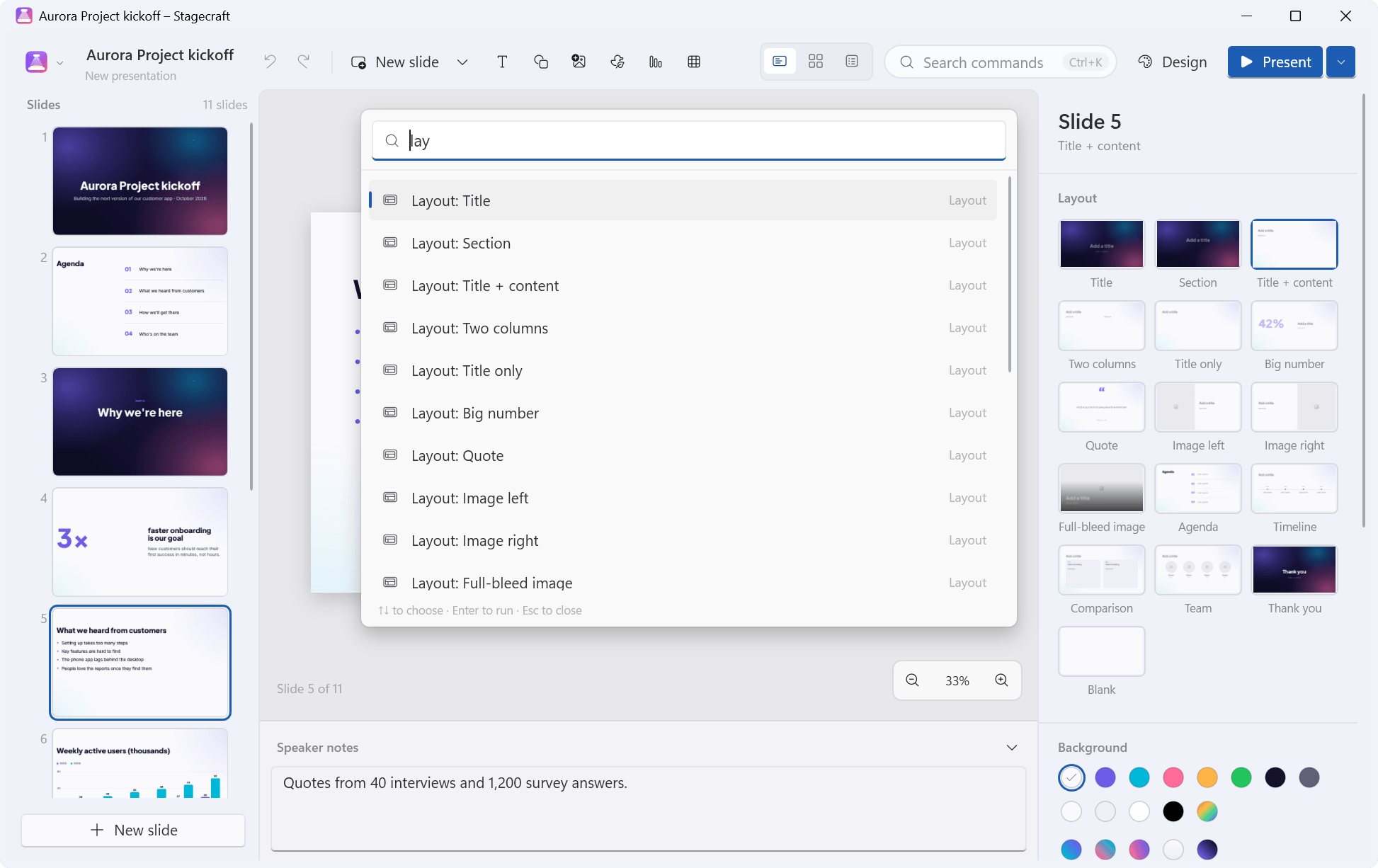
Every slide uses one of 16 smart layouts. You can change a slide's layout at any time; its title, text and pictures move along with it.
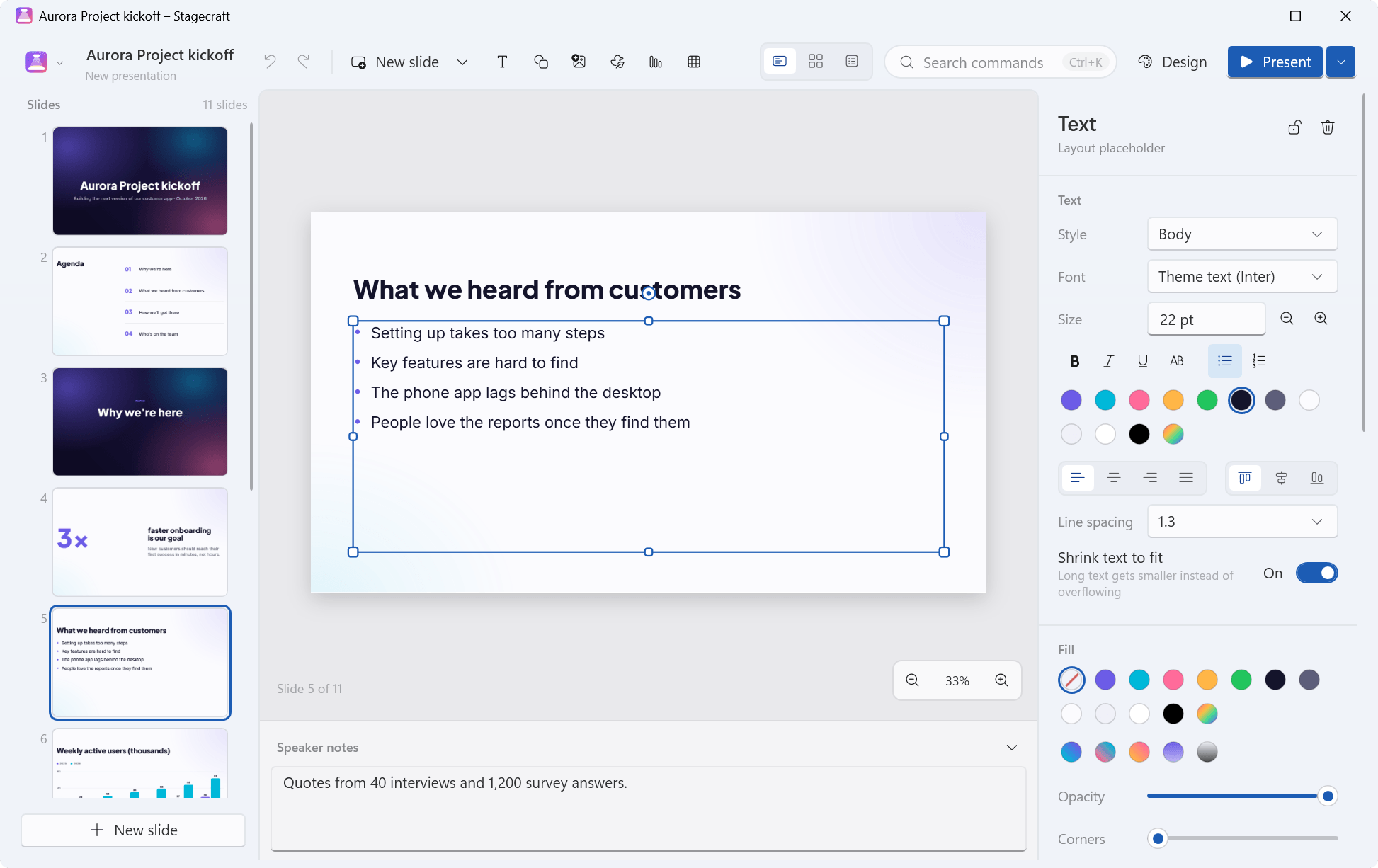
Text fits. When there's too much text for a layout's box, Stagecraft shrinks it until it fits instead of letting it spill over the edge; sizes and line spacing scale together, so the slide keeps its proportions. A text box you draw yourself grows with its text instead, and Shrink text to fit switches it per box. Titles, subtitles, headings and quotes wrap into balanced lines, so a heading doesn't leave one word hanging on a line of its own.
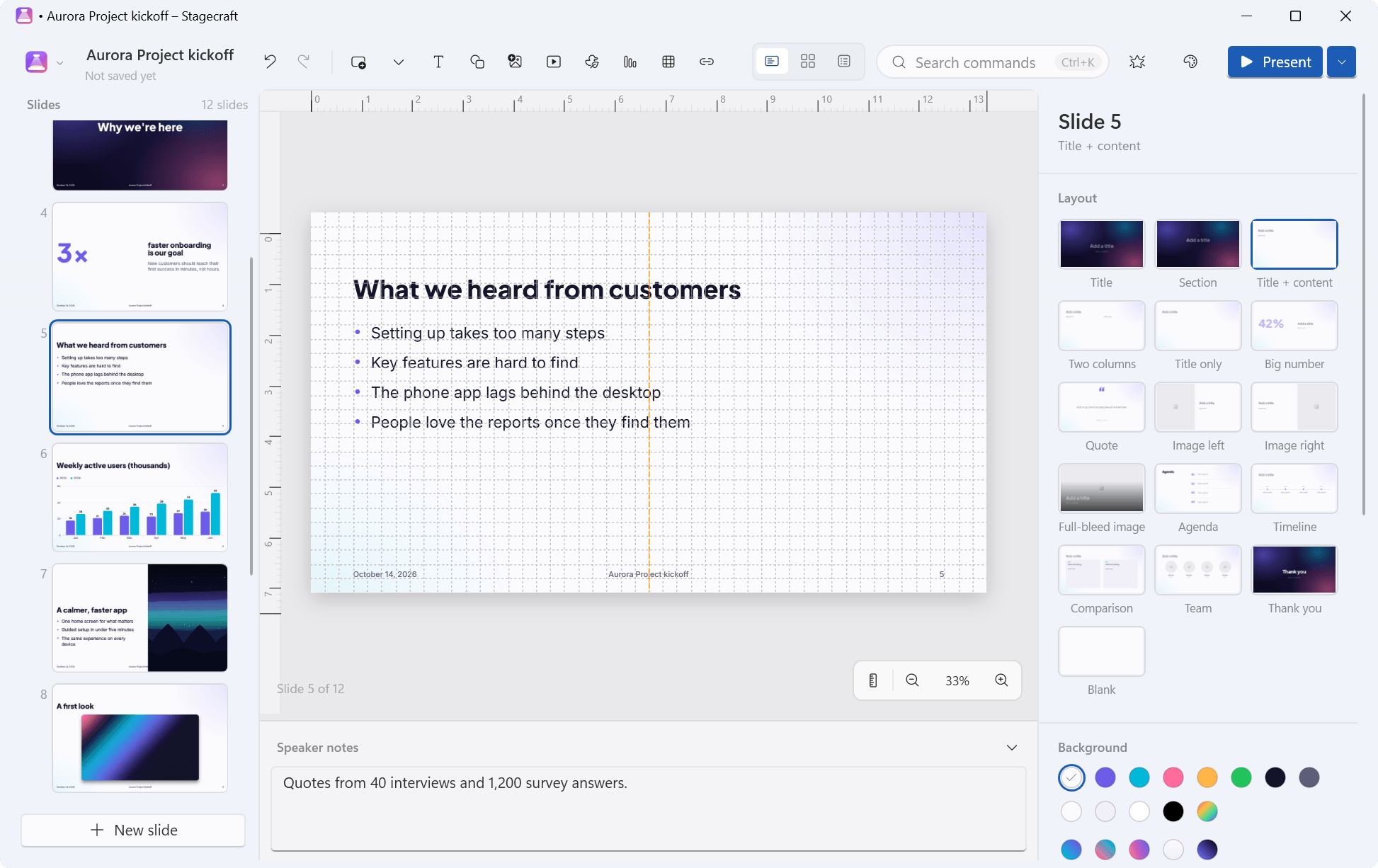
Things line up. While you move or resize something, smart guides snap it to the edges and centres of the objects around it, to the slide's edges, centre and margins, and to equal spacing between neighbours. Hold Alt to skip them once. Tidy up (Ctrl+Alt+T) turns a messy selection into a neat row, column or grid. For exact work there are rulers (in centimetres or inches, following Windows' regional settings), gridlines (Shift+F9) with a choice of spacing, snap to grid, and guides you drag out of the rulers and drag off the slide to remove.
The type comes with it. Stagecraft bundles 8 font families under the SIL Open Font License: Inter, Plus Jakarta Sans, DM Sans, Space Grotesk, Playfair Display, DM Serif Display, Source Serif 4 and JetBrains Mono. It loads them privately and never installs them into Windows, so a deck looks the same on any PC with Stagecraft.
Editing that stays
out of the way.
There's no ribbon to hunt through. The command bar holds what you use all the time: undo and redo, new slide, text, shapes, pictures, video and sound, icons, charts, tables and links, the three views, Animations, Design and Present. For everything else, press Ctrl+K and type: the command palette searches the commands, the layouts, every theme and colour variant, the transitions and the slides themselves (their text and notes), and Enter runs what you picked.
Text boxes take rich text: bold, italic, underline, sizes, colours, alignment, bullet and numbered lists with indents, line spacing, and a soft shadow behind the letters for text over pictures. Shapes include rectangles, rounded rectangles, ellipses, triangles, diamonds, lines, arrows and callouts, and connectors stay attached when you move what they join. Fills can be a theme colour or a gradient of your own (linear or radial, two colours, any angle), outlines can be solid, dashed or dotted, and shapes, pictures, icons and text boxes can take a shadow.
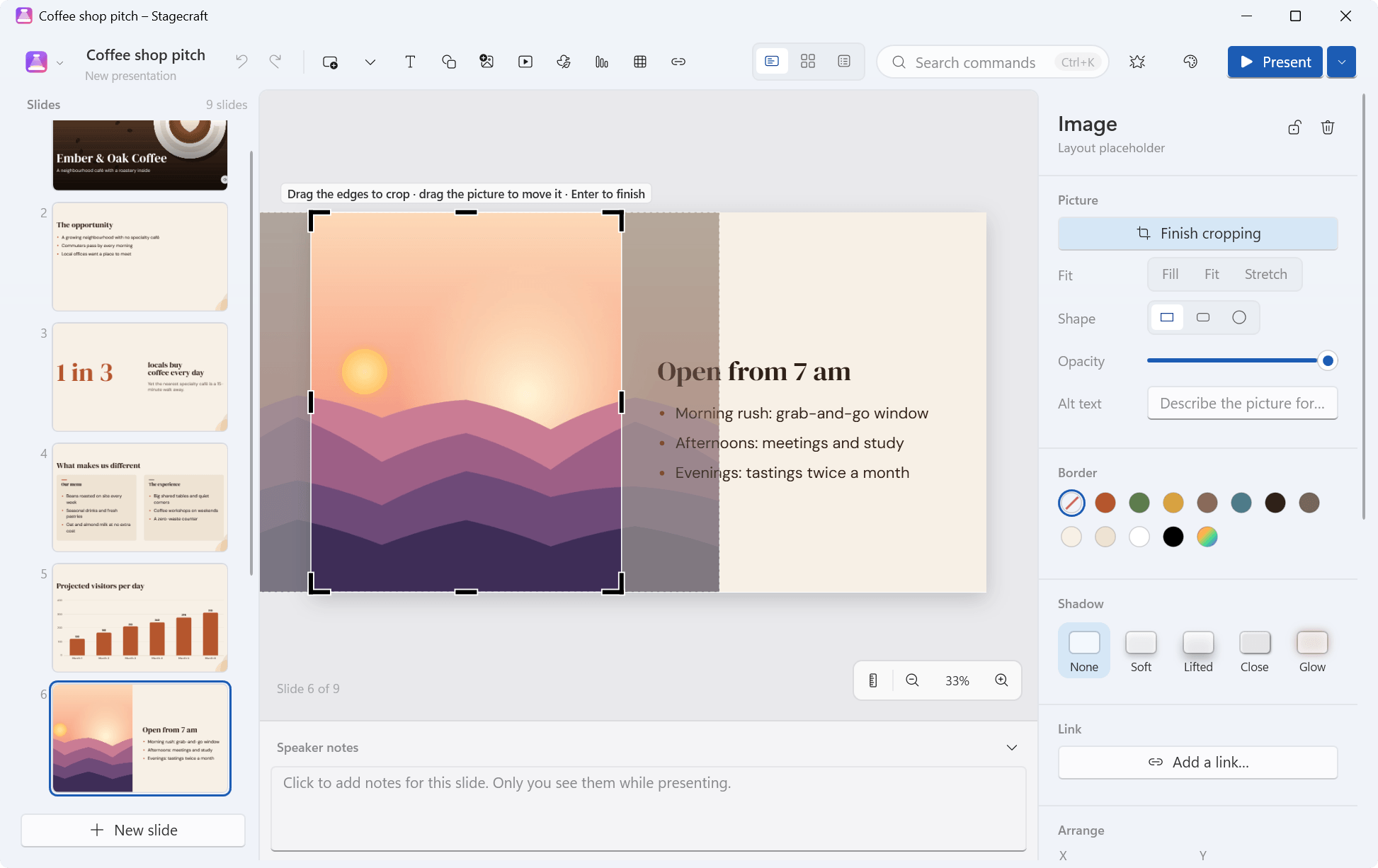
Pictures can be inserted, dragged in from File Explorer or a browser, or pasted; a new picture fills an empty picture placeholder. Crop works with handles: drag the edges and corners, or move the picture inside its frame, then press Enter. A picture can also be cropped to a circle or a rounded rectangle, fill, fit or stretch its box, and take an opacity, a border and a shadow (soft, lifted, close or glow). Replace picture swaps in a different image, and every picture has a focus point and alt text.
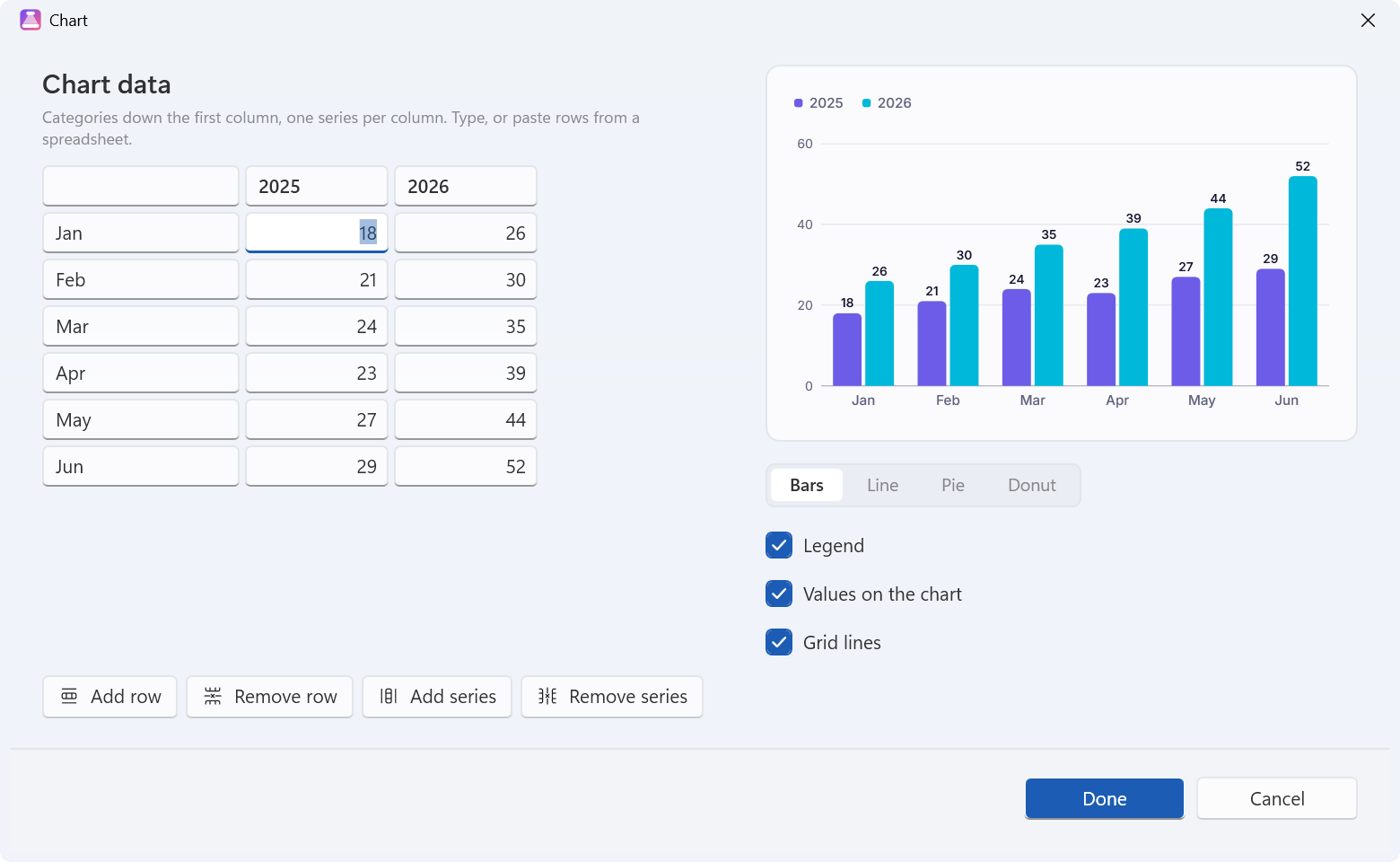
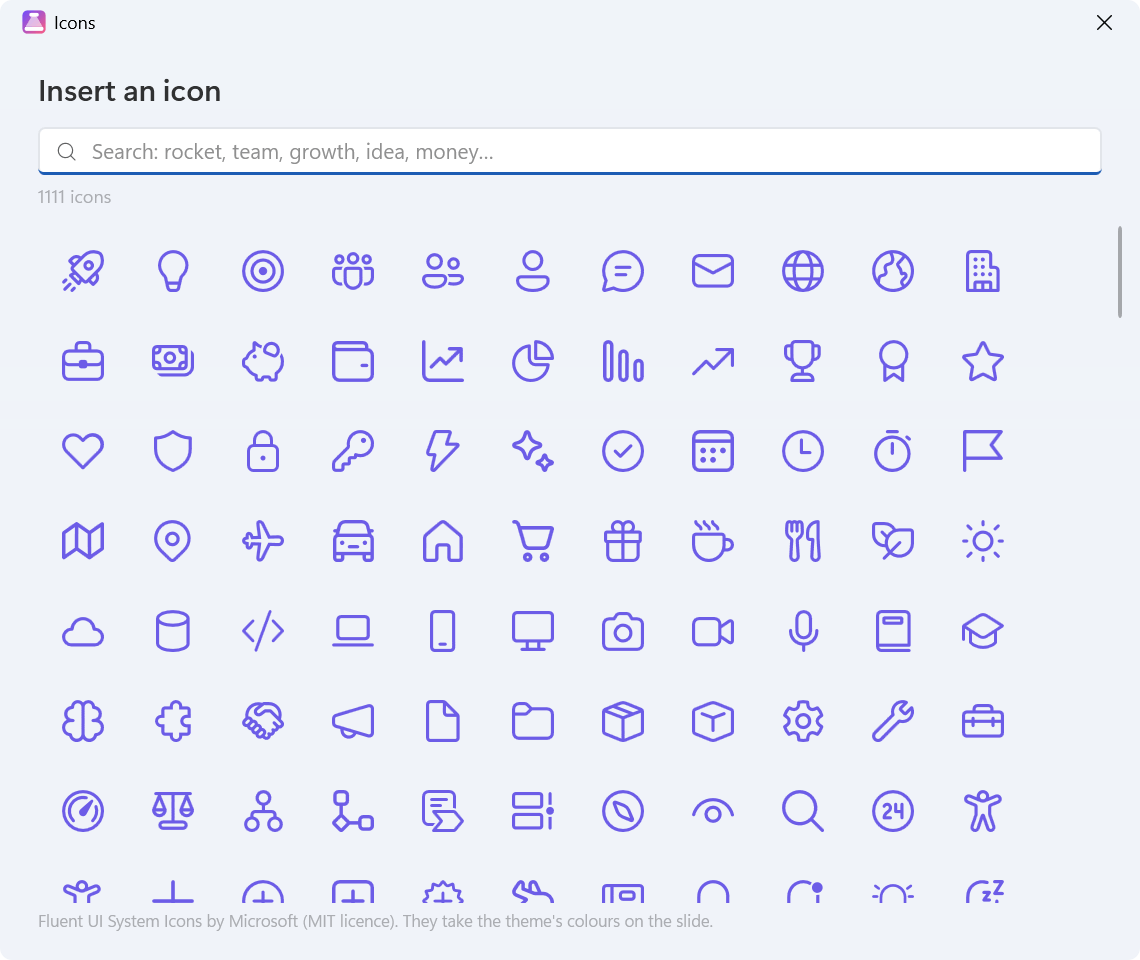
Charts (bar, line, pie and donut) come from a small data grid, and you can paste rows straight from a spreadsheet. Tables have a header row, banded rows and a bold first column. And there are 1,112 icons from Microsoft's Fluent UI System Icons: searchable, drawn in the theme's colours, with an optional circle or rounded-square background.
The everyday tools are all there: undo and redo for everything, multi-select, group and ungroup (Ctrl+G), align and distribute, bring forward and send backward, lock, duplicate (Ctrl+D), copy and paste between slides and between decks, and Copy style / Paste style (Ctrl+Alt+C, Ctrl+Alt+V) to carry one object's formatting to others. The arrow keys nudge; with Shift, in bigger steps. Every slide has speaker notes, and a deck can be 16:9, 4:3 or a custom size.
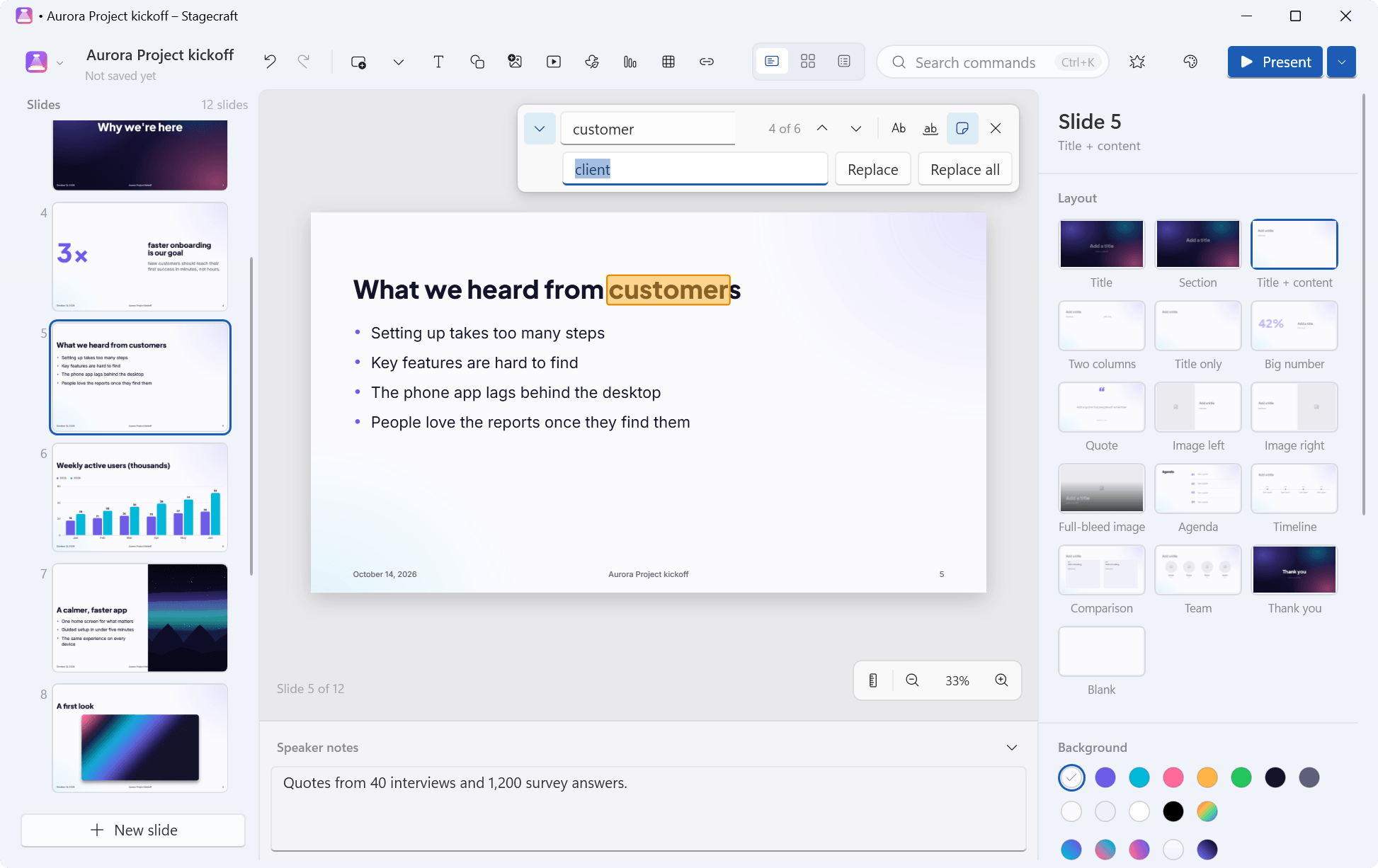
Find and replace (Ctrl+F, Ctrl+H) searches the whole presentation: text boxes, shapes, table cells and, unless you switch it off, the speaker notes, with match case and whole words. Spelling is checked as you type in slide text and notes, using Windows' spell checker for your keyboard's language, with suggestions on right-click (Settings › Check spelling as I type).
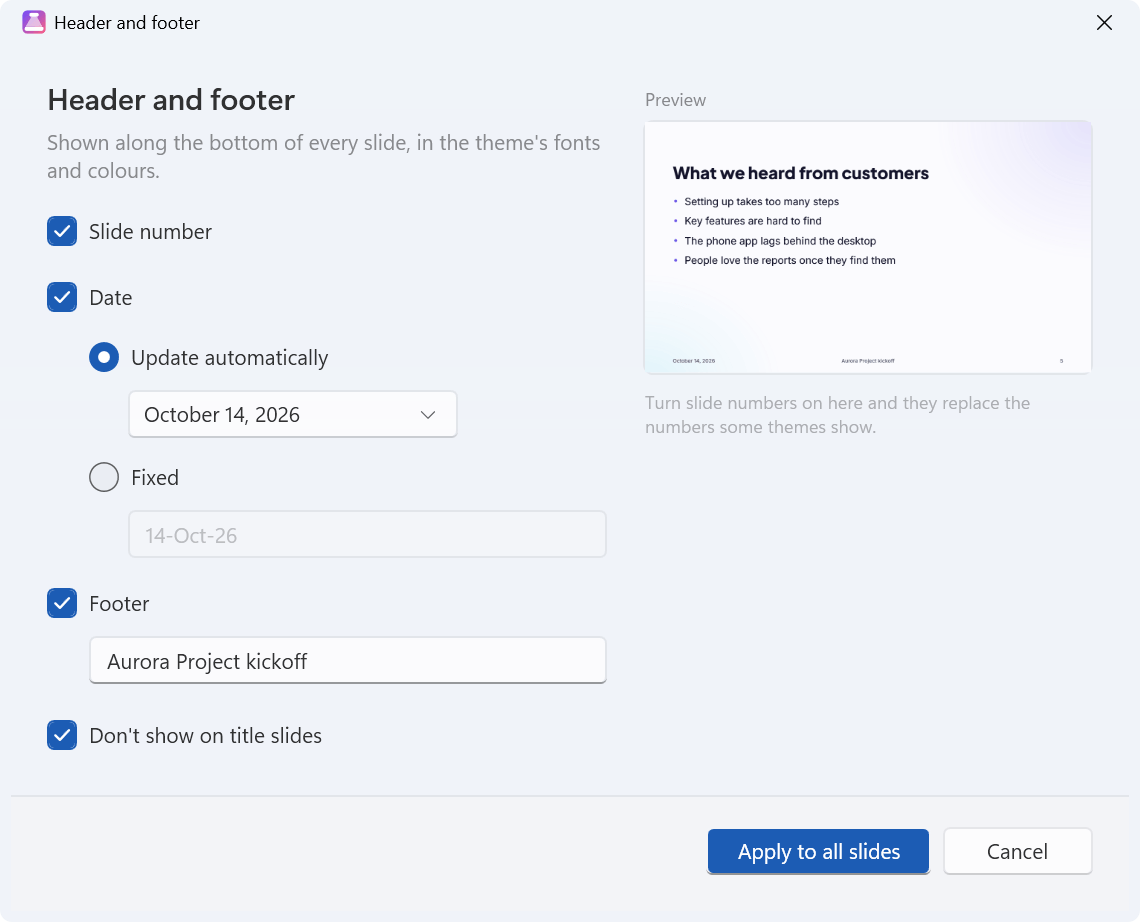
Header and footer puts slide numbers, a date (updated automatically or fixed) and footer text along the bottom of every slide, in the theme's fonts and colours, optionally not on title slides. They appear in PDF and PowerPoint exports too.
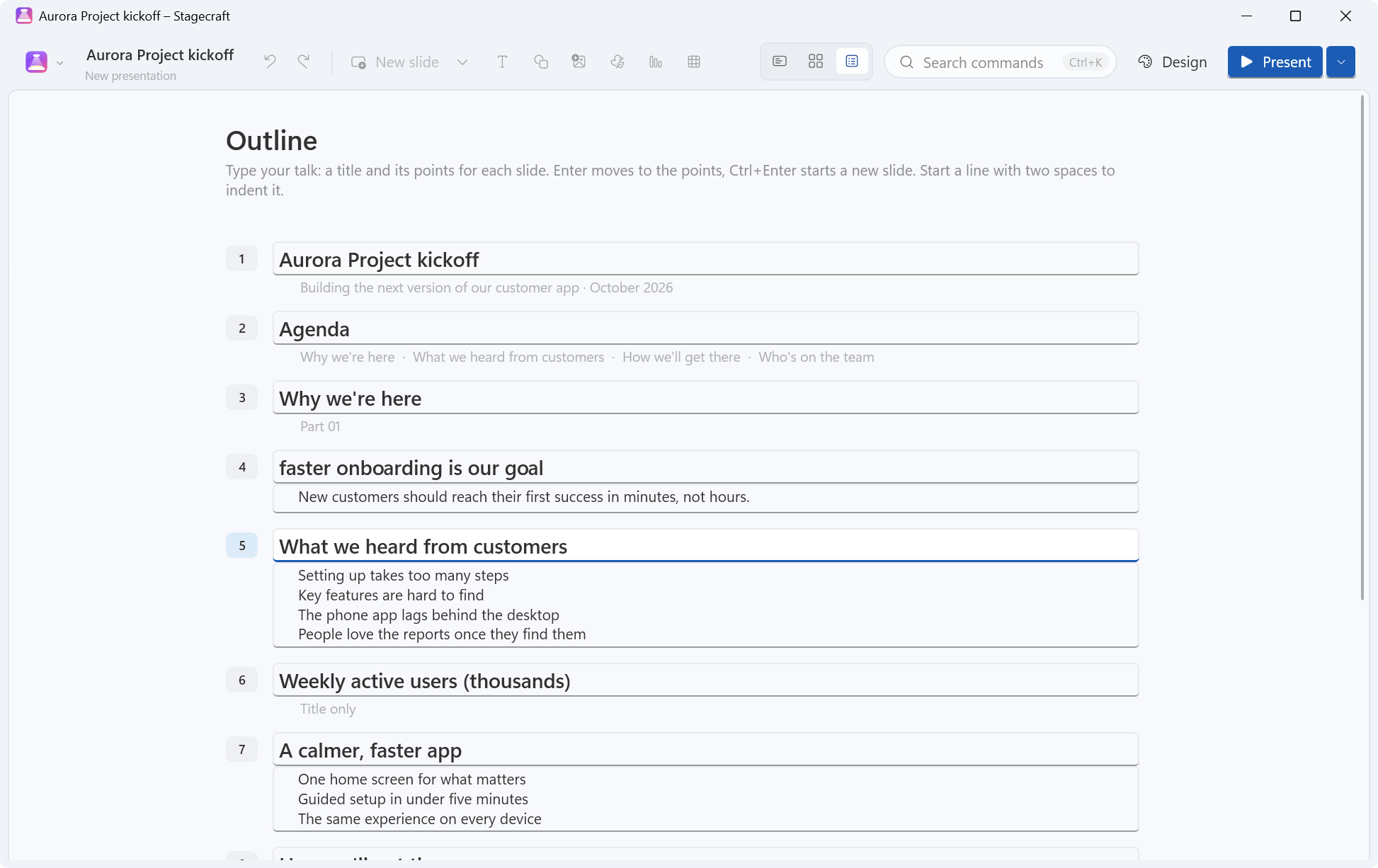
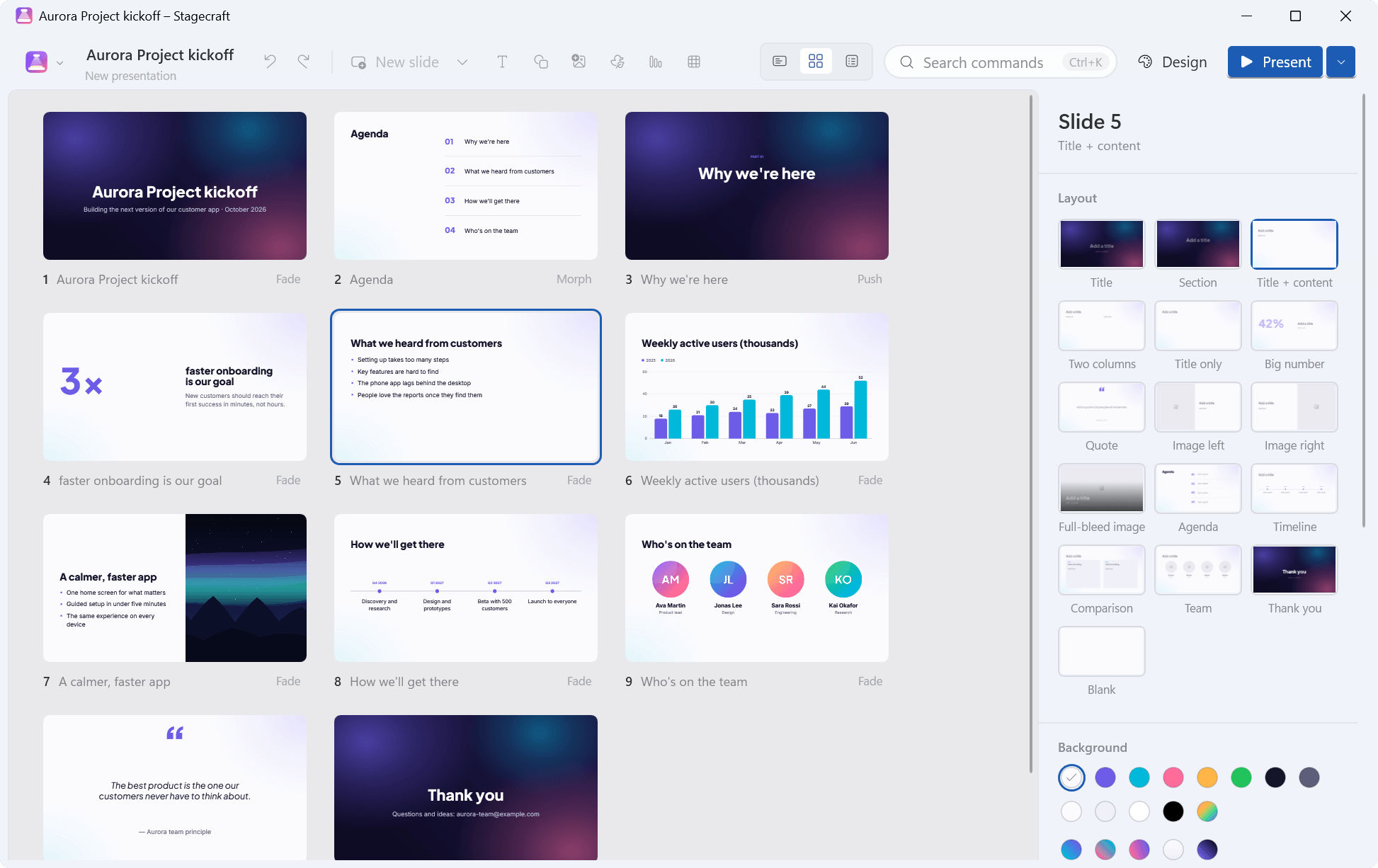
Three views cover the rest. In the editor (Ctrl+1) you drag slides around the rail and group them into sections. The slide sorter (Ctrl+2) shows the whole deck as a grid, by section, where you can reorder, duplicate and hide slides. The outline (Ctrl+3) lets you write a whole talk as titles and points: Enter moves to the points, Ctrl+Enter starts the next slide.
Smooth by default.
Morph included.
Each slide can have one of 5 transitions: Fade, Push, Slide over, Zoom and Morph. Morph is the one that makes a deck feel designed. Stagecraft finds the same object on two slides and glides it from one to the next: position, size, rotation, opacity, colours and corner radius all move together, and text that changes cross-fades.
The easy way to use it: duplicate a slide (Ctrl+Shift+D), move, resize or recolour things on the copy, and pick Morph. A duplicated slide keeps each object's identity, so everything matches. On other slides Stagecraft matches objects with the same name, then the same content, then the same layout slot, and only ever objects of the same kind; whatever has no partner fades in or out. Objects that an animation keeps hidden stay hidden during the Morph.
In the show, transitions and animations are eased and drawn frame by frame, in step with the display.
Animations that tell
the story in order.
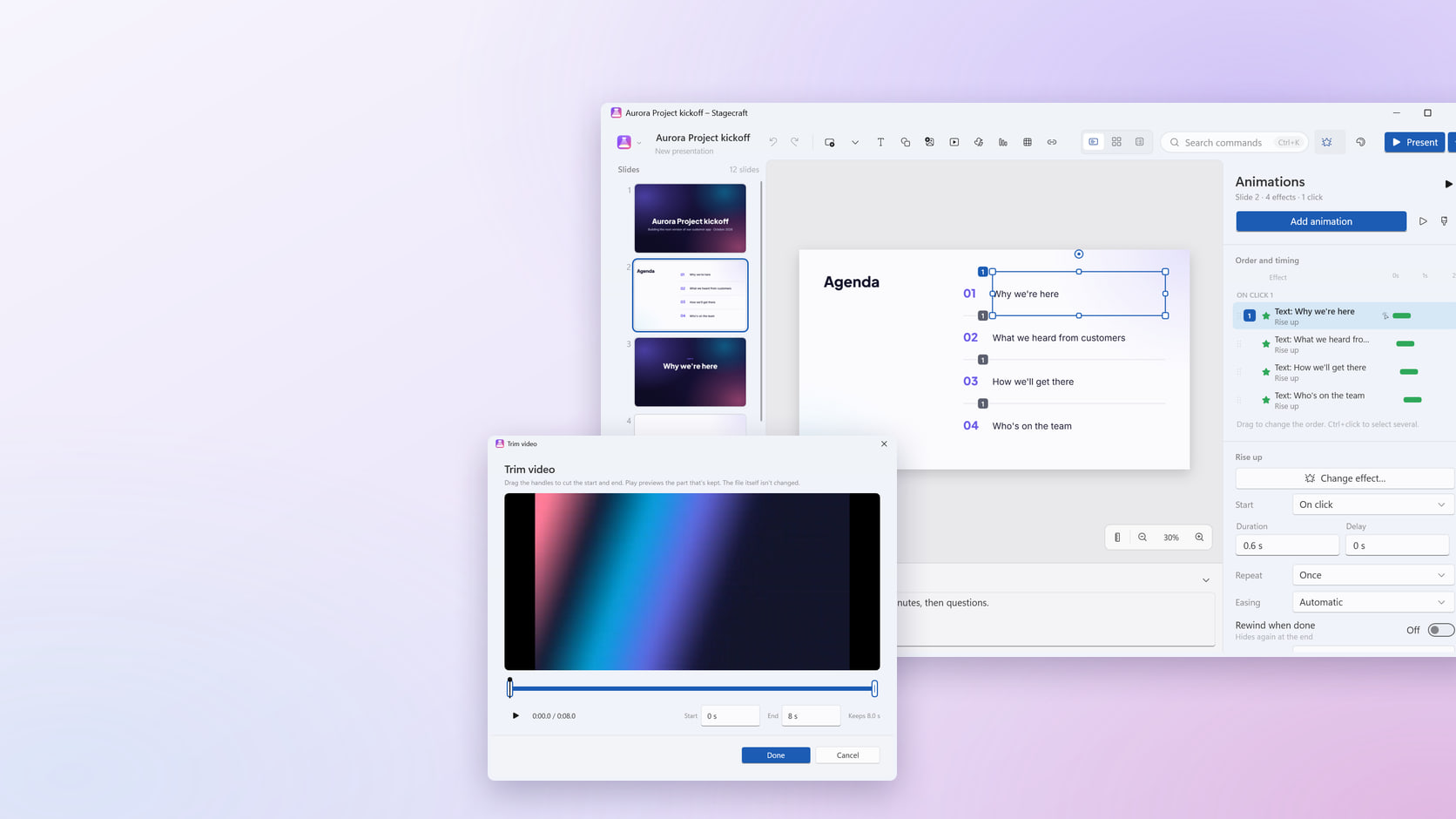
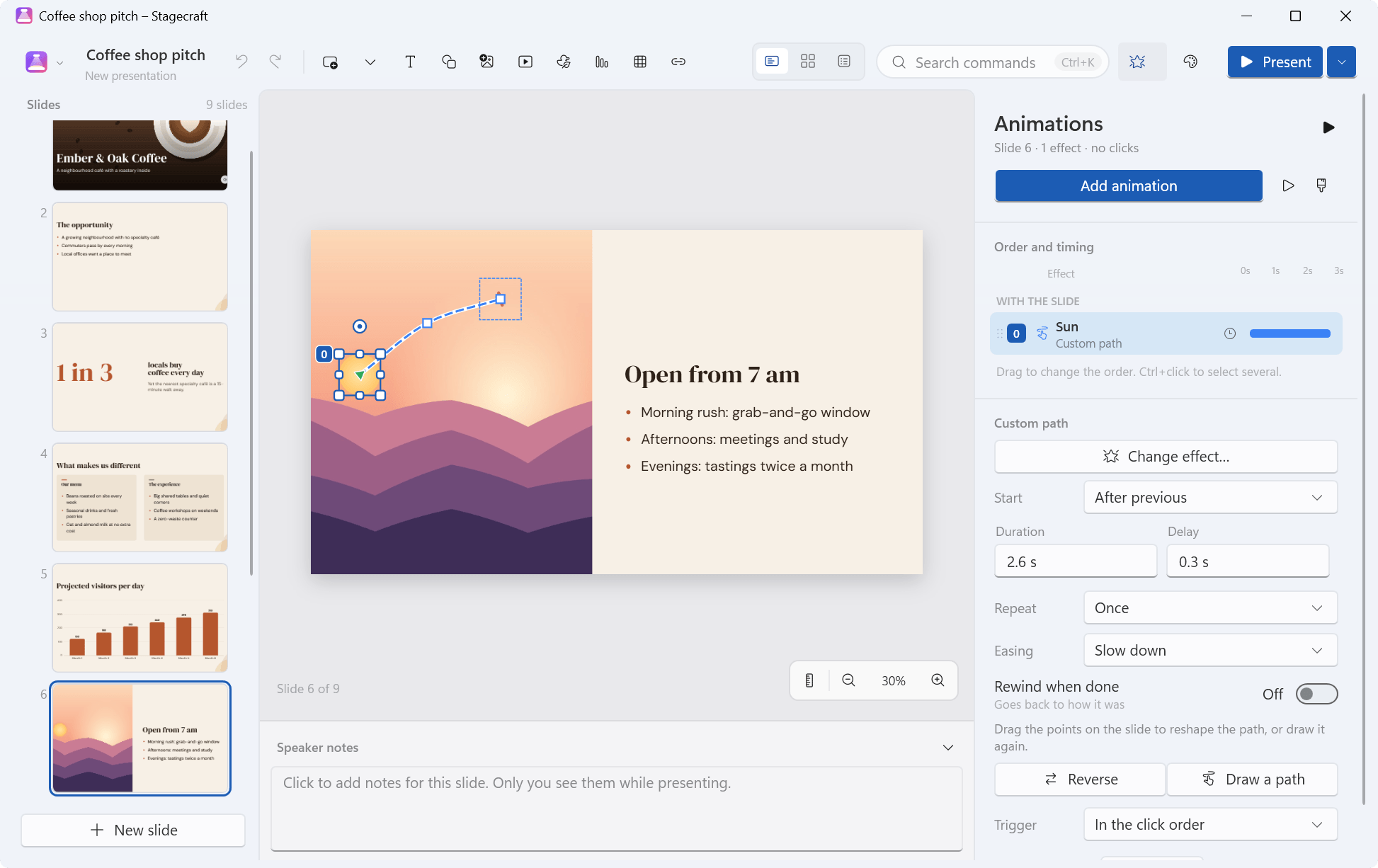
Version 1.0 had simple builds. Version 1.1 has real animations: 12 entrance effects (Appear, Fade, Fly in, Float in, Wipe, Split, Zoom, Grow & turn, Bounce, Wheel, Swivel and Rise up), 8 emphasis effects (Pulse, Spin, Grow / shrink, Teeter, Colour pulse, Transparency, Bold flash and Wave), and 12 exits that mirror the entrances, from Disappear and Fade out to Shrink & turn and Sink down. Fly in comes from eight directions, and Wipe, Float and Split let you pick theirs. Motion paths move an object along a line, an arc, a circle or a path you draw; when one is selected its path shows on the slide, and you drag its points to reshape it.
Add animation opens a gallery that plays each effect on the slide as you point at it, so you see it before you choose it.
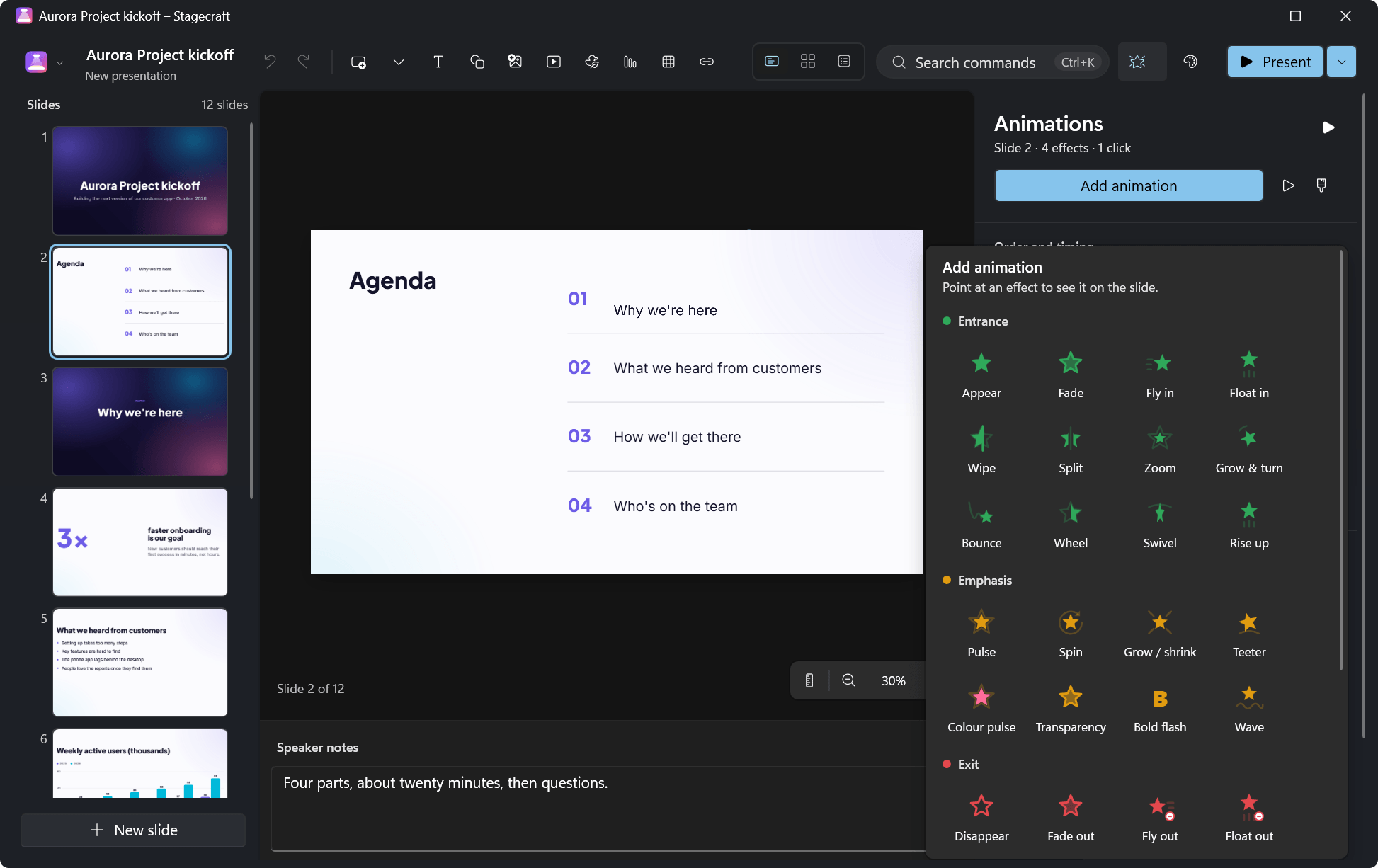
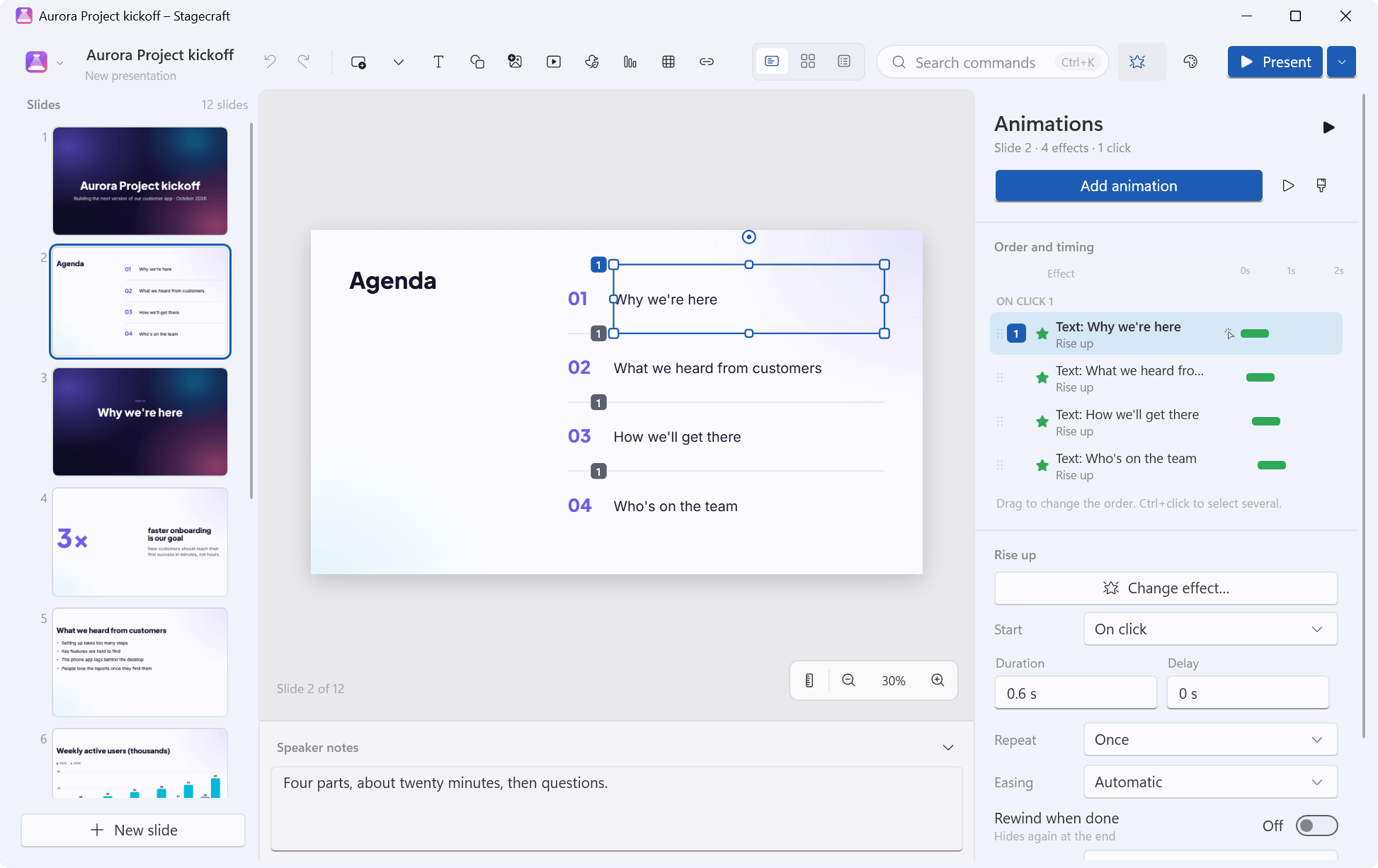
Each effect starts On click, With previous or After previous, and has a duration, a delay, a repeat (a number of times, until the next click or until the end of the slide), Rewind when done and an easing (Automatic, Steady, Speed up, Slow down, Smooth start and end or Overshoot). Text can animate all at once, by paragraph, by word or by letter, and paragraphs can each wait for their own click, so bullet points come in one by one. A trigger makes an effect wait until a particular object is clicked in the show.
The animation pane lists the slide's effects in the order they play, grouped by click, with a timeline of when each one runs. Drag an effect to reorder it, Ctrl+click to select several, and use Play from here to preview from any effect. While the pane is open, numbered badges on the slide show which click brings each object, and the animation painter (Alt+Shift+C) copies one object's animation to another.
In the show, each click (or →, Space or a clicker) plays the next group of effects, and ← steps back. The presenter view shows which click you're on (“Click 2 of 4”) and what the next click brings. Presentations made with Stagecraft 1.0 open with their builds turned into the matching animations, in the same order and with the same delays.
Links that go somewhere.
Nowhere unsafe.
A link can sit on a word, a shape, a picture, an icon or an action button (Back, Next, First slide, Last slide, Return to the last slide viewed, or a link of your own). It can go to a web page (http and https only), an e-mail address, with a subject, a slide: the next, previous, first, last or last viewed one, or a particular slide and a file, which opens in its app after you confirm (programs and scripts never open from a link). Press Ctrl+Shift+K (it's also in the right-click menu, the properties panel and the command palette), and add a ScreenTip if you like.
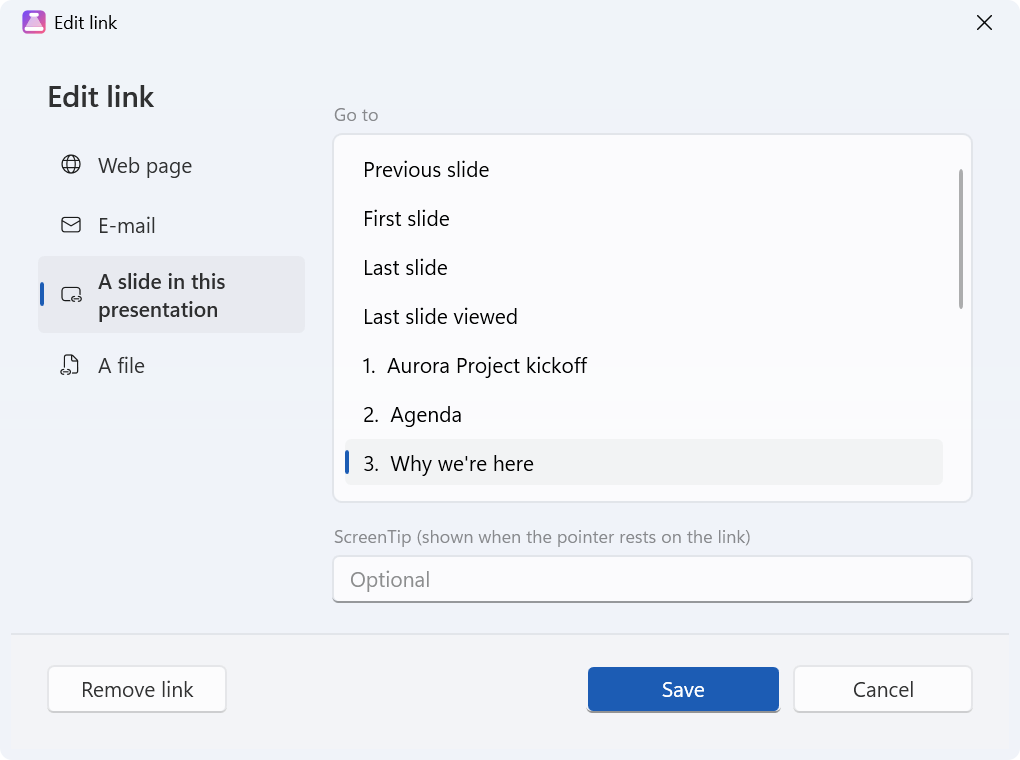
Linked text is underlined in the theme's link colour. In the editor, Ctrl+click follows a link. In the show, the pointer turns into a hand over a link and the ScreenTip appears; slide links jump straight to their slide, and web pages and e-mail open in your browser and mail app.
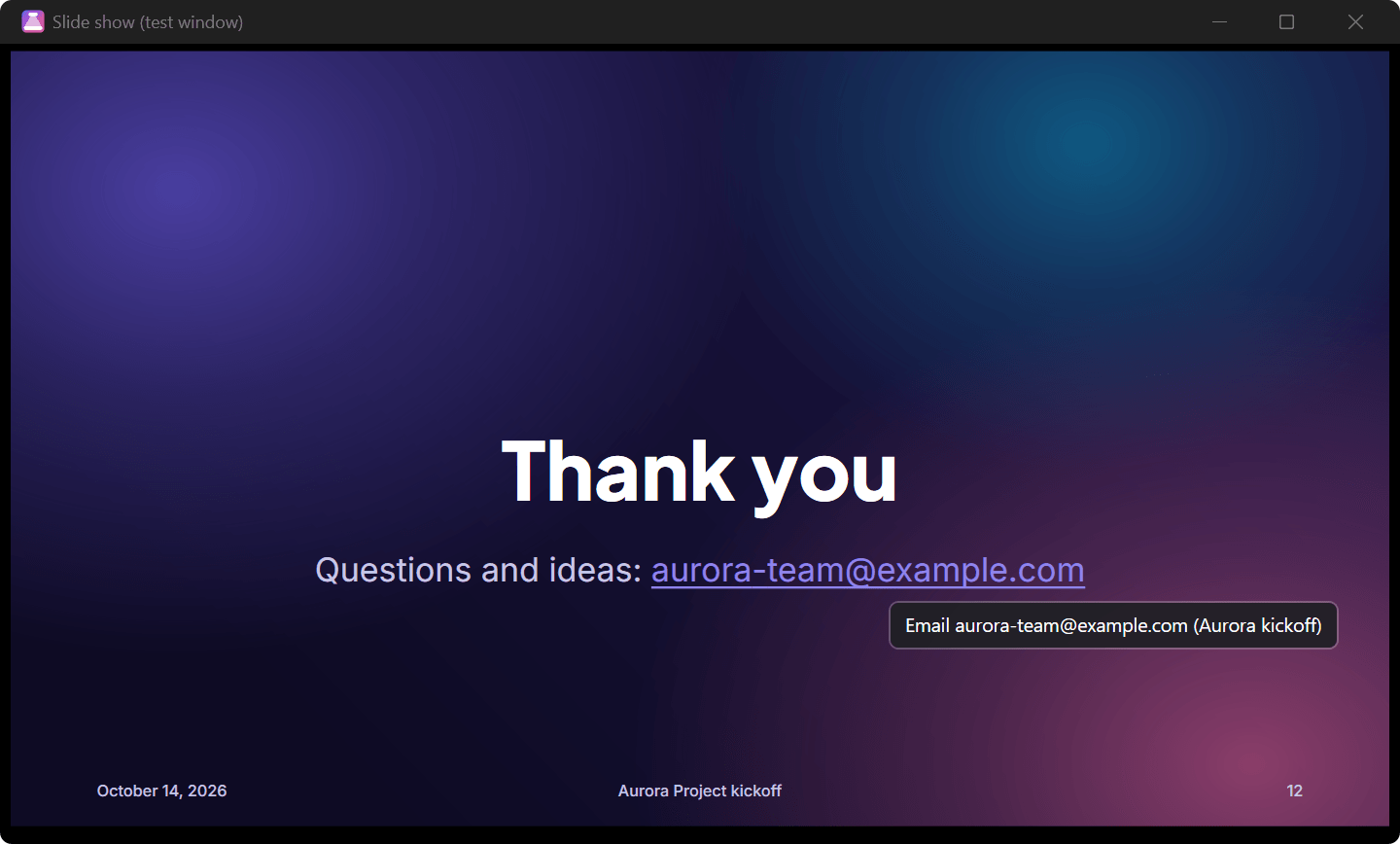
Safe by design. Web links accept only http and https addresses, so a link can't run a script. A file opens in its app only after you confirm, and programs and scripts (.exe, .bat, .ps1, .js, .msi and the like) are never opened from a link. Links survive exports: they stay clickable in PDFs and become hyperlinks and slide jumps in PowerPoint.
Video and sound.
On the slide, in the show.
Insert a video or a sound from a file, or drag it onto the slide. Playback uses Windows' own media support, so nothing extra is installed. MP4 with H.264 video and AAC sound is the safest choice; I tested MP4 (H.264 / AAC), MP3, M4A and WAV files on Windows 11. Other formats (MOV, WMV, WMA and more) play when Windows can play them, and a file it can't play gets a clear message suggesting MP4. On Windows “N” editions, install Microsoft's Media Feature Pack first.
Videos and sounds are stored inside the presentation as they are, without recompressing them. For a file over 200 MB, Stagecraft offers to link to it instead, and you can switch between linked and embedded later.
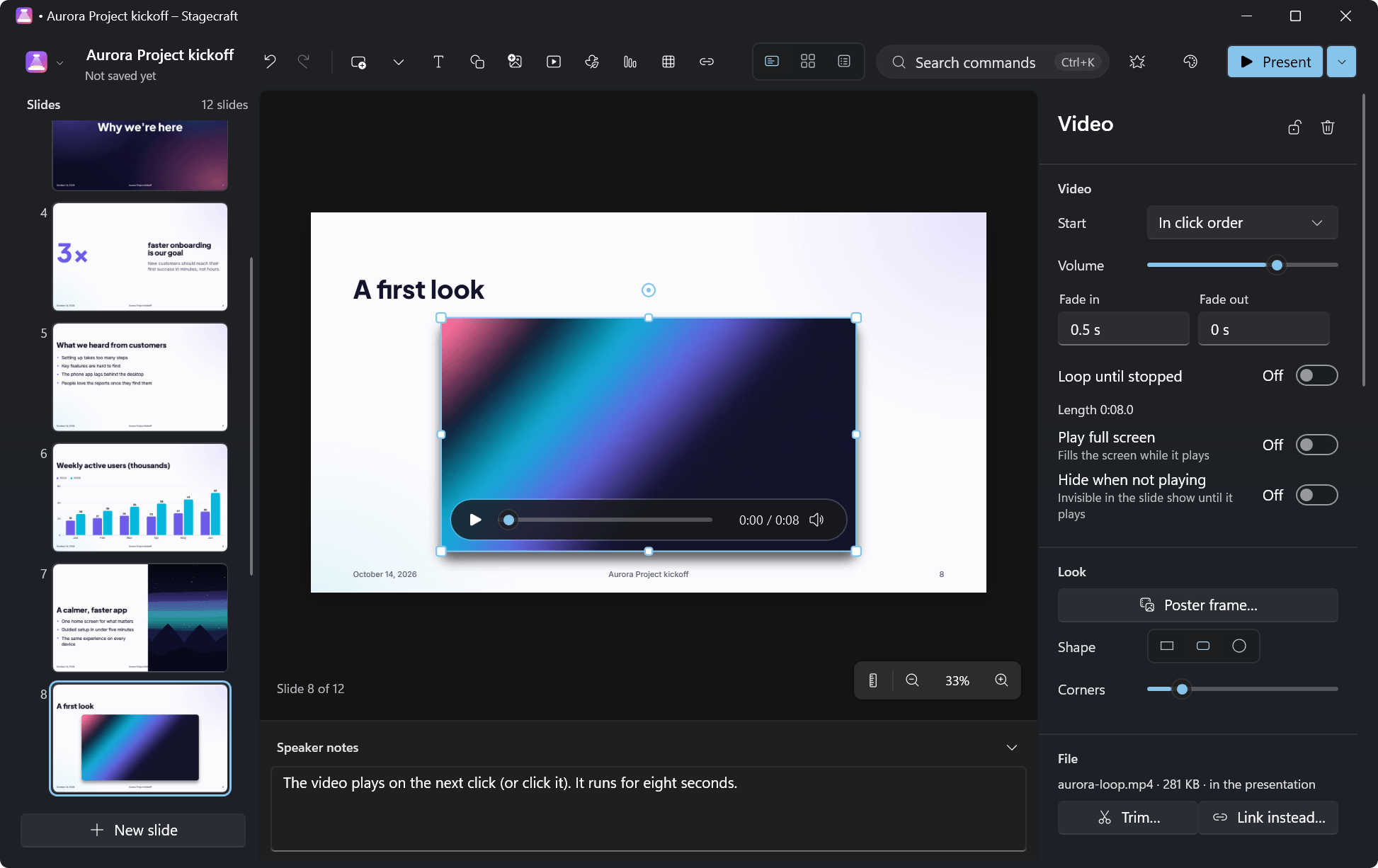
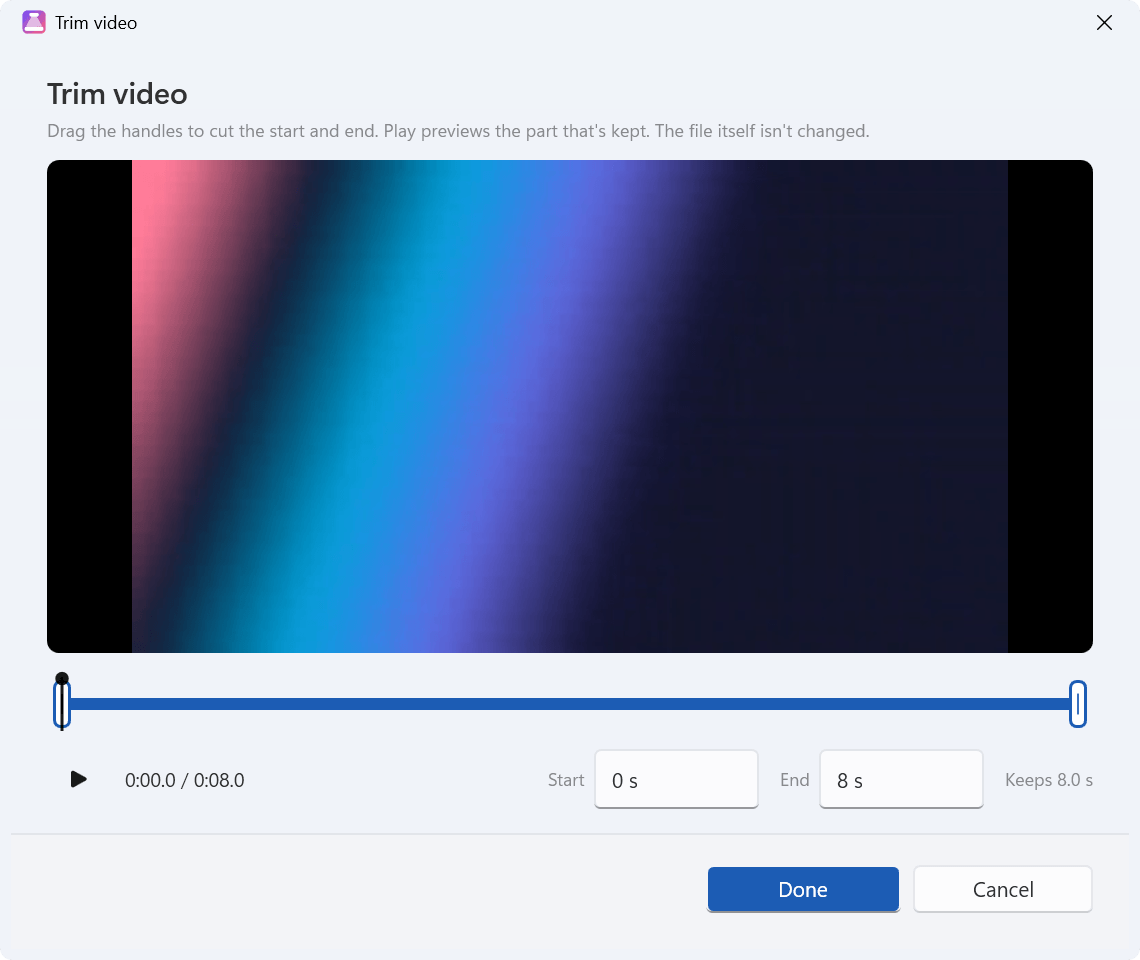
A video gets a poster frame you choose, trimming with a preview (the file itself isn't changed), and starts in the click order, automatically or when clicked. It can play full screen, loop until stopped, fade in and out, set its volume, stay hidden until it plays, and take rounded corners, a circle shape or a border. A sound shows a speaker icon (which can be hidden in the show) and can keep playing across slides as background music. Play, pause and stop can be steps in the animation order. Point at a video in the editor for a slim playback bar; in the show the bar has play and pause, a seek bar and mute.
Online videos (paste a YouTube, Vimeo or other video address) become a card that opens the video in your browser during the show; they don't play inside the slide. When you add one, Stagecraft can download its picture and title once; that option is ticked in the dialog, and with it off nothing is downloaded.
Your notes on your screen.
Slides on theirs.
Press F5 to present from the start, or Shift+F5 from the current slide. With two displays, the audience gets the slides full screen on the second one and you get the presenter view on yours: the current and next slide, your notes in a size you can change, the elapsed time with pause and restart, the clock, and a grid of every slide to jump to. With animations, it also shows which click you're on and what the next click brings. With one display, the slides fill it, and Alt+F5 opens the presenter view on that screen instead.
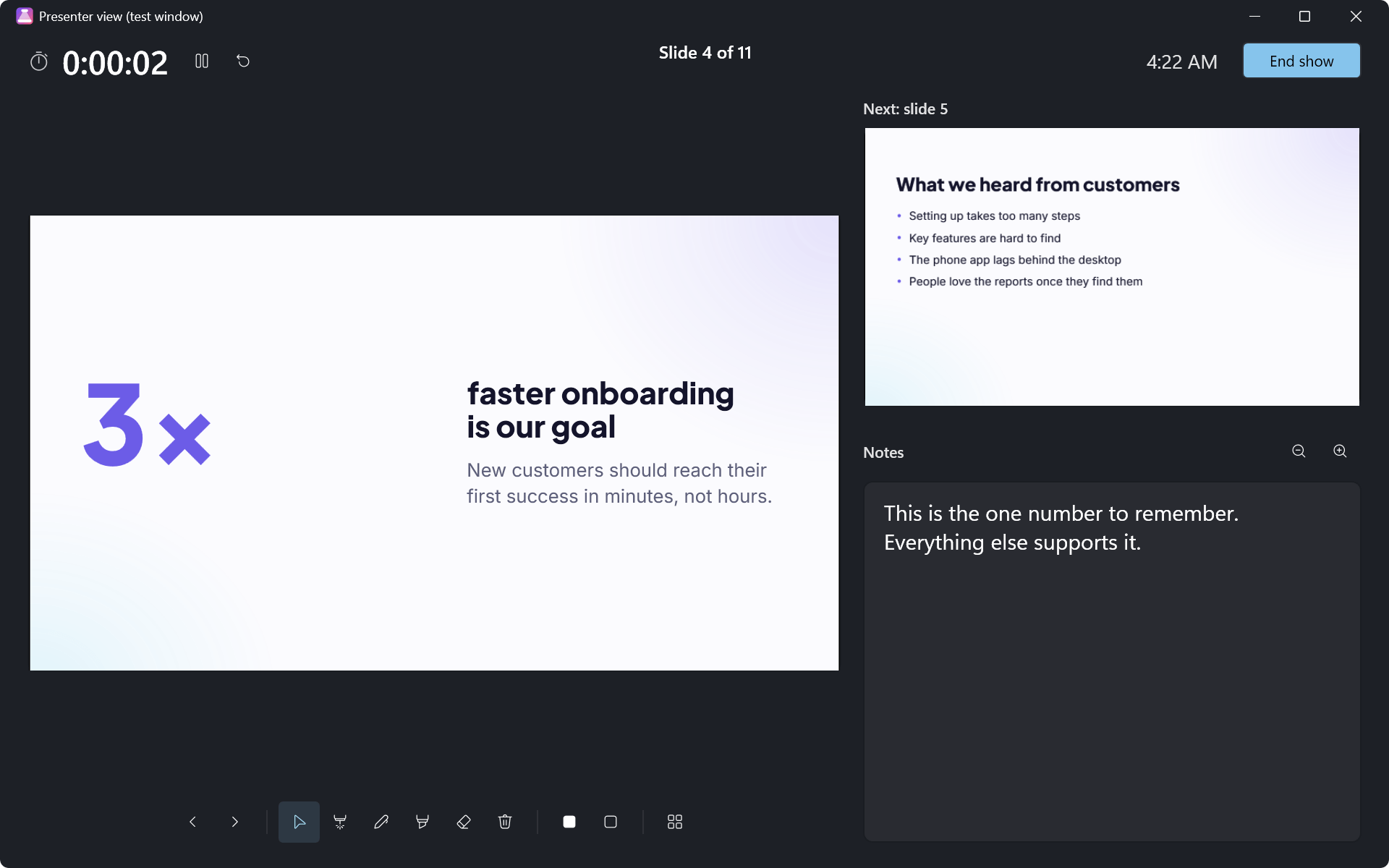
Along the bottom are the tools: a laser pointer, a pen and a highlighter (the ink stays on each slide until the show ends), an eraser, black and white screens (B and W), and the slide grid. Type a slide's number and press Enter to jump to it. The arrow keys, Page Up and Page Down, Space and Enter move through the deck, so presentation clickers work. Esc ends the show. Sound plays on the audience's screen; the presenter view stays quiet unless it's the only window. Rehearse timings records how long you spend on each slide and, if you keep the timings, shows them in each slide's panel. The display stays on while you present.
An honest note: I haven't presented on a real second display, or in real full screen, yet. The slide show and the presenter view were tested in the windowed test mode (Stagecraft.exe --present-windowed), which opens both as ordinary windows.
Your work, kept safe.
PowerPoint, both ways.
Stagecraft saves to its own format, .stagecraft: a ZIP archive with the whole deck as readable JSON (deck.json), each picture, video and sound stored once and named by a hash of its bytes (part of its SHA-256), and small thumbnails for the start screen. Saving writes a complete new file and reads it back before it replaces the old one, so a crash or a full disk can't leave a half-written presentation. A file from a newer Stagecraft is refused with a clear message instead of being misread, and a file from 1.0 is upgraded when it opens.
Save automatically is new in 1.1 and on by default: a presentation that already has a file is saved, the same safe way, a few seconds after you stop editing (not while you're typing, dragging or cropping). A new presentation isn't saved until you choose where. Separately, Stagecraft keeps a recovery copy of unsaved work: every 2 minutes by default, or every 1, 5 or 10 minutes, or never. If Stagecraft closes unexpectedly, the start screen offers the copy back. Both are in Settings.
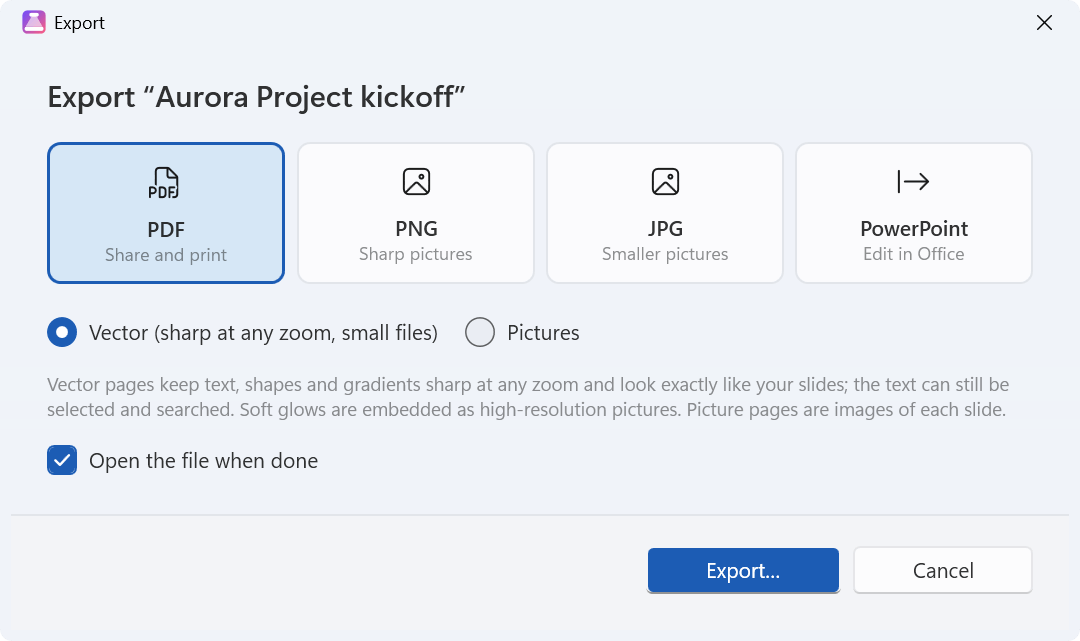
One page per slide at the slide’s size. Vector pages keep text, shapes and gradients sharp at any zoom, embed the pictures, and carry an invisible text layer so the words can be selected and searched. Links stay clickable: web pages and e-mail, slides (they go to that page), files, and the file of a linked video or sound. The header and footer are on the pages. Or “Pictures”: each page is a high-resolution image.
Limits: Effects PDF can’t draw directly (soft glows, see-through and multi-colour gradients, see-through pictures) are embedded as high-resolution pictures inside the vector page. Videos show their poster frame, or a video card. “Last slide viewed” links have no PDF equivalent. The text layer is approximate (see below).
This slide, or every slide into a folder, at 1920, 2560 or 3840 pixels wide.
Limits: Hidden slides are left out unless you include them. Videos show their poster frame, or a video card.
Text boxes, shapes, lines, pictures and tables as native, editable PowerPoint objects, with the slide size, speaker notes, hidden slides (if you include them), the Fade, Push, Slide over and Zoom transitions, animations as PowerPoint animation timing, links and slide jumps, videos and sounds with their trim and fades, and the header and footer (the slide number and an automatic date as PowerPoint fields).
Limits: Charts, icons, action buttons, online video cards and the theme’s background artwork become pictures; buttons and video cards keep their links. Morph becomes a fade, and effects PowerPoint has no match for become the closest one (see the table below). Fonts aren’t embedded, so PowerPoint replaces any that aren’t installed on the other PC.
Slide size, text with basic formatting, shapes (action buttons included), lines and connectors with arrowheads, pictures (with their cropping), groups, tables, bar, line, pie and doughnut charts from their saved data, backgrounds, speaker notes, hidden slides, transitions, hyperlinks (web, e-mail, slides and files), embedded and linked videos and sounds with their trim, fades, volume and looping, and animations. Opening a .pptx imports a copy; the original isn’t changed.
Limits: SmartArt, other chart types, ink and embedded objects are left out, and effects Stagecraft doesn’t have become the closest one; a summary after importing lists what was left out or changed. Master and layout inheritance is only followed for positions, text styles and backgrounds (plus the master’s own shapes and pictures), so some decks need touching up. EMF and WMF pictures aren’t shown.
PowerPoint is where honesty matters most. In 1.1, a .pptx export carries the animations as PowerPoint animation timing, the links and slide jumps, the videos and sounds with their trim and fades, and the footer, and importing a .pptx reads all of those back. Where PowerPoint has no matching effect, Stagecraft writes the closest one:
| Effect | Exported to PowerPoint as | Imported from PowerPoint as |
|---|---|---|
| Appear, Fade, Fly in and out (8 directions), Wipe, Split, Wheel, Zoom | the same effect | the same effect |
| Float in, Rise up, Swivel | Fade | Float in, Rise up, Swivel |
| Bounce | Fly in from the top | Bounce |
| Grow & turn | Zoom | Grow & turn |
| Pulse, Spin, Grow / shrink, Transparency | the same effect | the same effect |
| Teeter, Wave, Colour pulse, Bold flash | Pulse | Teeter, Wave and Bold flash; Colour pulse arrives as Pulse |
| Motion paths (line, arc, circle, drawn) | a custom path of the same shape | a line or a custom path |
| Play, pause and stop of a video or sound | the same media action | the same media action |
| Other PowerPoint effects | — | the closest one (Fade or Pulse), counted in the summary after importing |
I checked the round trip in PowerPoint itself: it opened exported files and read their 37 effects, the links, the trims and the fades as intended, and I imported a deck made in PowerPoint. Some things still don't cross: charts and icons become pictures, Morph becomes a fade, SmartArt isn't imported, and decks that lean on their slide masters will need touching up. After importing, Stagecraft lists what it left out or changed. The command line can also make a PDF without opening a window: Stagecraft.exe --export-pdf deck.stagecraft deck.pdf.
One renderer.
Two kinds of .NET.
Stagecraft is written in C# with WPF. A single renderer draws every slide wherever it appears: on the canvas, in the thumbnails, in the slide show, and in PDF and picture exports, so what you export is what you saw. Slides are measured in fixed units (a 16:9 slide is 1,920 × 1,080 of them, 1/144 inch each), and the themes scale with the slide's height. In the show, each object is its own layer, so animations can move it, and text animated by paragraph, word or letter is split into its own pieces.
Vector PDF with a text layer. The PDF export walks WPF's own drawing of each slide and writes it with PDFsharp as vectors. Text is drawn as outlines in the slide's real fonts, so it looks exactly like the slide, and an invisible layer of text in Inter sits on top so the words can be selected, copied and searched. That layer is approximate: each run of text is stretched to the width of the outlines, but inside it the letters follow Inter's spacing, so a highlight may sit slightly off the words. Links become PDF link annotations over the same areas.
PowerPoint files go through Microsoft's Open XML SDK. The exporter writes PresentationML itself, animations included, and automated tests check exported decks against the Office Open XML schema with the SDK's validator. Video and sound play through WPF's media elements, which use Windows' Media Foundation, so no codecs are bundled.
One codebase, two targets. .NET 10 for Windows 10 and 11, published self-contained for x64, ARM64 and 32-bit; and .NET Framework 4.8 for Windows 7 SP1 and 8.1. The Windows 11 touches (Mica on 22H2 and later, dark title bars, rounded corners, per-monitor DPI) are guarded, so the same app runs on Windows 7. The look follows Windows' light or dark mode and your accent colour, in Segoe UI Variable with Microsoft's Fluent System Icons drawn as vectors. One fix in 1.1: at high display scaling, the first window could open taller than the screen; it now fits the screen it opens on.
Tested where it counts. 135 engine tests (xUnit) run on both .NET 10 and .NET Framework 4.8: saving and loading, damaged, older and newer files, crash recovery, PowerPoint export and import (animations, links and media included), rendering in every layout and theme, PDF and picture export, animation timing, link safety, video and sound, find and replace, snapping, Tidy and Morph. A hidden smoke mode runs 133 editor commands on a new deck, then undoes and redoes all 110 steps; I ran it on the 64-bit, 32-bit and Windows 7/8.1 (.NET Framework 4.8) builds. The 200-slide performance test still passes; when I measured it with version 1.0.0 on my PC, a 200-slide deck opened in 73 ms and all 200 thumbnails were drawn in 452 ms.
Stagecraft uses Microsoft's Open XML SDK (MIT) for PowerPoint files, PDFsharp (MIT) for PDF export, Microsoft's Fluent UI System Icons (MIT), and 8 font families under the SIL Open Font License 1.1. Details are in the third-party notices. Stagecraft is an independent project, not affiliated with or endorsed by any of them. PowerPoint and Office are trademarks of Microsoft Corporation.
The short version.
In 101 seconds.
If you'd rather watch than read, here is the launch video. English captions are on by default; turn them off from the video's controls.
Free.
For every Windows.
Stagecraft is free. The box below suggests the right installer for the PC you're on; the full list follows. There's also a download page you can share.
| Windows | Best for | Size | Installer |
|---|---|---|---|
| Windows 10 & 11 · 64-bit | Intel or AMD processor. Most PCs. Self-contained. Nothing else to install. | 48.6 MB | Download |
| Windows 11 & 10 on ARM | Snapdragon laptops, Surface Pro X and other ARM PCs. Self-contained. Nothing else to install. | 43.1 MB | Download |
| Windows 10 · 32-bit | Older PCs running a 32-bit installation of Windows 10. Self-contained. Nothing else to install. | 44.6 MB | Download |
| Windows 7 SP1 & 8.1 | Older PCs, 32- or 64-bit. Uses Microsoft .NET Framework 4.8 (setup tells you if it is missing). | 6.6 MB | Download |
SHA-256 checksums
- Stagecraft-Setup-1.1.0-x64.exe
d2de9ca98c92bb56574c990d06d19eea25e47dbaba57c2b06db39ca2f6840f68 - Stagecraft-Setup-1.1.0-arm64.exe
4031591a4543569c94b1f1ca4bfc8f6b76f3de0a6c43b6483d820782470a66d7 - Stagecraft-Setup-1.1.0-x86.exe
96dbe45e4da0fd153b439e27d097bb924e43cf4d068c5148f0d11a4707f9d986 - Stagecraft-Setup-1.1.0-win7-8.exe
340d65a3f8a0af6d20ff90503648ab4168c65cc9974c42ef9d7e040f8805aff3
Which one do I need?
Open Settings › System › About on Windows 10 or 11, or Control Panel › System on Windows 7 and 8.1. It shows your Windows edition and system type. Most PCs need the first installer. Windows 8 needs the free update to 8.1 first. Windows XP and Vista aren't supported.
Installing
Setup first asks who it's for: all users, the default, which installs to Program Files and needs administrator permission; or only you, which needs no administrator rights. Then pick the extras: open .stagecraft files with Stagecraft, and add Stagecraft to Open with for PowerPoint files (both ticked; a .pptx opened this way is imported as a copy), and a desktop shortcut (not ticked). The Windows 7 and 8.1 edition needs Microsoft .NET Framework 4.8; if it's missing, setup says so and offers to open Microsoft's download page.
The installers aren't code-signed yet, so Windows SmartScreen may show “Windows protected your PC”. Choose More info, then Run anyway. Compare the SHA-256 checksum first if you'd like to be sure the file is the one I published: Get-FileHash in PowerShell shows it, or certutil -hashfile <file> SHA256 on Windows 7.
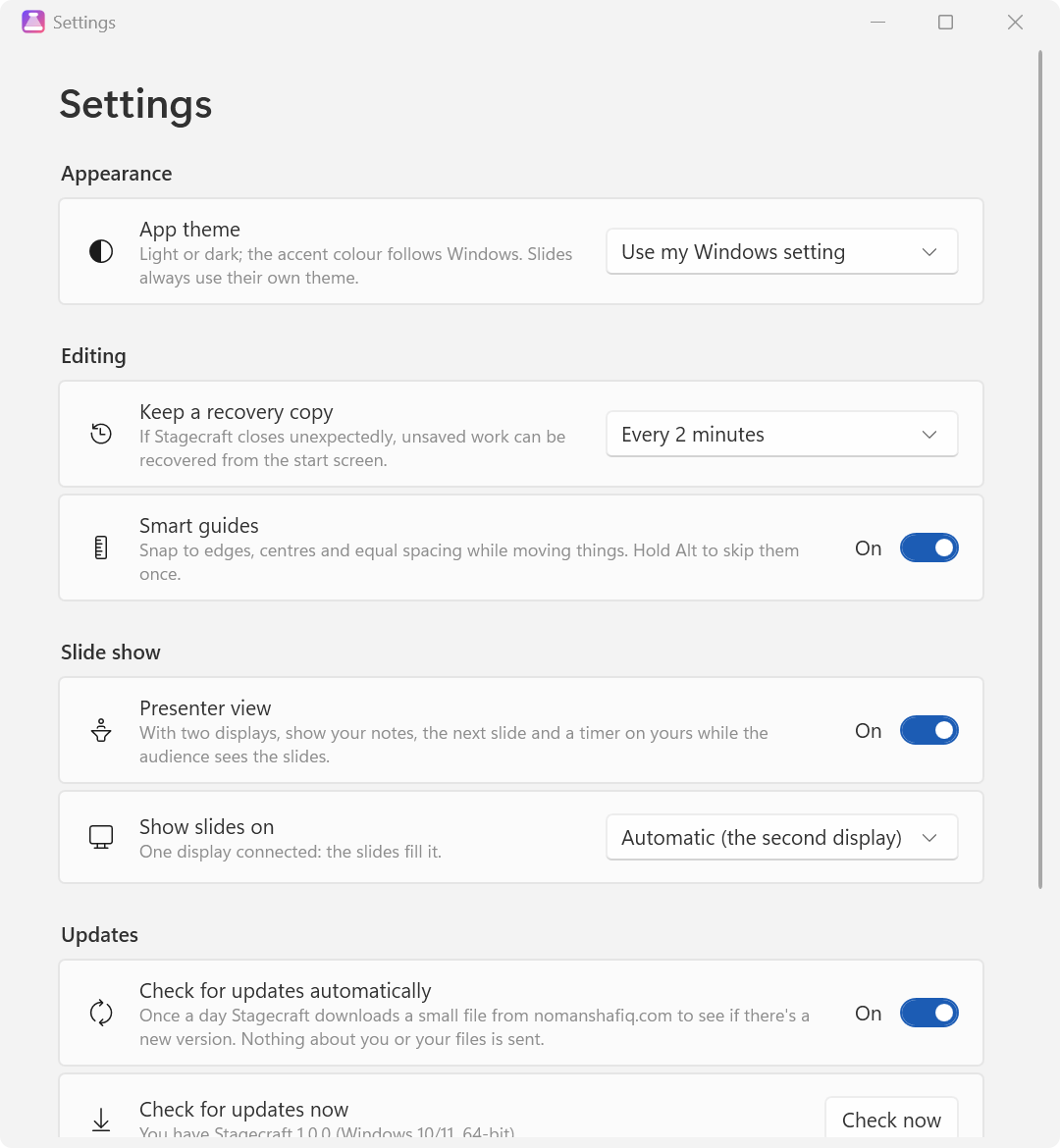
Stagecraft keeps itself up to date. About 10 seconds after it starts, and then at most once a day, it reads a small file on this site (https://www.nomanshafiq.com/updates/stagecraft.json); the request carries nothing about you or your presentations. If there's a newer version, the window offers Update now, Later or Skip this version. Update now downloads the installer for your edition, checks its size and SHA-256 checksum, installs it silently and starts Stagecraft again; if Stagecraft is installed for all users, Windows asks for permission first. Turn the check off in Settings › Updates. Apart from that check and an update you asked for, Stagecraft only goes online when you add an online video with its picture and title switched on (it asks YouTube or Vimeo for them once), and a link you click in a show opens in your browser.
Installing a newer version, or another edition, replaces the one you have and keeps your settings. To remove Stagecraft, uninstall it from Settings › Apps; your settings and recovery copies stay in %APPDATA%\Stagecraft in case you come back.
What I tested: the 135 engine tests on .NET 10 and .NET Framework 4.8, the 133-command smoke run on the 64-bit, 32-bit and Windows 7/8.1 (.NET Framework 4.8) builds on my Windows 11 PC, and video and sound with MP4 (H.264 / AAC), MP3, M4A and WAV files. Not tested yet: a slide show in real full screen or on a real second display (both views were tested in the windowed test mode), dragging and typing with a real mouse and keyboard (the snapping maths and the commands are tested), the ARM64 edition on ARM64 hardware, any build on real Windows 7 or 8.1 PCs, or on 32-bit Windows 10 (those editions ran on 64-bit Windows 11), MOV, WMV and WMA files, and video and sound on Windows N editions, the 1.1 installers themselves (the 1.0 installers installed and uninstalled cleanly for one user, and the 1.1 setup script differs only in its version number) and screen readers.
Version 1.1.
The stage is set.
Next on my list: exporting a presentation as a video (MP4), a slide show on a real second display, tested end to end, code-signing, so SmartScreen stays quiet, thumbnails of .stagecraft files in File Explorer, charts that stay editable charts in PowerPoint, a theme editor for your own colours and fonts and a phone remote for the slide show.
A presentation should be about what you have to say. Stagecraft's job is to make the slides look like you spent the afternoon on them, so you can spend it on the talk instead.
Every still image of Stagecraft on this page is a real screenshot (x64, Windows 11), captured from Stagecraft's own windows with its sample decks; each caption says whether it shows version 1.1.0 or 1.0.0. The cover places two of them on a gradient background, the theme gallery shows crops of the slide canvas, and the presenter view and the slide show were captured in the windowed test mode. The launch video is different: its app shots recreate Stagecraft's interface, with slides rendered by Stagecraft's engine, as its caption says.