VibePlayer:
skip the scenes
you don't want to see.
A free Windows media player with a YouTube-style interface, built on the VLC engine.
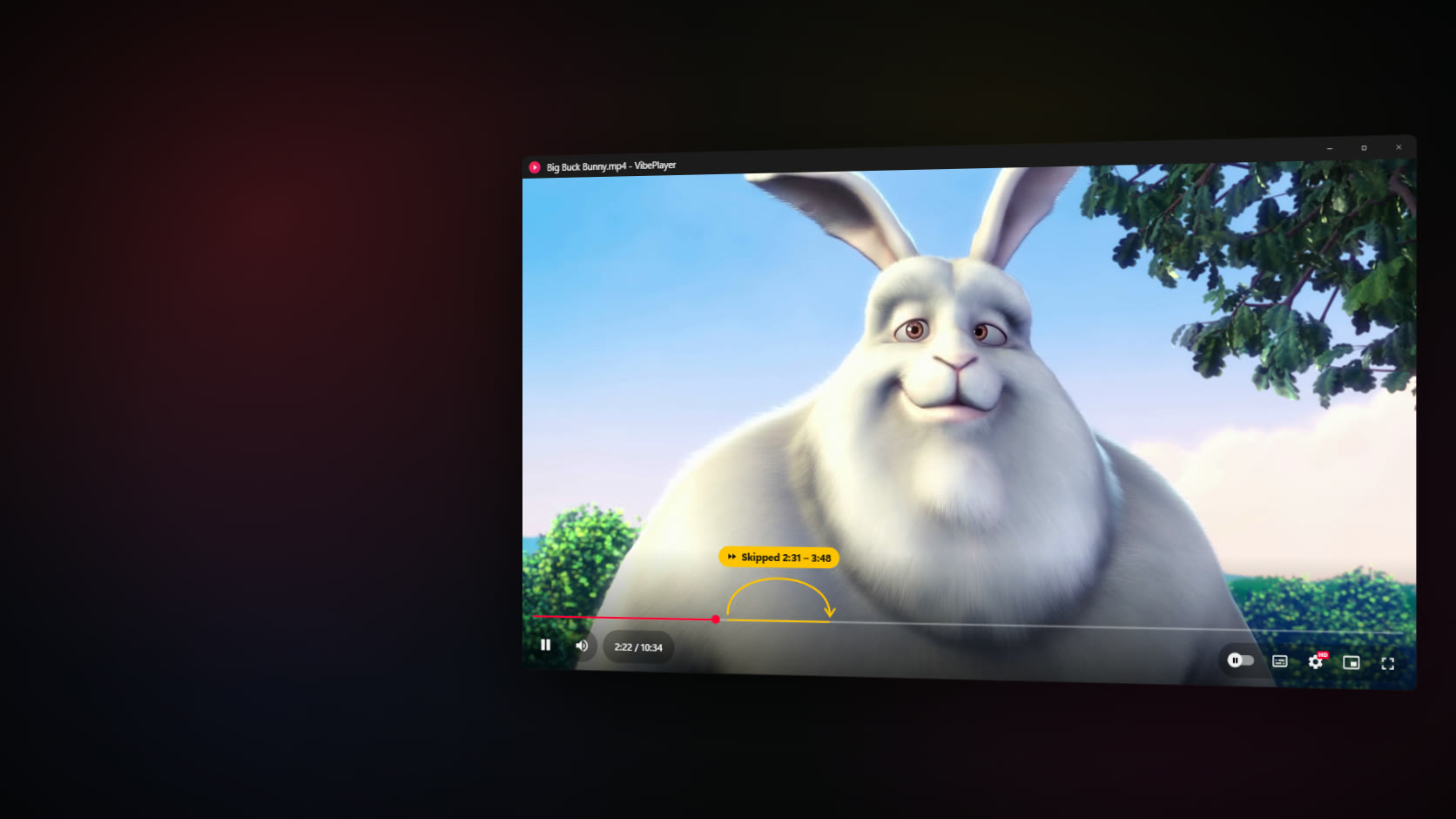
Mark the parts of a video you'd rather not see, and it jumps over them every time. The file itself is never changed.
Windows 7 SP1, 8.1, 10 & 11 · x64, ARM64 and 32-bit
How often the player looks for a marked part while a video plays
47 video and 34 audio formats, plus subtitle files
Family movie night has one awkward moment: the scene you'd rather the kids didn't see. Someone dives for the remote, guesses how far to skip, and the mood is gone.
VibePlayer is my answer to that moment. It's a free media player for Windows with an interface you already know from YouTube, and one feature I wanted most: you mark the parts of a video you don't want to see, and the player jumps over them every time it plays that file.
Nothing is cut, exported or re-encoded. The video stays exactly as it was; the marks live in VibePlayer's own settings. Underneath is LibVLC, the engine inside VLC media player, so it opens the formats VLC opens: MKV, MP4, AVI, MOV, WebM, TS and many more.
Mark it once.
Skipped every time.
Open the settings menu (the gear) and choose Skip scenes. There are two ways to mark a part.
Choose “Add a skip (type the times)…” and enter where the part starts and ends, in minutes:seconds or hours:minutes:seconds, like 34:05 or 1:02:30.
Press [ where the part begins, play on, and press ] where it ends. The player confirms each step, and the same two commands are in the settings and right-click menus.
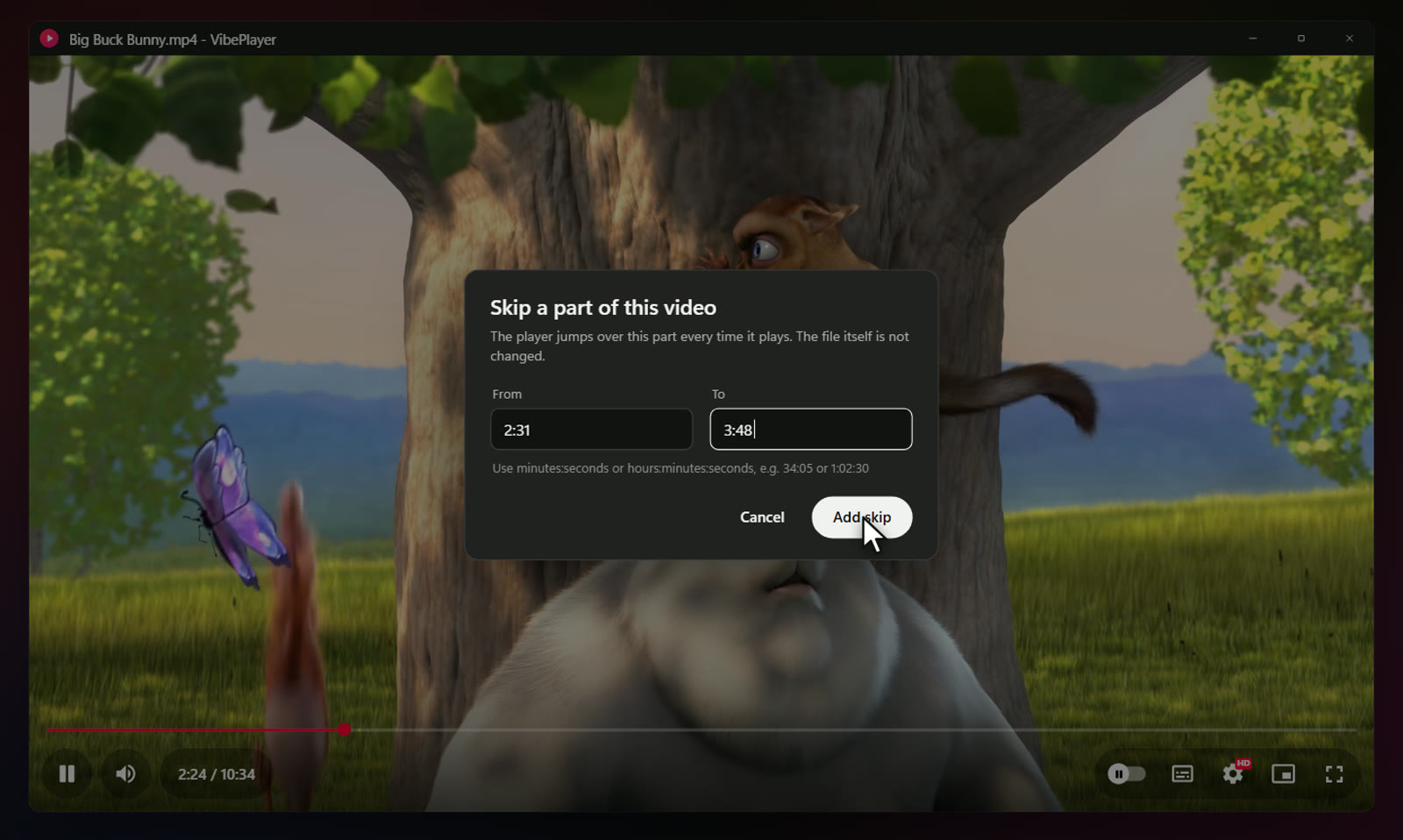
Marked parts show as amber segments on the progress bar, so you can see at a glance what will be skipped. Parts that overlap or touch merge into one. The same menu lists every marked part with a Remove button, and a switch, Skip marked parts, turns skipping off without forgetting the marks. While it's off, the amber segments dim and the video plays in full.
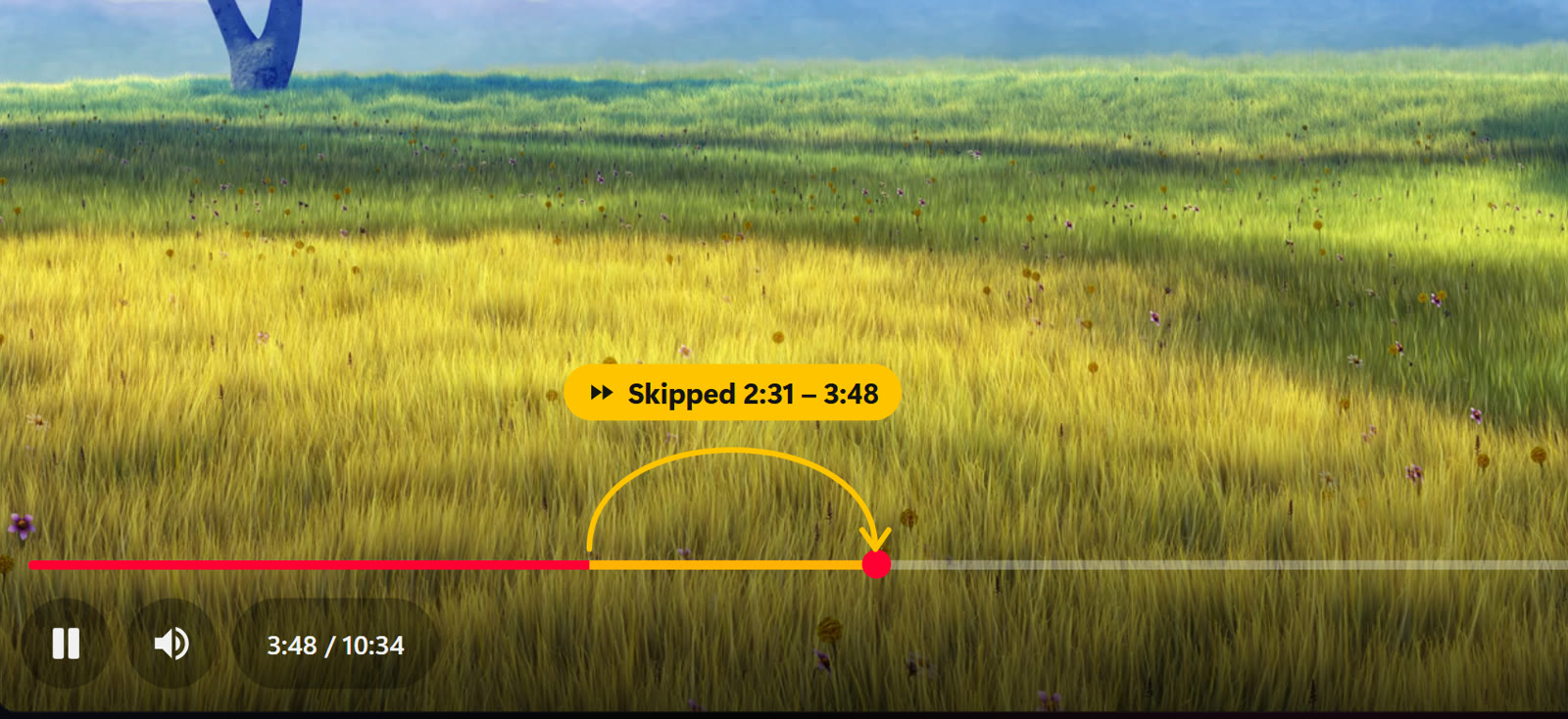
Skipping is silent by default: the film simply carries on after the marked part, which is the point when nobody should notice. If you'd like a confirmation, switch on Show “Skipped” message.
While a video plays, VibePlayer checks the position every 40 milliseconds. When it finds itself inside a marked part, it seeks to the end of that part, so at most a frame or two of it reaches the screen. It won't even start inside one: if a file has a skip from 0:00, or you stopped inside a marked part last time, playback begins after it.
Skips are remembered per file, by its location on the PC, in VibePlayer's settings (%APPDATA%\VibePlayer\settings.json). They work for files on your PC, not for network streams.
Skip marks are a convenience, not parental controls. Anyone at the PC can open the menu and switch them off.
Try skip mode.
Right in the page.
This is a small web version of the same idea, playing a 20-second clip from Big Buck Bunny. The part from 0:08 to 0:13 is marked. Leave Skip marked parts on and watch the red bar jump over the amber part; switch it off and the clip plays in full. Mark your own part with the buttons, or with [ and ] while the demo has focus.
Familiar controls.
A few new habits.
The rest of VibePlayer is meant to feel familiar: a red progress bar with the time under your pointer, pill-shaped buttons, an autoplay switch, captions and a settings menu, in the dark look of YouTube's player.
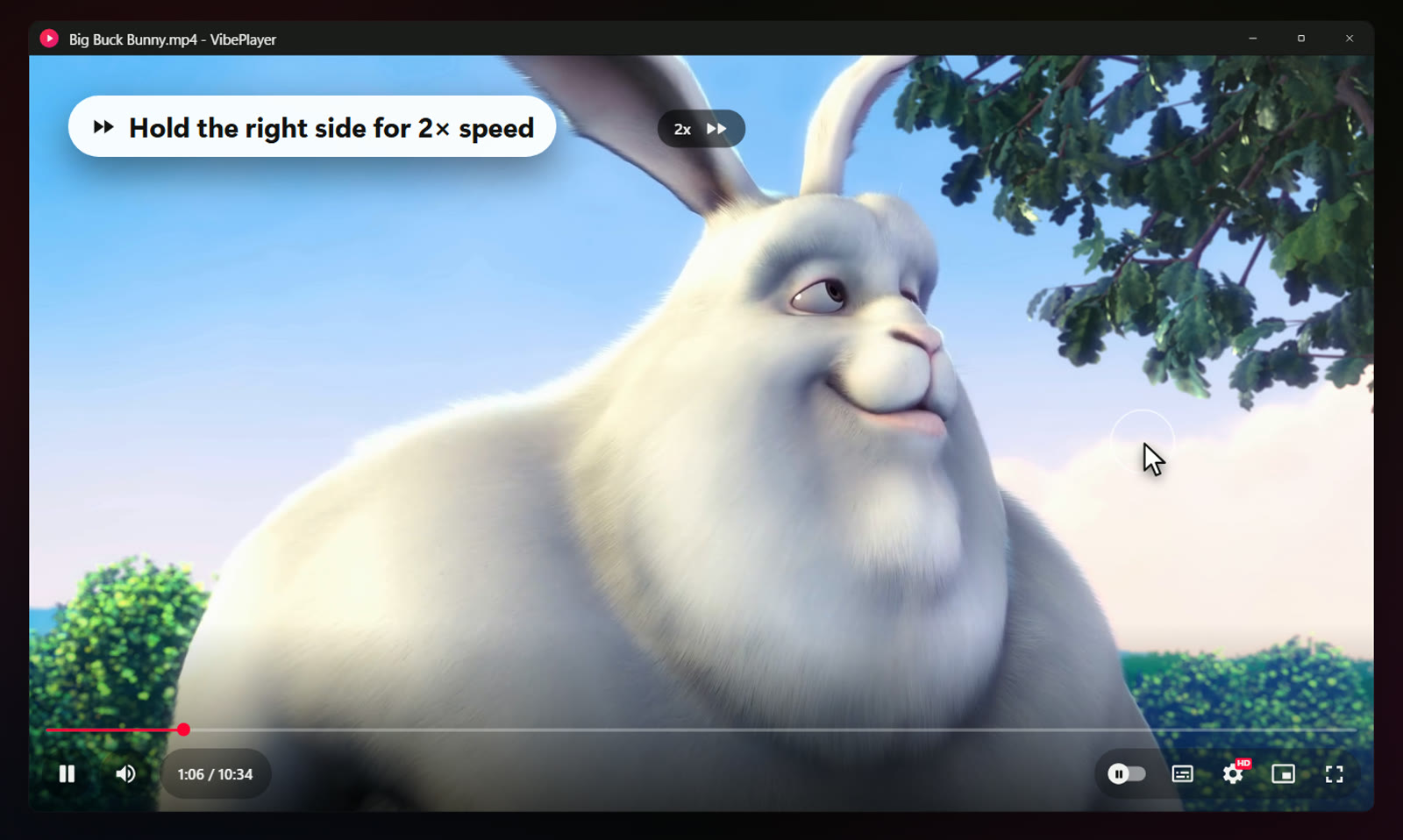
Press and hold the right half of the video and it plays at double speed until you let go, then returns to the speed you were watching at. Holding the right mouse button anywhere on the video does the same. A single click on the video does nothing at all, on purpose, so nobody pauses the film by accident; a double-click goes full screen.
The mouse wheel works where your pointer is. Over the progress bar or the time, it seeks 5 seconds; anywhere else on the video, it changes the volume. Ctrl + wheel, or Ctrl + ↑/↓, changes the brightness. Click the time to switch between elapsed and remaining.
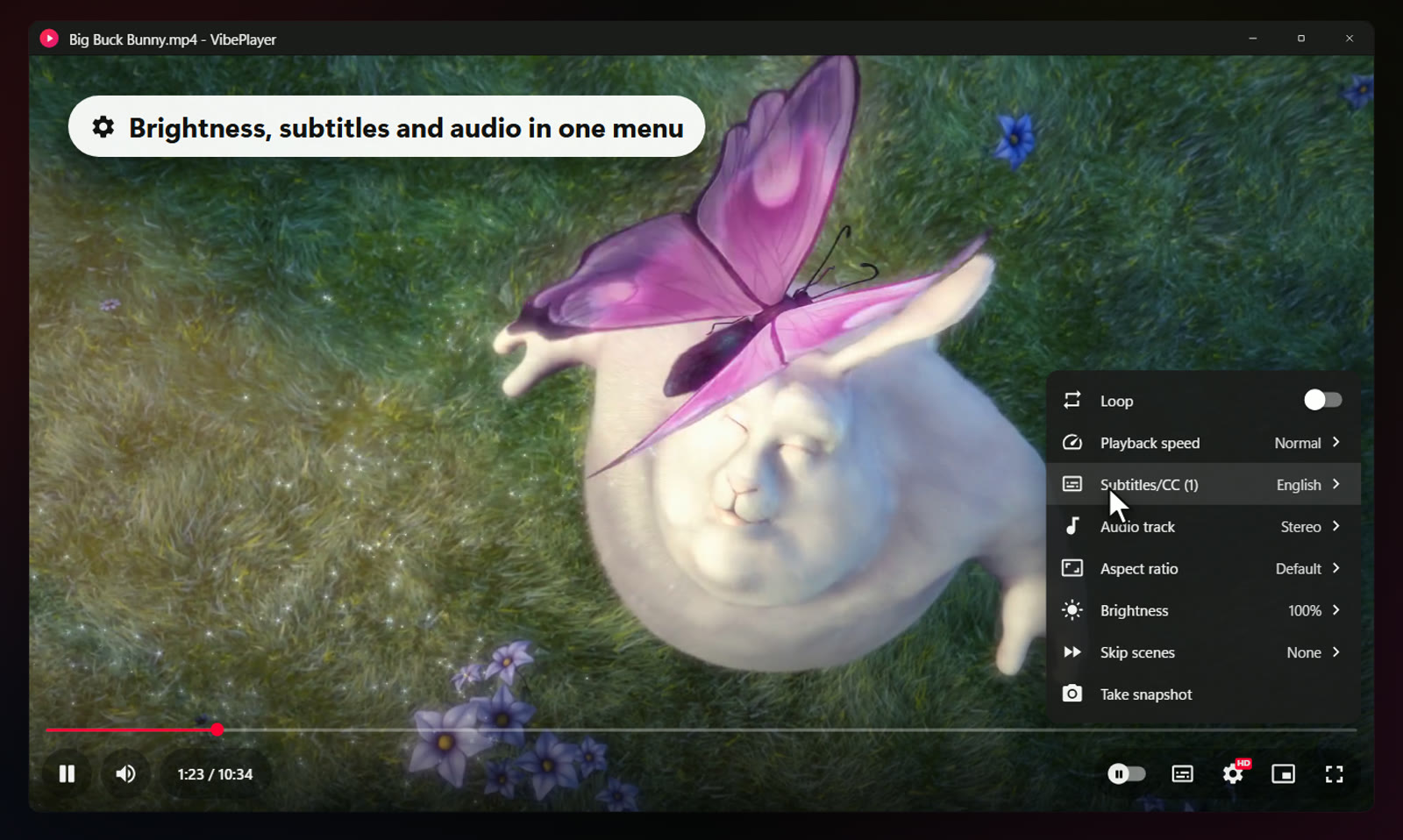
One menu holds loop, playback speed, subtitles, audio track, aspect ratio, brightness, skip scenes and snapshots, which are saved to Pictures\VibePlayer. Long videos resume where you stopped, with a reminder: “Resumed from 12:34 · press 0 to start over.” There's a miniplayer, full screen, always on top, and autoplay for the next file in the folder.
Opening things is flexible too. VibePlayer opens 47 video and 34 audio file types, and you can drop a subtitle file onto a playing video to add it. Drag and drop works for files, folders, subtitles and links, there's Open URL for network streams, and the start screen lists your recent files. If VibePlayer is already playing something when you open another file, it asks whether to play it there or in a new window; tick Remember my choice and change it later from the right-click menu.
| Action | Keys |
|---|---|
| Play / pause | SpaceK |
| Back / forward 10 seconds | JL |
| Back / forward 5 seconds | ←→ |
| Back / forward 1 minute | Ctrl+←Ctrl+→ |
| Volume up / down | ↑↓ |
| Brightness up / down | Ctrl+↑Ctrl+↓ |
| Mute | M |
| Full screen (Esc to leave) | F |
| Jump to 0% … 90% | 0 … 9 |
| Faster / slower | Shift+>Shift+< |
| Next / previous frame, while paused | ., |
| Subtitles on / off | C |
| Start / end a skipped part | [] |
| Miniplayer / always on top | IT |
| Snapshot | Shift+S |
| Every shortcut | ? |
Built on VLC.
Shaped like YouTube.
VibePlayer is written in C# with WPF. Playback is LibVLC 3.0.24, the engine inside VLC media player, used through LibVLCSharp. VLC decodes and draws the video; the app draws its own interface and handles every key and click itself.
WPF can't draw on top of a native video window, so the controls live in a separate, transparent window that floats exactly over the video and never takes focus. That window is also where the 32-bit build needed a fix. Making it non-activating called GetWindowLongPtrW, which only 64-bit Windows exports. On 32-bit Windows the function is GetWindowLongW, and the app now calls the one that matches the process.
Start-up speed came down to a file most people never see. LibVLC ships as about 320 plugin DLLs, and without a plugin cache (plugins.dat) it opens every one of them on each start, which gets slow, especially while antivirus scans them. VLC's own installer generates that cache, and VibePlayer's build does the same for the 64-bit, 32-bit and Windows 7/8.1 editions; setup keeps the file timestamps exact, because the cache is only valid while they match. ARM64 programs can't run on my x64 build PC, so the ARM64 edition ships without a cache and starts a little slower. Installed just for you, it writes the cache on its first run.
One codebase builds two targets: .NET 10 for Windows 10 and 11, published self-contained for x64, ARM64 and 32-bit, each with only the VLC engine its processor needs; and .NET Framework 4.8 for Windows 7 SP1 and 8.1, one app that carries both the 32- and 64-bit VLC engines, of which setup installs the one that matches Windows.
Several windows can be open at once. Each listens on its own named pipe, and when Explorer opens five selected files as five processes, the first collects the others' files, so you get one prompt and one playlist. Settings are saved with a three-way merge, so two windows don't overwrite each other's resume positions or skips.
VibePlayer uses LibVLC, the open-source engine of the VLC project, under the LGPL. It is not affiliated with or endorsed by VideoLAN.
The short version.
In 74 seconds.
If you'd rather watch than read, here is the launch video. English captions are on by default; turn them off from the video's controls.
Free.
For every Windows.
VibePlayer is free. The box below suggests the right installer for the PC you're on; the full list follows. There's also a download page you can share.
| Windows | Best for | Size | Installer |
|---|---|---|---|
| Windows 10 & 11 · 64-bit | Intel or AMD processor. Most PCs. Self-contained. Nothing else to install. | 67.1 MB | Download |
| Windows 11 & 10 on ARM | Snapdragon laptops, Surface Pro X and other ARM PCs. Self-contained. Nothing else to install. | 58.2 MB | Download |
| Windows 10 · 32-bit | Older PCs running a 32-bit installation of Windows 10. Self-contained. Nothing else to install. | 62.2 MB | Download |
| Windows 7 SP1 & 8.1 | Older PCs, 32- or 64-bit. Uses Microsoft .NET Framework 4.8 (setup tells you if it is missing). Installs the 32- or 64-bit VLC engine that matches Windows. | 45.4 MB | Download |
SHA-256 checksums
- VibePlayer-Setup-1.0.2-x64.exe
5b11d72ea2957148c85a424f680ba6822da3fd2287512ce9a15b185532a5b1a4 - VibePlayer-Setup-1.0.2-arm64.exe
c28b2d8bc4846030a94470633041467df1a2207473a9970d6b1396829305d414 - VibePlayer-Setup-1.0.2-x86.exe
ad5963c240599f407c62a63cfb09a7bec35d1211b9552c611ca3326bffb2744a - VibePlayer-Setup-1.0.2-win7-8.exe
9dbab58062fbb6f0a75670719696eb1c3f9c2b960a60c4b75df0b97efd73648a
Which one do I need?
Open Settings › System › About on Windows 10 or 11, or Control Panel › System on Windows 7 and 8.1. It shows your Windows edition and system type. Most PCs need the first installer. Windows 8 needs the free update to 8.1 first. Windows XP and Vista aren't supported.
Installing
Setup first asks who it's for: all users, the default, which installs to Program Files and needs administrator permission; or only you, which needs no administrator rights. Then pick the extras: a desktop icon, VibePlayer in Open with for video and audio files, and Play with VibePlayer on the folder right-click menu. To make it your default player, right-click a video, choose Open with › Choose another app › VibePlayer and tick Always.
The installers aren't code-signed yet, so Windows SmartScreen may show “Windows protected your PC”. Choose More info, then Run anyway. Compare the SHA-256 checksum first if you'd like to be sure the file is the one I published: Get-FileHash in PowerShell shows it, or certutil -hashfile <file> SHA256 on Windows 7.
Installing a newer version, or another edition, replaces the one you have and keeps your settings. From 1.0.2, VibePlayer does that itself: shortly after it starts, and then at most once a day, it reads a small file on this site (https://www.nomanshafiq.com/updates/vibeplayer.json) and, if there's a newer version, offers it in a small card. Update now downloads the installer for your edition, checks its SHA-256 checksum, installs it and restarts the player; turn the check off in Settings › Updates. To remove VibePlayer, uninstall it from Settings › Apps. Your settings, resume positions and skips stay in %APPDATA%\VibePlayer in case you come back.
I ran the 64-bit, 32-bit and Windows 7/8.1 (.NET Framework) builds on my Windows 11 PC, playing video, and installed and uninstalled the Windows 7/8.1 edition silently. The ARM64 edition is built natively for ARM, but I haven't run it on ARM hardware yet, and I haven't run any build on an actual Windows 7 or 8.1 machine.
Built for movie night.
Room to grow.
Next on my list: code-signing, so SmartScreen stays quiet; proper release pages with notes for each version; and testing the ARM64 and Windows 7/8.1 builds on real hardware.
And one step further: a separate preview, VibeVideo AI, finds the scenes for you with an AI that runs on your own PC, so nobody has to watch them first to mark them.
VibePlayer started with one awkward moment on a family movie night. The interesting part was solving it quietly: no editing and no re-encoding, just a few marks and a player that remembers them. If it saves you a dive for the remote, it has done its job.
The figures and the launch video show recreations of VibePlayer's interface, built from its layout, text, icons and colours, with frames from Big Buck Bunny. They are not screenshots.