VibeVideo AI:
a media player that
finds the scenes for you.
VibePlayer, with an AI scene filter that runs on your own PC.
It looks through a video while you watch, marks scenes with nudity, sex or kissing in pink, and jumps over them. Nothing is uploaded, and the file is never changed.
Two pictures for every second of film, scored on your PC
On my laptop's NPU (Intel AI Boost): a two-hour film in about seven minutes
The video never leaves your PC, and the file is never changed
VibePlayer's skip mode solved one half of movie night: mark a scene once, and it's skipped every time. The other half was harder. To mark a scene, someone has to watch it first.
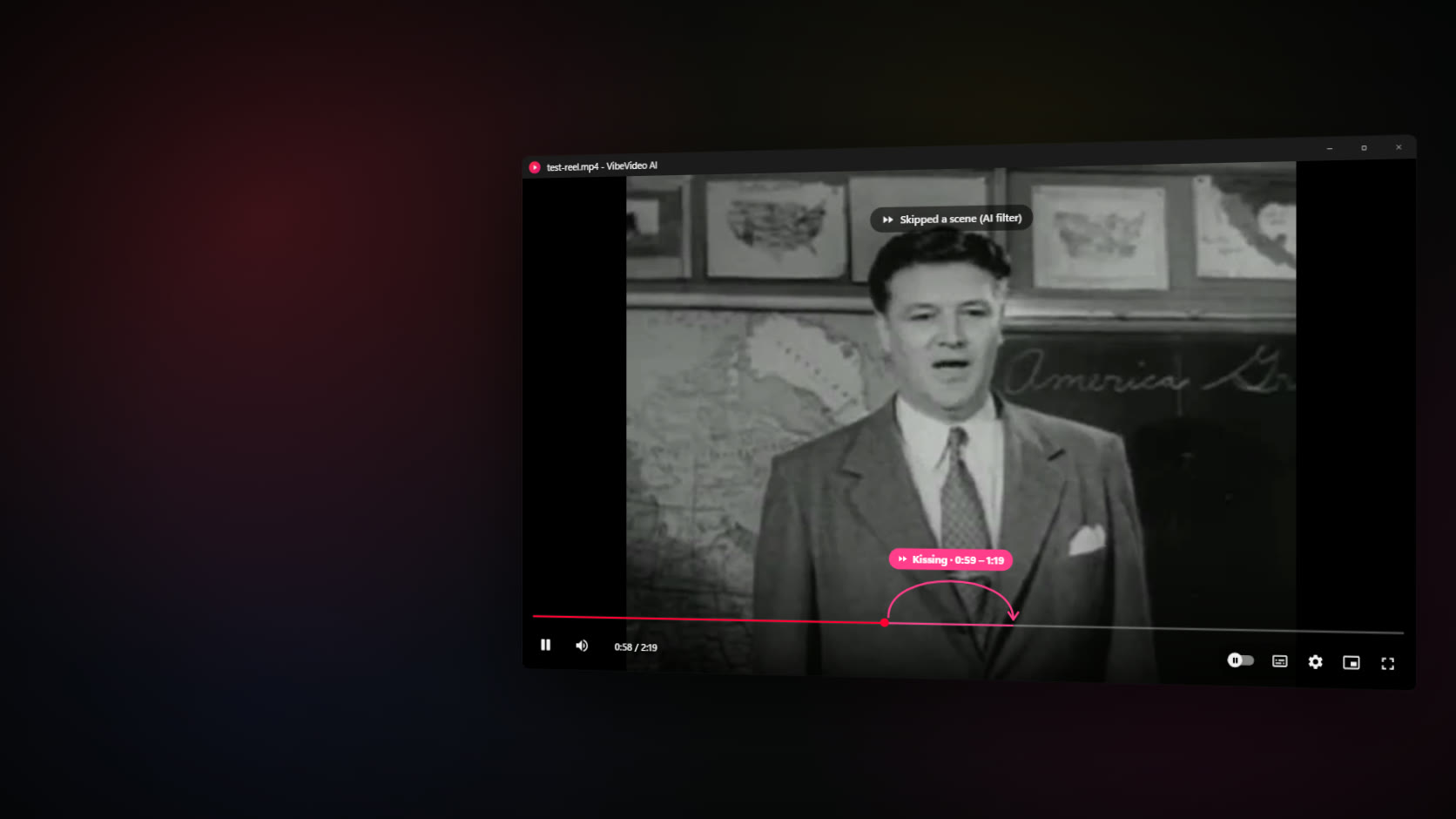
VibeVideo AI does that watching for you. It is VibePlayer, the same player with the same YouTube-style controls, plus an AI scene filter. Open a film and it starts looking through it on your own PC. Scenes with nudity, sex or kissing turn pink on the progress bar, and when playback gets there, the player jumps right over them. Every scene it finds is yours to change: keep it, stretch it, trim it, or add one it missed.
It's a separate app with its own name, settings and updates, so it never touches a VibePlayer you already have. And it's an early preview, version 0.1.0. It works well enough to share, and it gets things wrong sometimes. Section 05 shows exactly how.
Two frames a second.
Four careful steps.
There is no list of films and no cloud service behind this. Everything happens in four steps on the PC that plays the video.
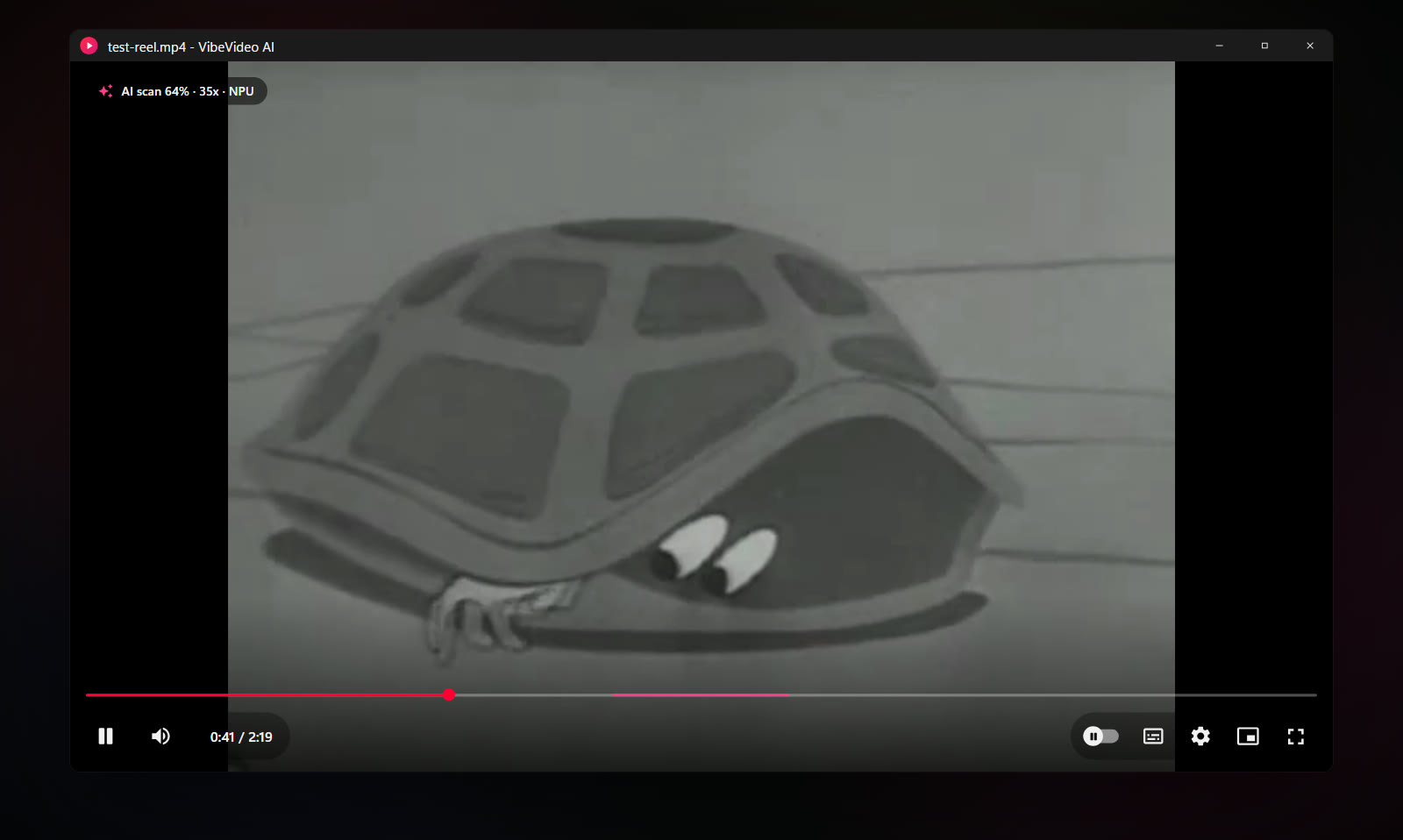
Two pictures for every second of film, read by the same VLC engine that plays it. The scan starts where you are watching and stays ahead of you.
Each picture is compared with short written descriptions: four of kissing, five of sex scenes, three of nudity, and 34 of ordinary scenes. The score is how strongly the picture matches one kind instead of all the others.
A scene needs two pictures over the line, or one far over it, so a single odd frame skips nothing. Scenes close together join up, and the edges move to the nearest cut.
Found scenes turn pink on the progress bar. When playback reaches one, it jumps to the end, the same way VibePlayer jumps over the parts you mark.
The model that scores the pictures is CLIP ViT-B/32, an image model OpenAI published in 2021 that learned to match pictures with descriptions. It hasn't been retrained for this job. Instead, the app asks it which of 46 short descriptions fits each picture best, and adds up the share that goes to kissing, to sex scenes and to nudity. A picture of two people talking ends up near zero; a kiss in close-up ends up near one.
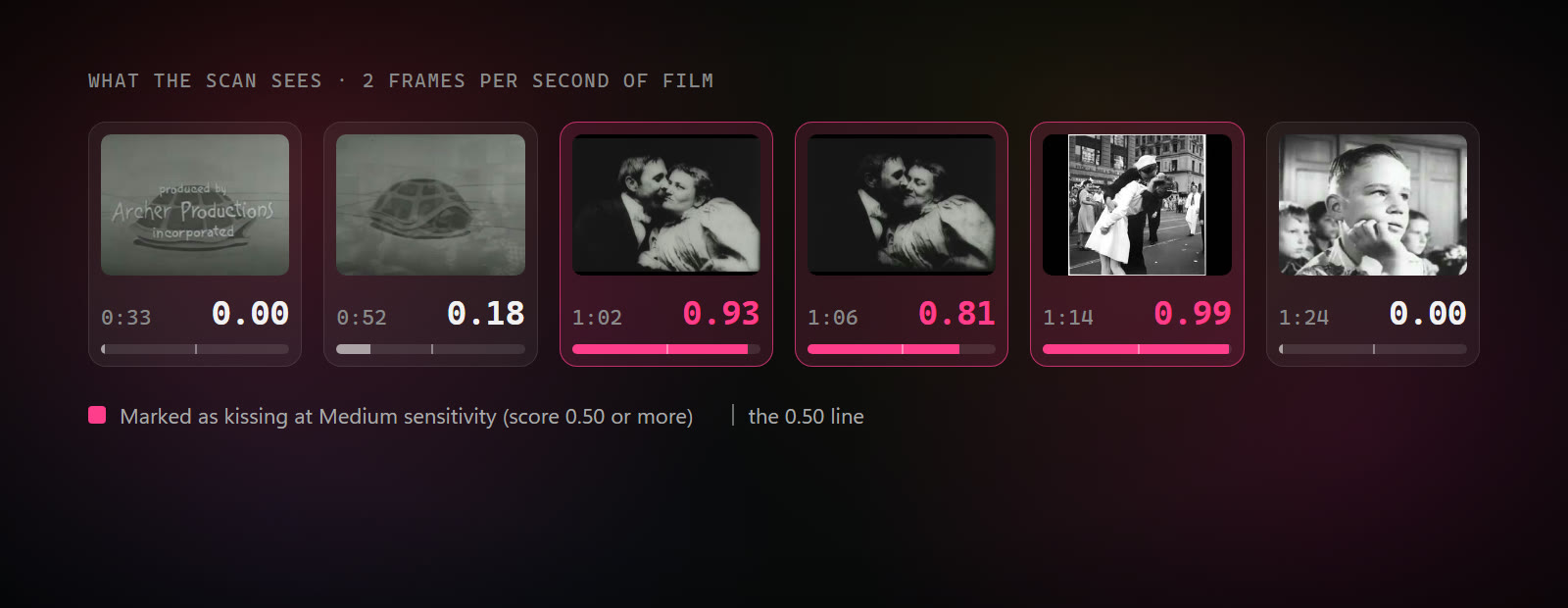
Single pictures are noisy, so the app never skips on one ordinary hit. It wants two pictures over the line, or one far over it. It joins scenes that are close together, because films cut away to faces and back. Then it moves each edge to the nearest change of shot, or adds a little padding: two seconds before, a second and a half after. Showing the start of a scene is worse than skipping a moment too much.
Every scene.
Your call.
The AI only suggests. You decide what gets skipped, you can change every scene it found, and you can add the ones it missed. The switches live in the settings menu, under AI scene filter.
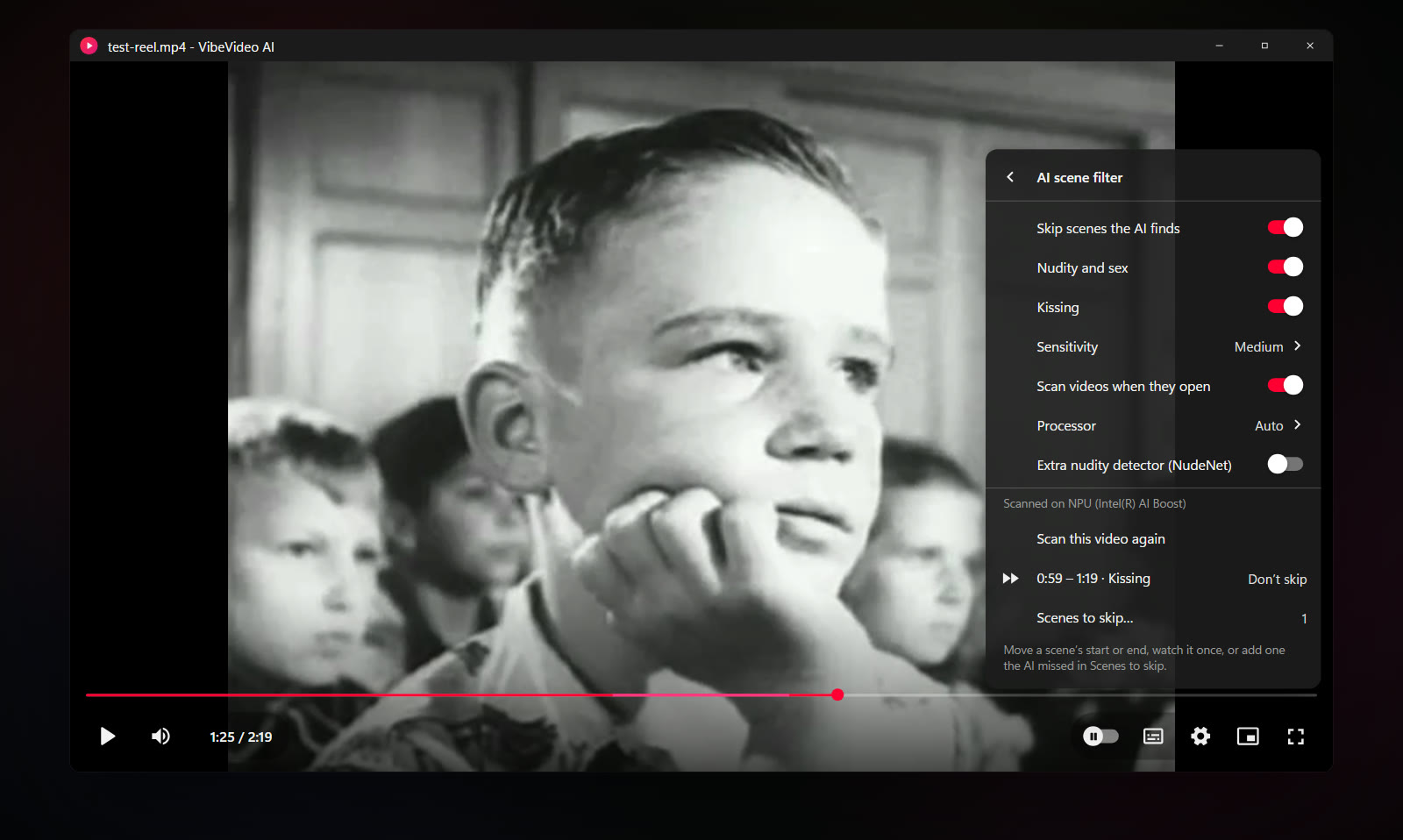
| Setting | What it does |
|---|---|
| Skip scenes the AI finds | The main switch. Off, the pink marks stay, dimmed, so you can see what it found, and the video plays in full. |
| Nudity and sex · Kissing | Choose what to skip. Each switch works on its own. |
| Sensitivity | Low skips only clear scenes, Medium is the default, High also skips borderline ones. Changing it doesn’t need a new scan. |
| Scan videos when they open | On by default. Switch it off to scan only when you choose Scan this video now. |
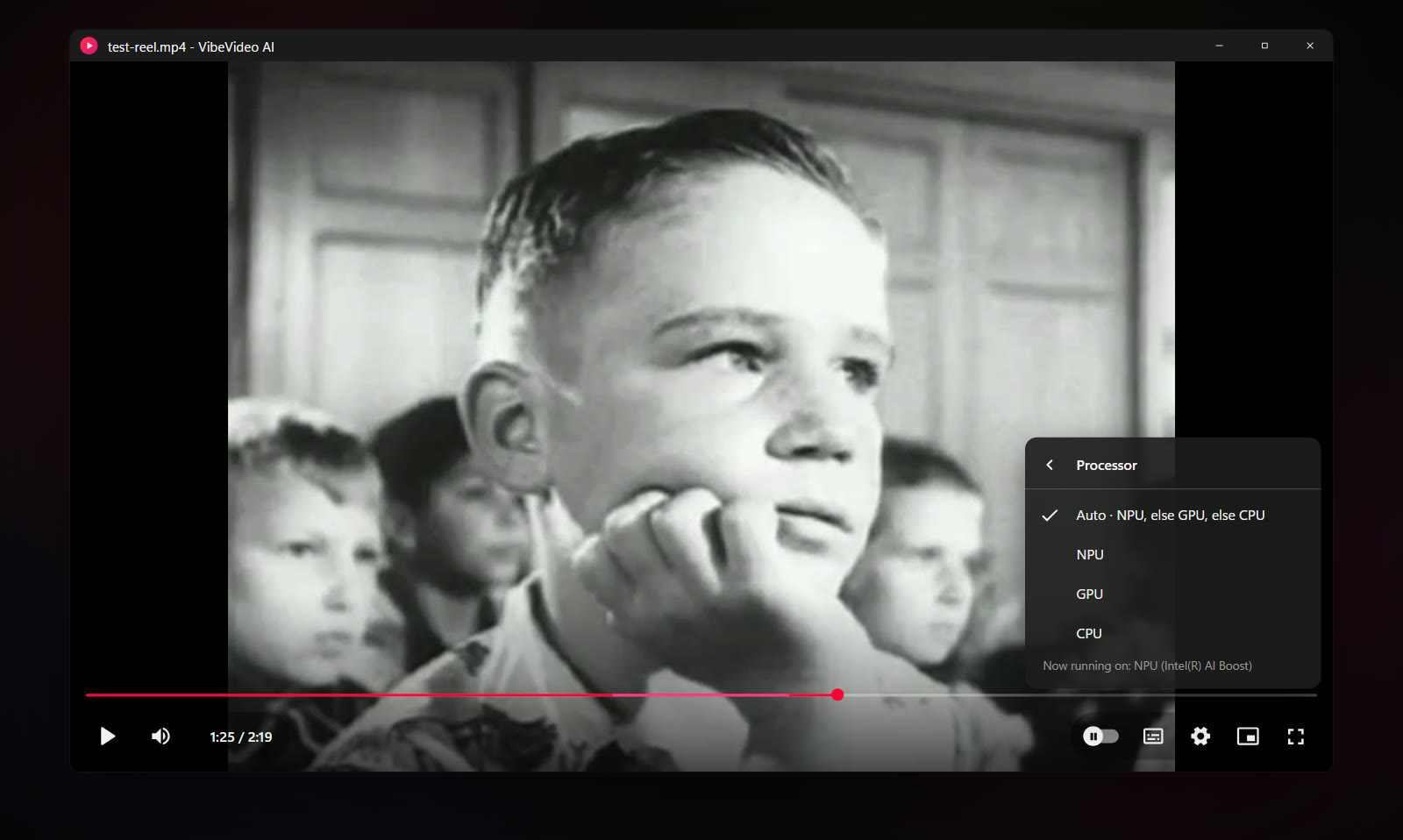
| Processor | Auto picks the NPU, then the graphics card, then the CPU. You can pick one yourself. |
| Extra nudity detector (NudeNet) | Off by default. A second model that looks for exposed body parts. It downloads only if you switch it on. |
| Scenes to skip… | Opens the list of every scene in this video, below. Also under Skip scenes and in the right-click menu. |
Scenes to skip
Choose Scenes to skip… and you get one list of every scene in the video: pink for the ones the AI found, amber for the ones you added, each with its times, its length and whether it will be skipped. The line at the top keeps count: how many scenes are skipped, how long they add up to, and how many you kept.
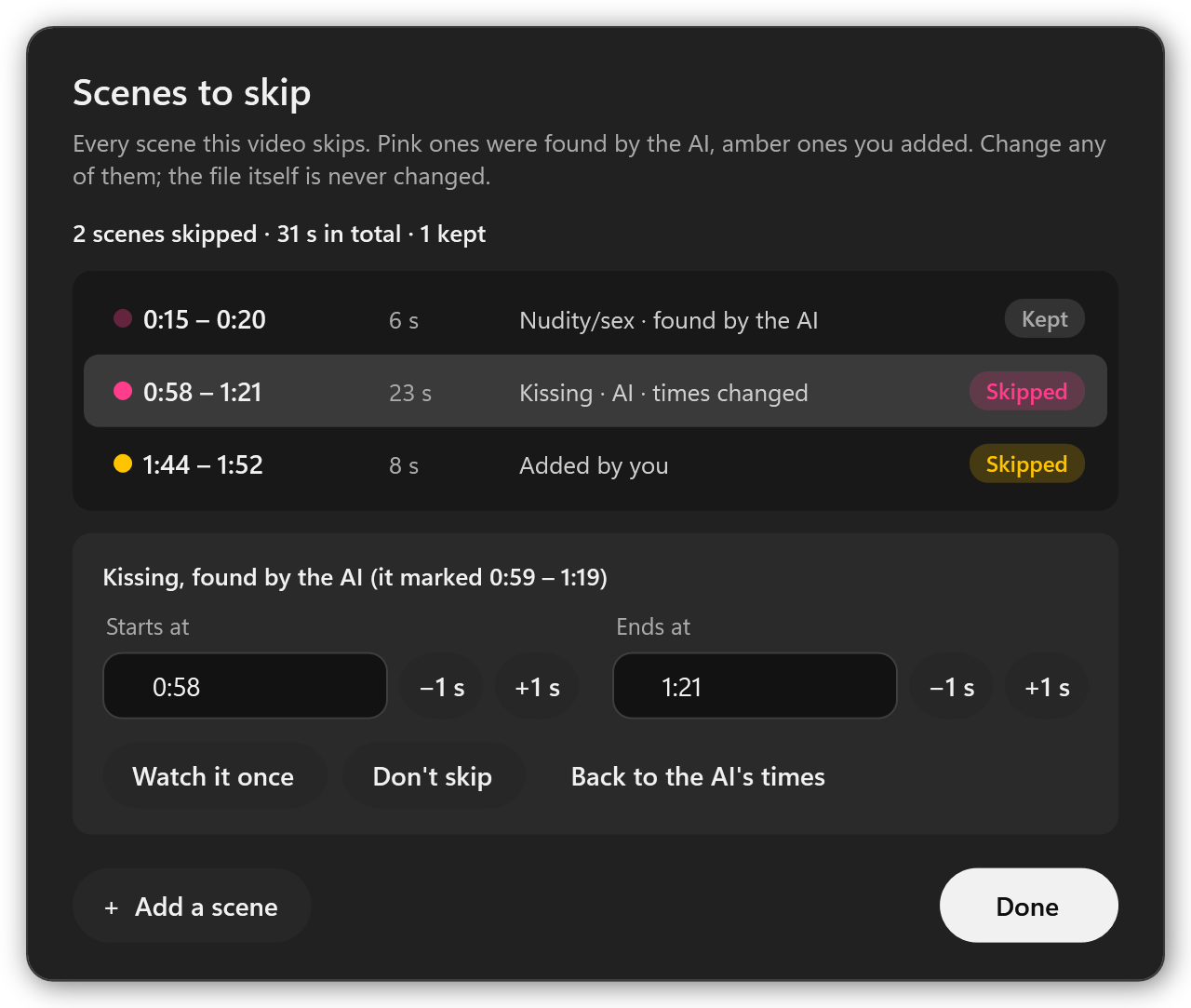
Select a scene and you can:
- Stretch or trim it. Move the start or the end a second at a time with −1 s and +1 s, or type the exact time. An AI scene that starts a moment too late or ends too early is fixed in a couple of clicks.
- Keep it. Don’t skip plays that scene from now on, and its mark leaves the progress bar. It stays in the list as kept, so Skip it brings the skip back.
- Watch it once. Closes the list and plays the scene once, from three seconds before, without skipping it, so you can check before you decide.
- Undo your changes. Back to the AI’s times puts an AI scene where the AI had it. Your own scenes have Remove.
- Add one it missed. Add a scene starts where you are watching and runs 30 seconds; set its start and end like any other. Pressing [ and ] while you watch still works too.
Every change shows on the progress bar at once, and it's saved with that file's scan. Your changes find their scene again when you scan the video again, change the sensitivity or switch the extra detector on.
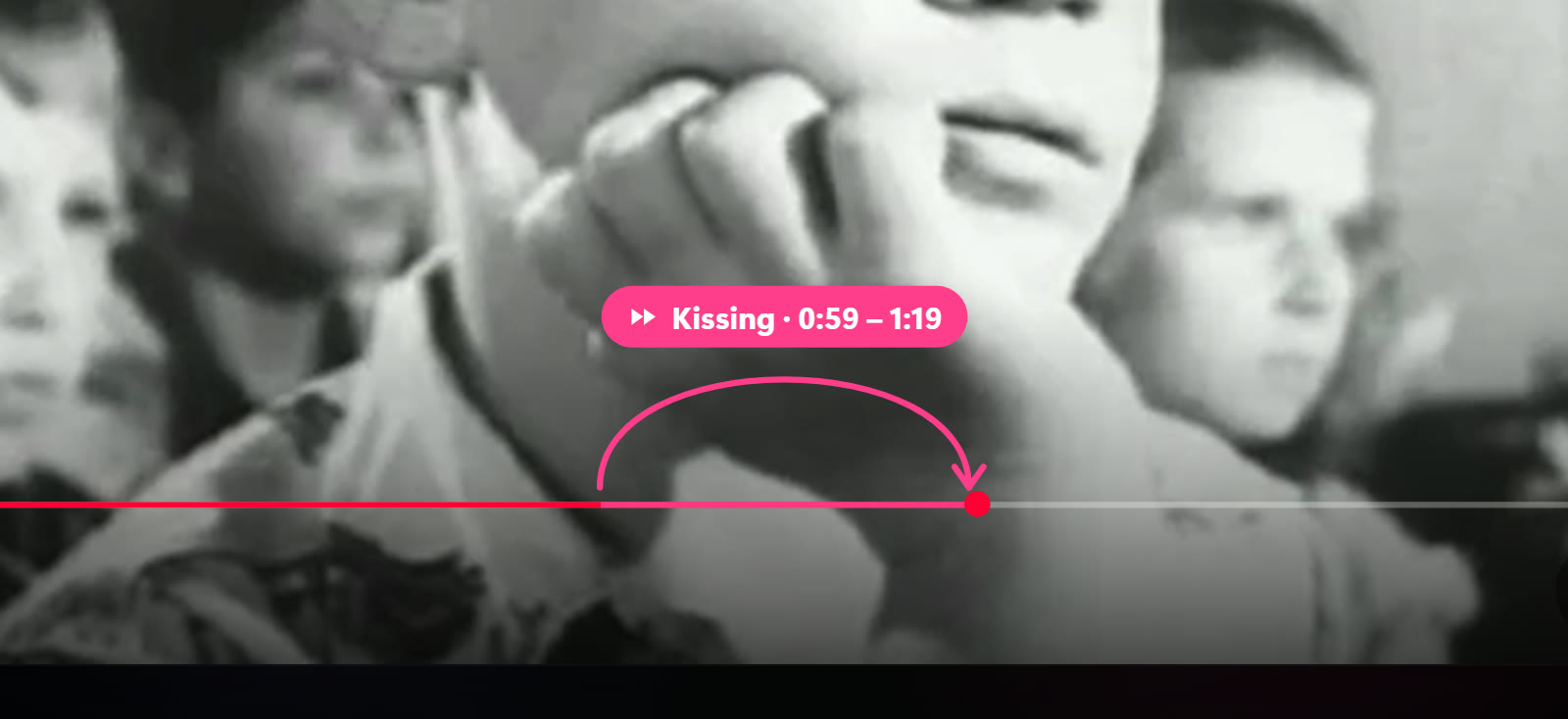
Scans are saved, so a film is scanned once. The results stay in %LOCALAPPDATA%\VibeVideoAI\scans, kept for that exact file: if the file changes, it's scanned again. A stopped scan carries on from where it left off. Everything VibePlayer does is still there, including its own skip mode, where you mark parts by hand; those show in amber, next to the AI's pink.
The NPU first.
Then whatever you have.
Many new laptops have an NPU, a chip built for exactly this kind of work, and most of the time it sits idle. VibeVideo AI uses it first. If there isn't one, it uses the graphics card, and if that can't run the model either, the CPU, which always works. It goes through Windows ML, which fetches the right driver component for the PC's chips from Microsoft. On my laptop that is Intel's OpenVINO, which drives the Intel AI Boost NPU.
| Chip | Device | Speed | Per picture |
|---|---|---|---|
| NPU | Intel AI Boost | 36× real time | 13 ms |
| GPU | Intel Graphics (DirectML) | 21× real time | 23 ms |
| CPU | Intel Core Ultra 5 135U | 11× real time | 44 ms |
Speed is how many seconds of video it scans in one second, so on this reel even the CPU scans several times faster than the film plays. On the NPU, the AI takes 13 milliseconds a picture, so with full-HD films the bottleneck becomes decoding the pictures, not judging them: a 2-minute 1080p clip scanned at 17× real time, which is a two-hour film in about seven minutes. The very first scan on an NPU can take up to a minute longer to start, while the model is prepared for that chip; after that it's cached.
The models aren't in the installer. The first scan downloads CLIP once from Hugging Face: 176.1 MB in its 16-bit form for an NPU or graphics card, or 351.7 MB in its 32-bit form for the CPU. Every file is checked against its size and SHA-256 before it's used. After that, scans work without the internet. The video itself is never uploaded anywhere.
Under the hood: C# and WPF on LibVLC 3.0.24, ONNX Runtime through Windows ML, a frame grabber that asks VLC for small 320-pixel pictures at a steady two per second, and a scanner that decodes and scores in parallel. CLIP is MIT-licensed by OpenAI. VibeVideo AI uses LibVLC, the open-source engine of the VLC project, under the LGPL; it is not affiliated with or endorsed by VideoLAN.
An early preview.
Honest about it.
CLIP was never trained to find scenes for families. It is good at the obvious ones and unsure about the rest, and the filter inherits that. Here is what I know it gets wrong.
- It can mark a harmless scene. At High sensitivity, it marked 0:15 to 0:20 of my test reel as nudity or sex. It's a 1951 civil defence film for schools. At Medium, the default, it found only the kiss.
- It can miss a scene. Dark, quick or partly hidden scenes score lower. That's why there are three sensitivities, and why the pink marks are visible before they're skipped.
- It can only skip what it has scanned. The scan starts where you are and runs well ahead of you. If you jump far ahead, it starts again from there, and a scene right at that point can play for a moment before it's found.
- It works on files, not streams. Network streams and audio files aren't scanned.
- It isn't parental control. Anyone at the PC can switch it off in the menu.
The extra nudity detector, NudeNet, catches some nudity CLIP misses. It is off by default because its licence, the AGPL-3.0, comes with conditions I haven't settled for this app yet. If you switch it on, the app downloads it (10.6 MB) from the NudeNet package on PyPI.
Tested on my Windows 11 laptop with an Intel Core Ultra 5 135U: the NPU, the Intel graphics and the CPU all ran the scan. Not tested yet: ARM64 hardware, AMD and Qualcomm NPUs, discrete NVIDIA or AMD graphics cards, and Windows 10 itself.
See it work.
In 78 seconds.
The launch video shows a scan, the pink mark and the jump, the settings, and where it runs. English captions are on by default; turn them off from the video's controls.
Free.
For Windows 10 and 11.
VibeVideo AI is free. The box below suggests the right installer for the PC you're on. There's also a download page you can share.
| Windows | Best for | Size | Installer |
|---|---|---|---|
| Windows 10 & 11 · 64-bit | Intel or AMD processor. Most PCs. Self-contained. The AI models download on first use. | 86.8 MB | Download |
| Windows 11 & 10 on ARM | Snapdragon laptops and other ARM PCs. Not yet tested on ARM hardware. Self-contained. The AI models download on first use. | 78.1 MB | Download |
SHA-256 checksums
- VibeVideoAI-Setup-0.1.0-x64.exe
51732bc6d96efc448c60c3bf63ce61de1c1b3918d828b86362e68ca217fb8c19 - VibeVideoAI-Setup-0.1.0-arm64.exe
2027fcfbedb68a398ba3e1b78ec0a0e4d6bbbb4e272c5d85ee34b3e0a5642197
It needs 64-bit Windows 10, version 1903 or later, or Windows 11. There is no 32-bit or Windows 7 build, because Windows ML doesn't exist there. On those PCs, VibePlayer still gives you skip mode by hand.
Installing
Setup asks whether to install for all users (needs administrator permission) or only for you, then offers a desktop icon, VibeVideo AI in Open with for video and audio files, and Play with VibeVideo AI on the folder right-click menu. It installs beside VibePlayer, never over it. The installers aren't code-signed yet, so Windows SmartScreen may show “Windows protected your PC”. Choose More info, then Run anyway, after comparing the SHA-256 checksum if you like.
VibeVideo AI keeps itself up to date like VibePlayer: shortly after it starts, and at most once a day, it reads a small file on this site (https://www.nomanshafiq.com/updates/vibevideo-ai.json) and offers a newer version if there is one. Turn that off in Settings › Updates. Uninstalling removes the downloaded models and saved scans; your settings stay in %APPDATA%\VibeVideoAI.
A first version.
A long way to go.
The next steps are clear: test on more hardware, especially ARM laptops and other NPUs; teach a small model the difference between a kiss and a hug instead of relying on descriptions; settle the NudeNet question; and sign the installers.
The most useful thing you can send me is a scene it got wrong, with the film and the time. That's how version 0.2 gets better than 0.1.
The figures and the launch video show recreations of VibeVideo AI's interface, built from its layout, text, icons and colours. They are not screenshots. The footage is in the public domain, apart from the Big Buck Bunny shot that opens the video.